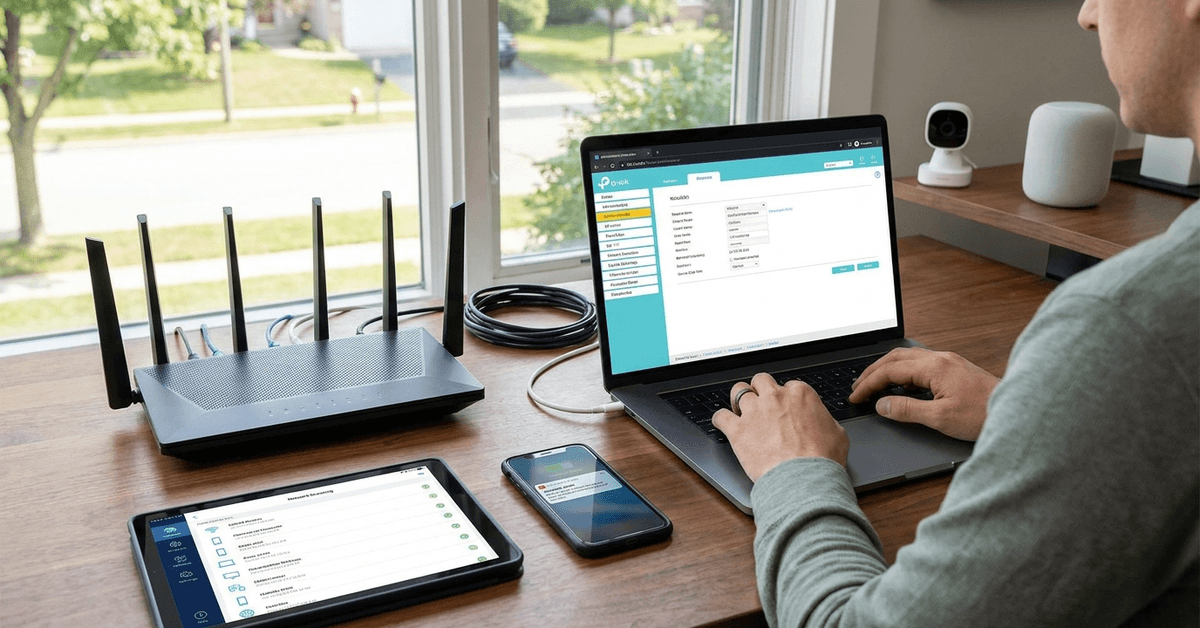
Protecting your home network from unwanted devices is more vital than ever. Every smart gadget, phone, and PC in your home can be a potential doorway.
This guide addresses how everyday users can secure their Wi-Fi against unauthorized access, keeping families and data safe.
Anyone looking to enhance their smart home security or simply avoid slowdowns from freeloaders will gain practical, easy-to-apply steps below.
Understanding How Unauthorized Devices Get Access
Most devices sneak onto home networks through weak Wi-Fi passwords or outdated security. Sometimes, it is accidental—a guest reconnects without your notice. Other times, it is more deliberate.
High-traffic homes with many gadgets are especially tempting. Small slip-ups, like using the default router login, can open doors to intruders.
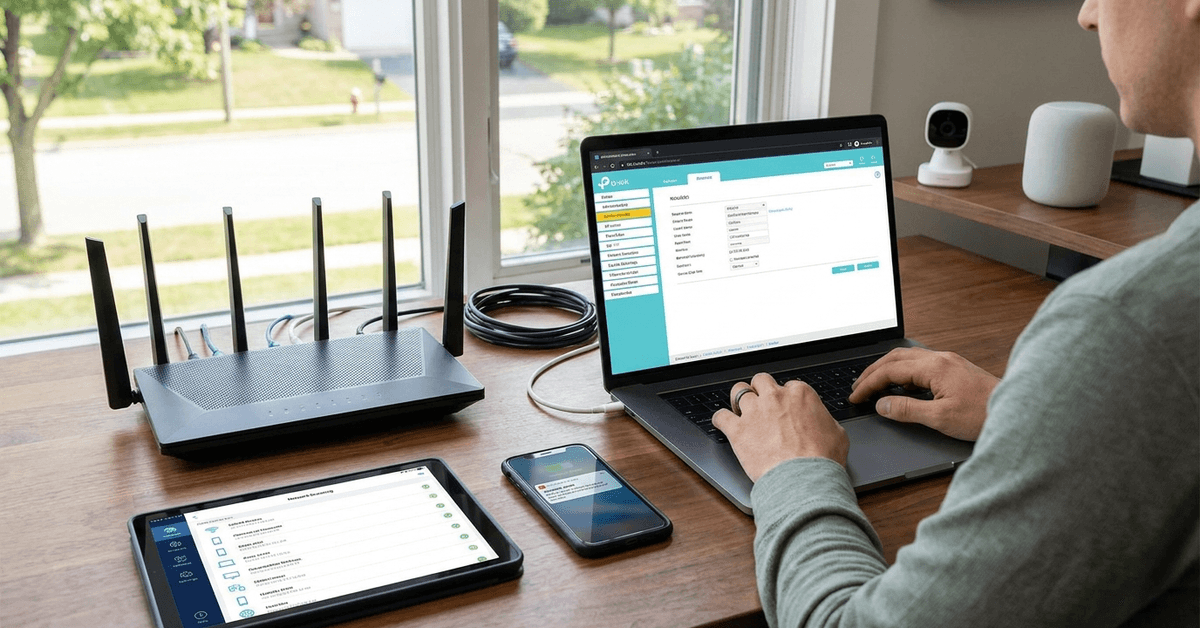
Main Weak Points in Home Network Security
Weak or Shared Wi-Fi Passwords
Using simple words or the factory password puts homeowners at risk. Even someone parked nearby could guess it if it is too easy.
Outdated Router Firmware
Router makers release updates to close security holes. If your router’s software is behind, it is like leaving a window unlocked.
No Device Management
Many users do not track which devices are connecting. Over time, forgotten phones or smart gadgets can stay linked and unmonitored.
How to Quickly Spot Unauthorized Devices?
Bring up your router’s device list by logging into its admin panel. Most brands show a page named Device List, Attached Devices, or something similar.
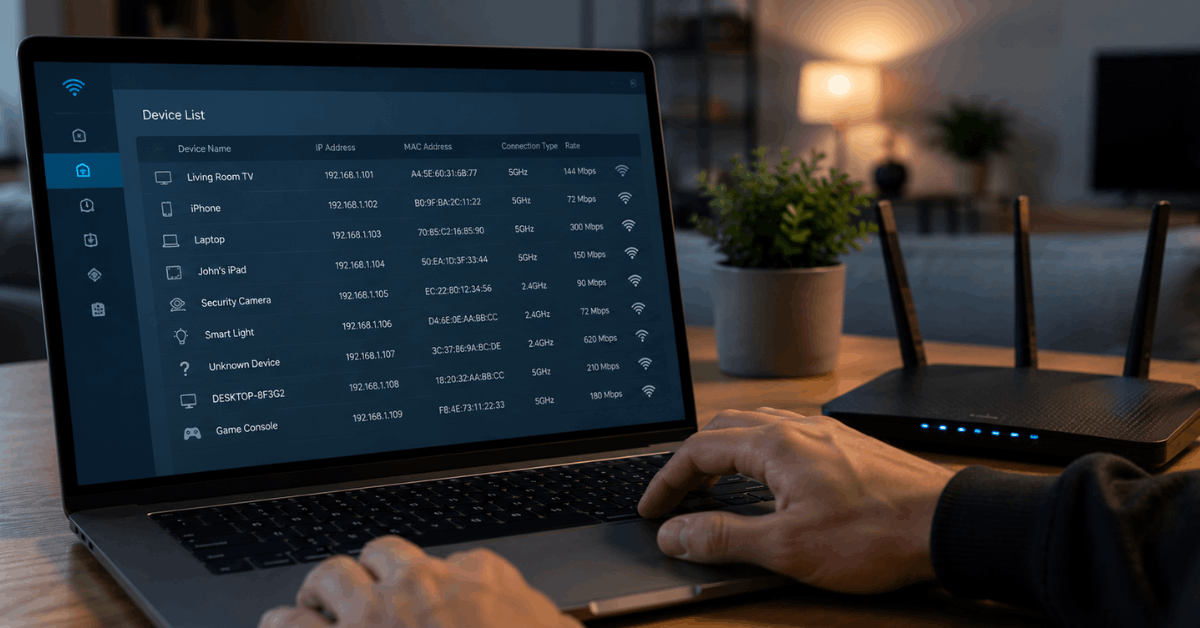
A few notable device names are easy to recognize. Anything unfamiliar calls for closer inspection. Household members sometimes forget their own devices, which can be confusing.
- Check for odd manufacturer names or generic device IDs.
- Look for high-traffic usage—intruders often consume a lot of data.
- Review frequently for new or renamed items.
Changing Your Wi-Fi Password: First Line of Defense
The most effective quick step is to update the main Wi-Fi password. This action disconnects all devices, so each must reconnect using the new one.
Choose a passphrase over short words, mixing upper/lowercase letters and symbols. Avoid pet names, birthdays, or anything public.
Enabling Network Encryption
Modern routers support different encryption standards. It’s usually best to use WPA3 if your devices support it. Otherwise, WPA2 is a solid option.
Older standards like WEP are not secure. Changing encryption settings is found in your router’s wireless security section.
Setting Up a Guest Network
A practical method for frequent visitors is enabling a guest Wi-Fi. This isolates devices that are not your own from those you trust.
Most routers allow simple toggling of a Guest Network. Set a unique password and turn it off outside guest hours for better control.
MAC Address Filtering for Tighter Control
Every device has a unique identifier called a MAC address. Routers can block or allow only approved MAC addresses—providing another layer of control.
The process looks like this:
- Check the MAC address in device settings (on phones, PCs, smart TVs, usually found under network info).
- Add allowed MAC addresses to your router’s Approved or Whitelist section.
- Turn on MAC address filtering—some routers call this Access Control or Network Filtering.
This method is quite strong for homes with limited devices. However, determined intruders could mimic an allowed address, so it works best alongside other measures.
Disabling WPS for Extra Safety
Wi-Fi Protected Setup is convenient, but sometimes a risk. Turning WPS off in router settings reduces the chance of illegal access through this quick-connect feature.
Keeping Firmware Updated
Manufacturers regularly fix vulnerabilities in routers. Checking for the latest firmware monthly ensures your device is patched against new threats.
Most modern routers offer automatic update options, or you can check manually in the admin portal.
Useful Network Monitoring Tools and Apps
Fing (Mobile & Desktop)
Fing provides device detection and alerts when new gadgets join. It is a user-friendly solution for homeowners who want real-time insights.
Advanced IP Scanner (Windows)
Used mainly on Windows PCs, Advanced IP Scanner instantly shows all connected devices. This free tool lets you spot intruders fast.
GlassWire (Windows, Android)
Offering visual traffic graphs, GlassWire helps track bandwidth and see spikes that may suggest unwanted usage.
Smart Home Tips: Securing IoT Devices
Connected speakers, cameras, and other IoT gadgets should never use default factory credentials. Update them to strong, unique passwords on day one.
Disable remote access and unused services on devices wherever possible. Many hacks succeed because unused functions go unmonitored.
Step-by-Step: Blocking a Device Using Router Settings
- Log into your router’s admin panel using its IP address (found on the back label or in the manual).
- Under the list of Connected Devices, find the unfamiliar MAC or device name.
- Access the device’s settings page and select Block, Deny, or Remove. Each brand uses its own wording.
- Save changes. The unwanted device should lose network access immediately.
Upgrade to Routers With Automatic Intruder Alerts
Many recent routers from ASUS, TP-Link, and Netgear include built-in intrusion detection. These alert you by email or app notification if an unknown device connects.
Consider enabling these features under the router’s Security or Notifications panel for ongoing protection.
Legal and Privacy Considerations
Blocking devices is entirely legal within your network at home. Always respect guests’ privacy when reviewing connected devices, and let others know when passwords change or monitoring is active.
Only use authorized apps and avoid scanning neighbors’ signals. Responsible management supports both security and trust.
Best Practice Checklist: Keep Unauthorized Devices Away
- Change Wi-Fi passwords every few months or after many guests visit.
- Enable strong encryption like WPA3 or WPA2.
- Scan for new devices weekly using Fing or your router.
- Set up a guest network for non-regular devices.
- Apply firmware updates and disable unused router features.
- Update smart device passwords and remove unused gadgets from your network.
Conclusion: Building a Fortress for Your Home Network
Blocking unauthorized devices from accessing your home network is an essential step toward keeping your data, privacy, and smart home safe.
Layering strong passwords, advanced tools, and regular checks means every device in your home is under your control—not someone else’s. With a few practical habits, homeowners on Fortressmate.com can enjoy the comfort of a connected home without worry.