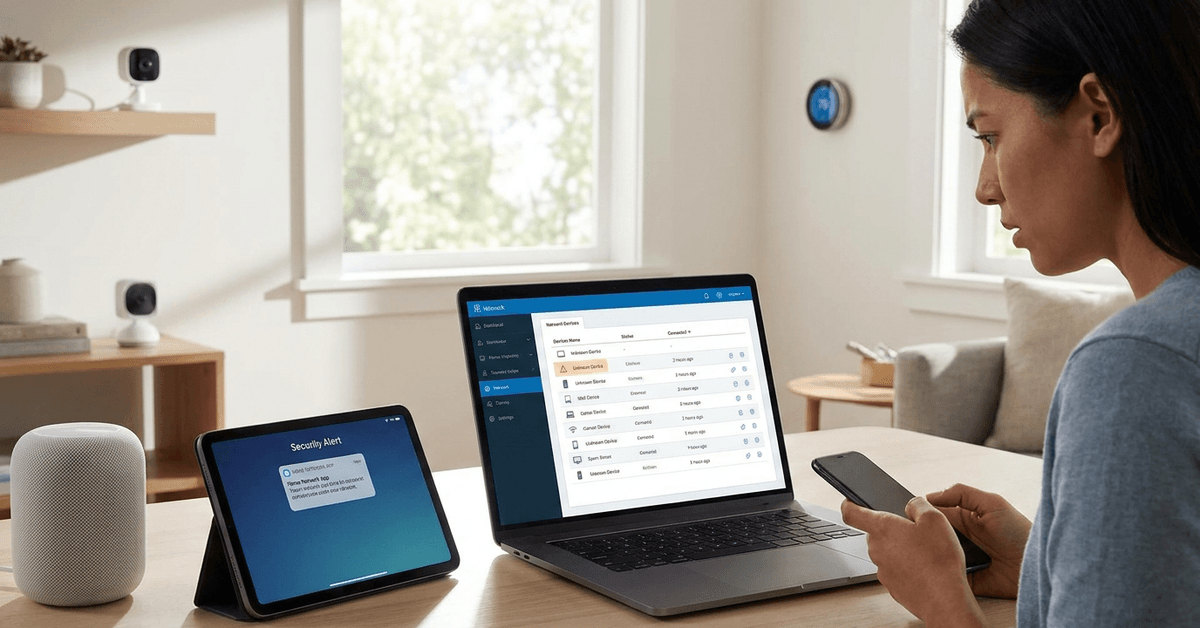
Your home Wi-Fi network is the backbone of smart security and convenience. If compromised, every connected device could be vulnerable. Recognizing red flags early helps protect your privacy and peace of mind.
This article is designed for smart homeowners and tech enthusiasts who want practical, real-world strategies to detect and address suspicious activity. Spotting these signs early means you can enjoy your smart devices worry-free while keeping your home fortress secure.
Unusual Internet Slowdowns and Device Lag
Sporadic lag or sudden drops in speed might feel inconvenient, but they could signal deeper issues. An overloaded network sometimes means outsiders have gained access.
Consistent Drops in Speed
If your network slows even when only a few household devices are active, that creates suspicion. It’s different from regular congestion or evening slowdowns.
Unexpected Online Device Activity
Some routers, like the Netgear Nighthawk, log all connected devices. Late-night connection spikes or devices you don’t recognize may appear in these logs.
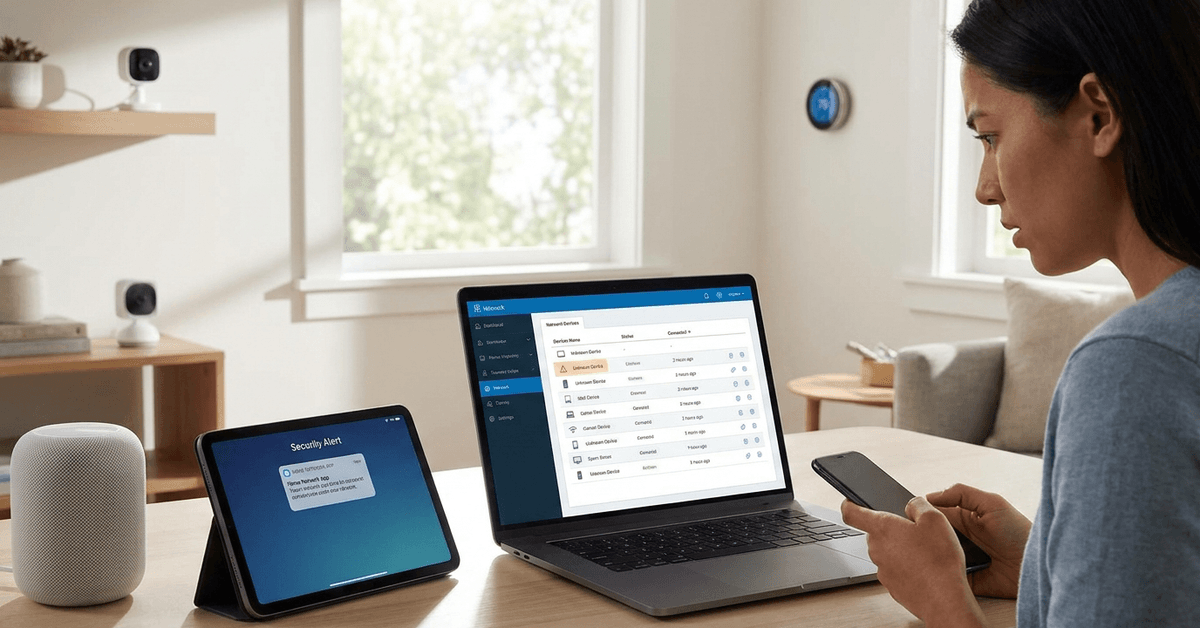
Unknown Devices are Showing Up on Your Network
Many routers have a device management dashboard. Unfamiliar device names or odd manufacturer labels might indicate unauthorized connections.
Steps to Check for Unknown Devices
- Log into your router’s admin dashboard using its official app or browser URL (usually found on the router label).
- Navigate to the ‘Connected Devices’ or ‘Attached Devices’ section.
- Look for names you cannot match to your household items. It’s common to see generic names for new gadgets but persistent unknowns are a risk.
Router Settings Change Without Your Consent
Any changes to your router’s network name, admin credentials, or firewall settings could point to compromise. These changes might go unnoticed until a problem occurs.
Indicators of Modified Settings
- The Wi-Fi network (SSID) suddenly has a new name, especially one you never created.
- Admin passwords or security keys require resetting unexpectedly.
- Firewall, guest network, or parental controls are altered without your approval.
Frequent Disconnections or Restarts
Some malware and hackers kick users off the Wi-Fi repeatedly. Frequent router reboots without warning can indicate intrusion attempts or configuration sabotage.
Difference Between Glitches and Threats
Occasional restarts happen. Consistency is suspicious. Especially if power is stable and there are no firmware updates in progress.
Security Software Raises Repeated Alerts
Reliable antivirus or monitoring tools like Bitdefender Home Scanner scan for rogue devices and data leaks. Persistent warnings or pop-ups are rarely just false alarms.
Examples of Useful Scanning Tools
- Fing mobile app for identifying connected devices and open ports.
- GlassWire for Windows, which helps visualize network activity and track data spikes.
- Dedicated router firewalls, such as those found in Asus AiProtection.
Pop-Ups and Redirects on Every Device
Malicious actors often try to intercept network traffic, causing browser redirects or pop-ups on all devices sharing the same Wi-Fi.
Symptoms of DNS Hijacking
A pattern of being routed to unexpected websites or seeing ads on every device—even in apps—signals DNS tampering.
How to Confirm Suspicious Activity
- Run a DNS leak test using trusted websites like dnsleaktest.com.
- Compare results to your intended DNS provider (many ISPs or Cloudflare/Google DNS).
Increase in Smart Device Malfunctions
Smart plugs, bulbs, or cameras acting flaky or disconnecting more than usual could be reacting to outside interference. Most devices are stable on a secure network.
Common Warning Signs With Smart Gadgets
- Random restarts or constant need to re-pair.
- Loss of control via their dedicated apps, particularly for brands like TP-Link Kasa or Philips Hue.
High Data Usage When You’re Away
Continuous uploads or downloads in your internet usage log, even when nobody is home, could mean an outsider is using your bandwidth or transferring stolen data.
How to Track Data Usage
- Access your ISP dashboard or router usage statistics.
- Cross-reference with periods when your home is empty or all legitimate devices are off.
Strange Port Activity and Network Logs
Advanced users sometimes review router logs or use scanning tools. Odd IP addresses making repeated requests or opening irregular network ports suggest probing or intrusion attempts.
Basic Log Monitoring Tips
- Many routers log inbound/outbound traffic. Review unfamiliar IPs regularly.
- Tools like Wireshark let you sniff network packets for deeper analysis, though some technical skill is helpful.
Your Credentials or Identity Appear in Breach Databases
If your home Wi-Fi password turns up on security breach notification tools like Have I Been Pwned, it’s worth resetting all router and device passwords at once.
Recommended Actions if You Spot Red Flags
If multiple warning signs appear, the most reliable option is to secure your system immediately and contact your ISP if needed. The following steps build a strong response.
Core Wi-Fi Recovery Steps
- Change all router admin and Wi-Fi passwords to new, complex codes.
- Enable WPA3 security if your router supports it, since this blocks most modern hacks.
- Disconnect all unknown devices via your router admin panel, then restart the router.
- Update the router firmware using the official vendor’s website or support app.
- Run a full device scan with an updated antivirus or security suite.
How Smart Home Owners Optimize Prevention?
Diligent homeowners often schedule regular reviews of device lists and update passwords quarterly. Using two-factor authentication on router dashboards adds an extra security layer.
Top Practical Tips for Everyday Defense
- Label and document all household smart devices and app logins, so unknowns stand out.
- Set up a guest network for visitors and IoT gadgets to isolate sensitive data.
- Check router and ISP app dashboards for new device alerts.
- Enable automatic software updates for routers, cameras, and smart hubs whenever possible.
Conclusion: Building Long-Term Security Mindset
Staying alert to small issues lets homeowners catch major threats before real damage occurs. Compromise rarely starts with blinking warnings—it’s usually the pattern of small, persistent oddities that points toward intrusion.
Consistently monitoring your device list, updating credentials, and responding swiftly to suspicious activity keeps your home network in fortress condition. It’s not about being paranoid, but about enjoying your connected lifestyle with lasting confidence and reliability.