Category: Home Wi-Fi & Digital Safety

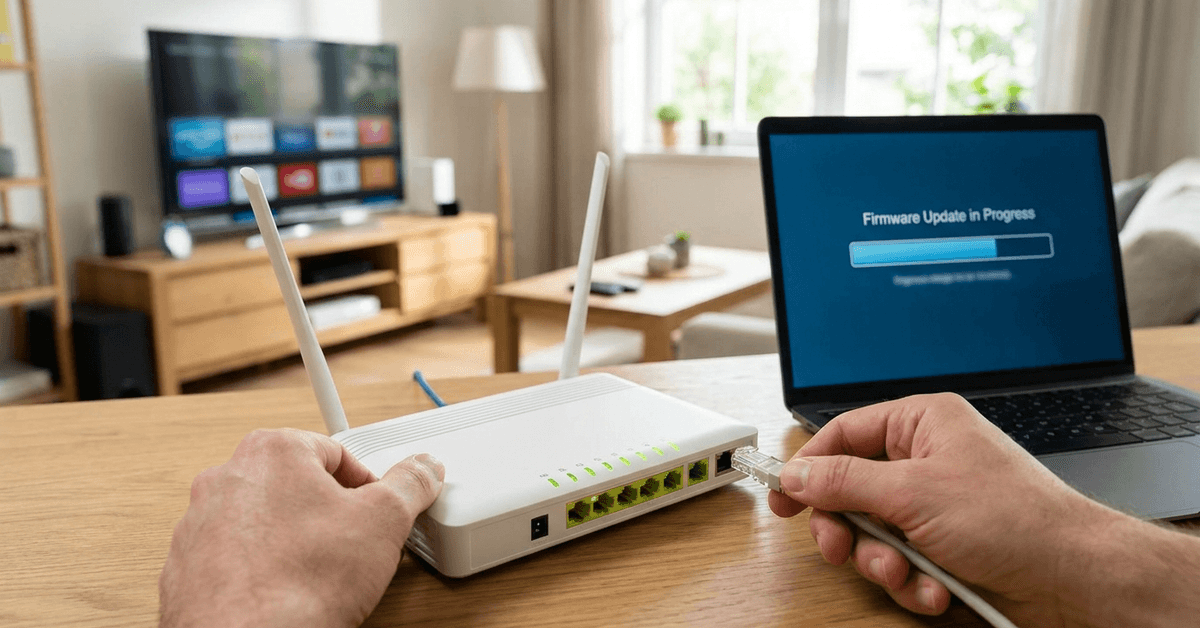
  • How to Safely Update Your Home Router’s Firmware

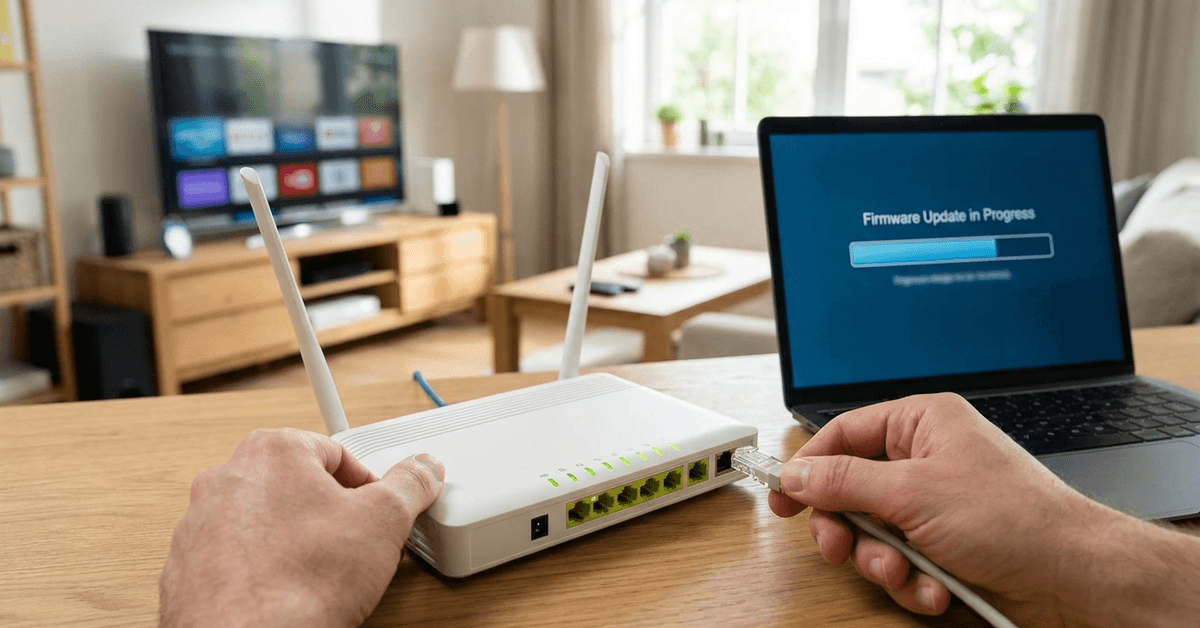
    How to Safely Update Your Home Router’s Firmware

    Keeping your home router’s firmware up to date is essential for anyone with smart home devices, security cameras, or even just Wi-Fi users.

    Owners of connected homes rely on their router as the main line of defense against online threats and vulnerabilities.

    The simple act of updating firmware can block hackers, close security holes, and lead to a noticeably better network experience.
    How to Safely Update Your Home Router’s Firmware

    Understanding Router Firmware and Its Purpose

    Firmware is the specialized software embedded in your router hardware that directs how it operates.

    Unlike regular apps or programs, firmware manages device-level features: wireless connectivity, network protection, and device prioritization.

    Manufacturers such as TP-Link, Netgear, Asus, and Linksys regularly release firmware updates for bug fixes, performance boosts, and vulnerability patches.

    Neglecting firmware leaves older routers exposed to well-known exploits. Updated routers, in contrast, handle the latest security protocols and offer new features.

    Why Updating Router Firmware Matters?

    One primary benefit is improved security. Cybercriminals often target unpatched home routers with malware or remote access tricks.
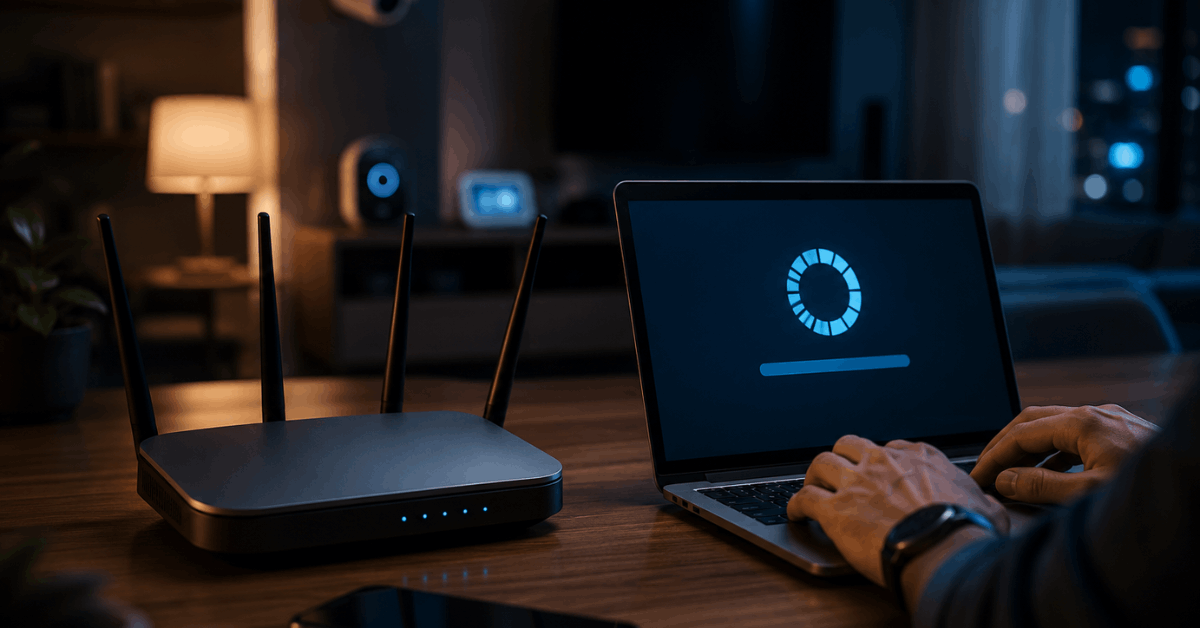
    How to Safely Update Your Home Router’s Firmware

    Older firmware versions are easier for attackers to compromise, possibly exposing personal devices or smart home gadgets.

    Frequent updates often resolve Wi-Fi dropouts, increase speed consistency, or unlock advanced parental controls.

    For anyone using smart speakers, security cameras, or smart thermostats, patched routers help devices stay connected and reliable.

    Important Precautions Before Updating Firmware

    While updating firmware is usually safe, preparation helps avoid hiccups.

    Sudden power loss or disconnections during an update can temporarily ‘brick’ your router—making it unusable until fixed.

    Precaution Checklist

    • Check the router model and hardware version, often listed on a label underneath your device.
    • Backup current configuration settings in the router dashboard (look for ‘Backup Settings’ or ‘Export’).
    • Preferably use a wired connection (Ethernet) between your computer and router to prevent interruption.
    • Confirm that you have stable power—avoid running updates during storms or power fluctuations.

    How to Identify and Download the Latest Firmware?

    Manufacturers typically distribute firmware through their support sites, with files listed by product and hardware version.

    Locating the correct version is crucial. Applying the wrong firmware can cause glitches or even void a warranty.

    Finding the Right Firmware

    • Identify your make, model, and version (for example, Netgear Nighthawk R7000, v2).
    • Visit the official support site for your brand: such as tplink.com/support or asus.com/support.
    • Enter your router’s information and download only the latest firmware listed for your product code.

    Preparing for the Update: Step-by-Step

    With the right file in hand, double-check a few essentials to ensure a seamless process.

    • Extract the downloaded update file if it comes zipped, and save it in an easily accessible folder.
    • Connect your computer to the router via Ethernet. Wi-Fi updates risk disconnection.
    • Open your web browser and enter your router’s local IP address (often 192.168.1.1 or 192.168.0.1).
    • Login using your current admin credentials.

    Updating Firmware Through Your Router’s Web Interface

    Most home routers update directly via their built-in admin panel. The method usually looks like this:

    1. Navigate to Firmware Upgrade or System Tools, often under an ‘Advanced’ or ‘Administration’ tab.
    2. Click ‘Browse’ or ‘Choose File’ to select your saved firmware file.
    3. Select ‘Upgrade’ or ‘Upload’ and confirm your choice.
    4. Wait as the install process runs (this typically takes three to five minutes).

    During this period, network connectivity will drop—avoid unplugging or restarting the router.

    Automatic vs. Manual Firmware Updates

    Some modern routers offer automatic firmware updates.

    For example, Google Nest Wifi and certain Asus routers can check and install updates in the background if ‘Auto Update’ is enabled.

    Enabling this feature is convenient, but some users feel safer verifying updates themselves.

    Manual firmware upgrades offer more control, especially for those running custom settings, open-source firmware, or nonstandard configurations.

    What to Do After the Firmware Update

    Once flashing is complete, the router may reboot itself.

    Let it restart fully before reconnecting any devices or attempting to log in again.

    • Restore your saved backup configuration if settings are reset to factory defaults.
    • Test Wi-Fi and wired connections for stability and performance improvements.
    • Verify that smart home devices can reconnect, and check if parental controls or device QoS have changed.
    • Log in to the admin panel and double-check that the new firmware version appears as installed.

    Common Problems and Solutions

    Real-world router upgrades sometimes meet roadblocks. In most cases, issues are easy to fix.

    Failed Update or Bricked Router

    If your router fails to start, try a ‘hard reset’ by holding the reset button for 10 seconds—or as directed in the manual.

    Download and flash the correct firmware again via the router’s recovery mode (often accessible at 192.168.1.1/recovery).

    Lost Internet or Wi-Fi Connection Afterwards

    • Restart both your router and internet modem. Wait for LEDs to settle.
    • Ensure cables are connected securely—sometimes ports reseat slightly during the reboot.
    • Reconfigure wireless settings (SSID, Wi-Fi passwords) if they reverted to default.

    Router Update Won’t Start

    Verify that the firmware file is correct and matches your router model exactly. Sometimes ISPs lock firmware (particularly with ISP-provided devices). In those cases, only approved versions are accepted; reaching out to ISP support can clarify options.

    Extra Tips for Maximum Router and Network Security

    • Enable two-factor authentication on your router, if offered, to prevent unauthorized changes.
    • Change your admin password to something unique and strong after every update.
    • Disable remote management unless you absolutely need it—this blocks outside attackers.
    • Schedule a reminder every few months to check the manufacturer’s support site for new firmware releases.
    • Watch for signs of compromise: odd device behavior, unexpected restarts, or unexplained bandwidth use.

    For smart home enthusiasts, regular router updates give peace of mind and keep a houseful of gadgets efficient and secure.

    Conclusion: Keeping Your Router—and Home—Protected

    Maintaining up-to-date firmware on your home router is a foundational practice for smart home security and seamless network performance.

    A careful, stepwise approach to firmware upgrades helps avoid frustrating mishaps, reduces downtime, and shields your entire home from cyber risks.

    Most modern routers make updates straightforward for any user, and those who stay proactive with their devices greatly improve household security.

    Pausing to update router firmware now and then is a small investment that pays off in reliability and peace of mind for years to come.
  • How to Check How Many Devices Are Connected to Your Home Wi-Fi

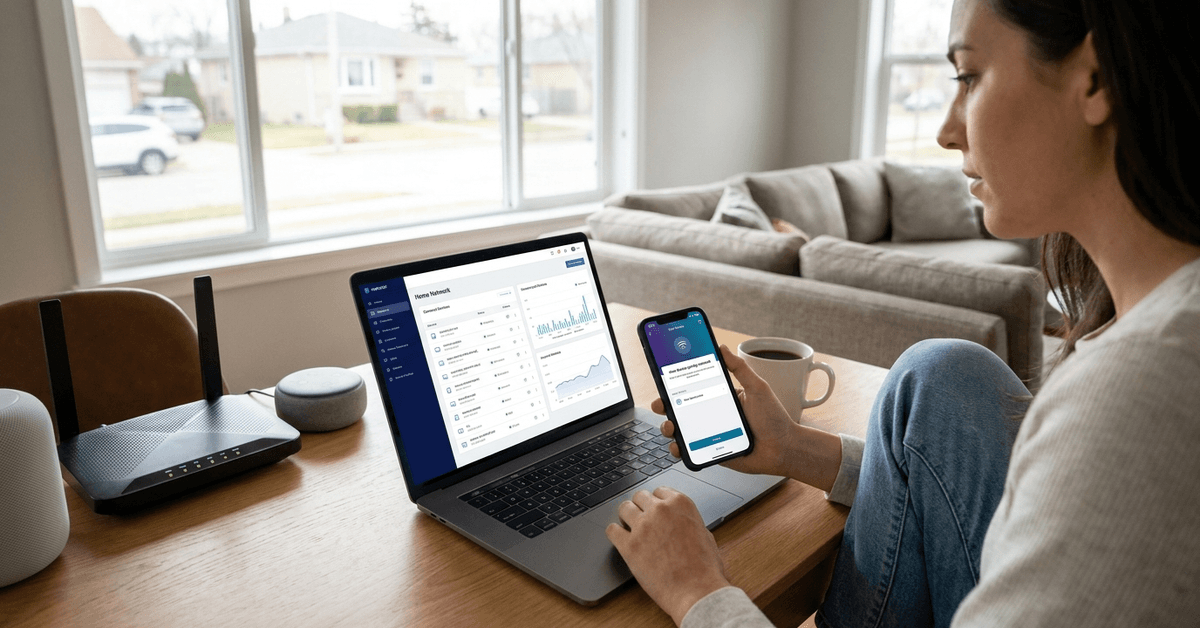
    How to Check How Many Devices Are Connected to Your Home Wi-Fi

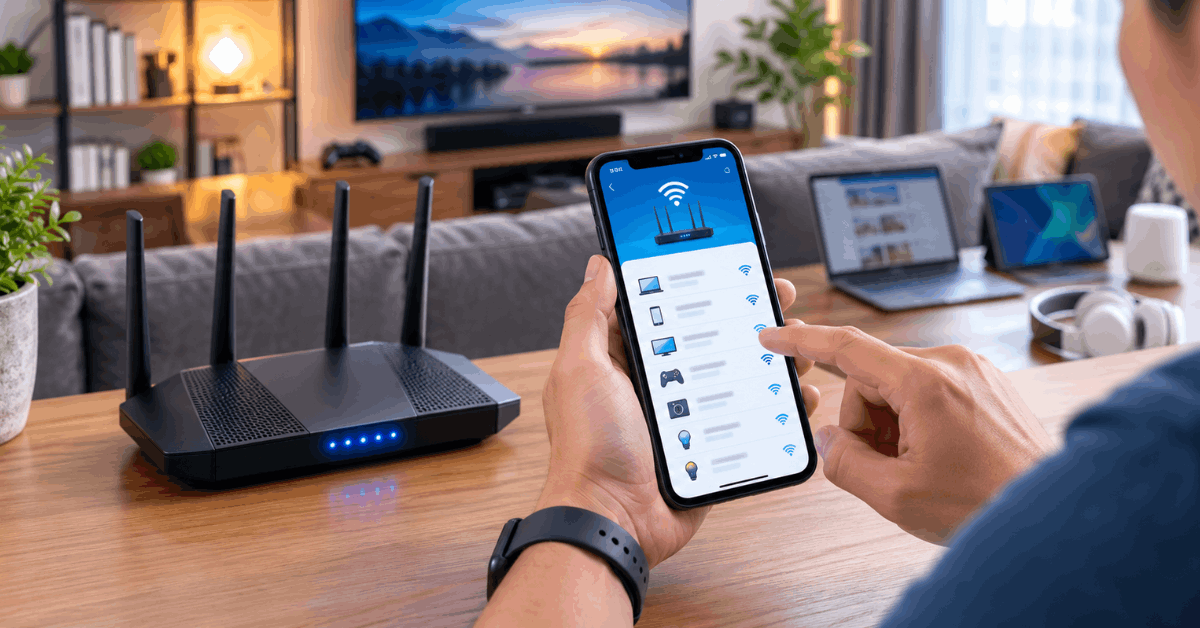
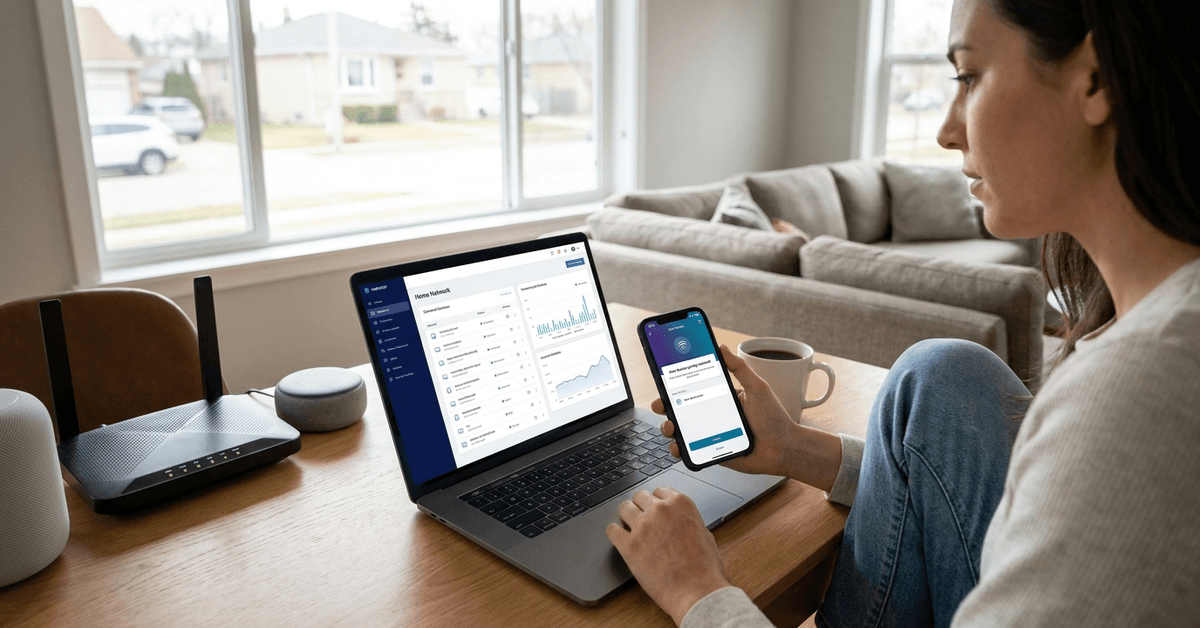
    Knowing what devices are connected to your home Wi-Fi is key to securing your network and optimizing performance. Many homeowners are surprised by the number of devices quietly using bandwidth.

    This guide breaks down simple and advanced ways to track devices on your smart home Wi-Fi. Whether managing a big family network or a solo setup, better visibility brings peace of mind.

    Why It Matters to Track Connected Devices?

    Device management helps uncover bandwidth hogs using your Wi-Fi. It also identifies unknown devices, suggesting if neighbors or strangers may have gained access.

    How to Check How Many Devices Are Connected to Your Home Wi-Fi

    Adopting device tracking tools makes parental controls more effective and ensures internet speeds remain consistent. It is a fundamental part of any smart home security strategy.

    Built-In Router Management Console

    Accessing Your Router Dashboard

    The router dashboard is usually the most accurate way to see all connected devices in real time. Nearly every router offers this in its web interface.

    • Connect to your home Wi-Fi with a phone or computer.
    • Open a browser and enter the router’s IP address (often 192.168.1.1 or 192.168.0.1).
    • Authenticate with your username and password. A sticker on the router often lists these defaults.
    • Look for sections labeled “Device List,” “Connected Devices,” or similar.

    Device names may appear generic, like “Wireless Device” or “Unknown.” In these cases, matching MAC addresses to known devices helps.

    Most Popular Router Brands’ Menus

    • TP-Link: Go to “Network” then “DHCP Clients List.”
    • Netgear: Head to “Attached Devices.”
    • Asus: Click “Network Map” and check “Clients.”
    • Linksys: Find “Device List” under the “Status” tab.

    Some routers display connection type and duration, helping you spot guests or longer-term connections.

    Using Official Mobile Apps for Routers

    Brand-specific apps, like TP-Link Tether or Netgear Nighthawk, show device status and let you control access. These apps streamline routine checks right from a phone or tablet.

    How to Check How Many Devices Are Connected to Your Home Wi-Fi

    Downloading and Setting Up Apps

    • Search for your router brand’s app in Google Play or the Apple App Store.
    • Log in using an account or the router’s admin credentials.
    • Device lists are on the main dashboard—tap for details.

    Notifications alert you when new gadgets connect, placing control in your pocket anytime.

    Third-Party Network Scanning Tools

    Best Free and Paid Scanners

    Independent tools, such as Fing, add network-wide tracking for tech-savvy users. These applications scan entire home networks for connected devices.

    • Fing (Android/iOS): User-friendly and free for basic scans.
    • Advanced IP Scanner (Windows): Lists all network endpoints.
    • Angry IP Scanner (Windows/Mac): Fast scanning for larger set-ups.

    These tools offer extra details, like device manufacturer and open ports, which can help spot unknown hardware.

    Running Your First Scan

    • Install the chosen app or software on a device already on your Wi-Fi.
    • Launch the tool and run its network scan feature.
    • Review named devices and note unfamiliar ones.

    Frequent scanning, perhaps monthly, allows you to spot unwanted guests and maintain complete visibility.

    Smart Home Hubs and Integrated Security Apps

    All-in-One Smart Home Routers

    Modern routers, such as Google Nest Wi-Fi or Eero, offer built-in mesh networking. Their respective apps include device monitoring and guest network options for smart devices.

    • Google Home: Open the app and tap on your Nest router. See connected device details under “Wi-Fi,” then “Devices.”
    • Eero: Open the Eero app and select the connected devices tab for a live count and activity log.

    These platforms often highlight “recently active” or high-usage devices for deeper insights.

    Smart Security Suites

    Services like Bitdefender Box or Norton Core also integrate network scanning. Their mobile or desktop apps aim to block threats and keep a real-time log of every device using your Wi-Fi.

    Identifying and Managing Unknown Devices

    Differentiate Trusted and Suspicious Connections

    Matching MAC addresses helps recognize familiar devices. Manufacturers often print a MAC ID on their products or packaging. A glance at your device’s network settings typically shows its assigned network name.

    Suspicious or recurring unknowns might signal weak Wi-Fi passwords or overlooked smart bulbs. Disabling Wi-Fi for given MAC addresses via the router blocks unwanted access.

    When to Change Your Wi-Fi Password

    If mystery devices are present, homeowners often find it responsible to update their Wi-Fi password. This instantly disconnects all connected devices, forcing only authorized users to reconnect.

    • Change your Wi-Fi password from the router dashboard or app.
    • Update all home devices with the new credentials.
    • Monitor for any reappearance of unknown connections post-update.

    Key Tech Terms and Protocols Homeowners Should Know

    • MAC Address Filtering : Manages which devices can join your network.
    • SSID: Your Wi-Fi network’s visible name.
    • WPA2 or WPA3: Encryption standards for safe wireless access.
    • Guest Network: Separate access for visitors, keeping main devices secure.

    Learning these basics sharpens your ability to spot uninvited guests and maintain strong defenses.

    Tips for Ongoing Wi-Fi Health and Security

    • Update firmware on routers and smart devices regularly.
    • Enable automatic alerts for new device connections (supported in many apps).
    • Run routine scans to catch overlooked devices.
    • Create a guest network for visitors. This keeps your main system private.
    • Label each device in your management console for easier tracking.

    Conclusion

    Knowing how to check which devices are connected to your home Wi-Fi brings far more than simple curiosity. It strengthens security, reveals hidden performance drains, and supports a safer smart home ecosystem.

    Using routers’ built-in features, trusted mobile apps, or third-party scanners, homeowners can keep tabs on every device in real time. Matching device names, updating passwords, and running regular checks all help build control and confidence in everyday network use.

    Whether you manage a few laptops or dozens of smart gadgets, regular monitoring ensures your home Wi-Fi stays fast, private, and protected from unwanted guests. Staying vigilant with these simple tactics is a routine every smart homeowner can feel good about.

  • How to Set Up a Secure Backup Internet Connection for Your Home

    How to Set Up a Secure Backup Internet Connection for Your Home

    Smart home devices rely on constant internet connectivity. For many, a brief outage can disrupt work, entertainment, or even security systems.

    Setting up a backup internet connection ensures your devices remain online, even during an unexpected primary network failure. This guide explores practical ways to add resilience to your home’s connectivity with real-world steps that anyone can follow.

    Why a Backup Internet Connection Matters for Home Security?

    Home network interruptions can have broader impacts than just missed emails or TV shows. Security cameras, alarms, and smart locks can suddenly go offline when your main connection drops.

    How to Set Up a Secure Backup Internet Connection for Your Home

    A secondary or backup internet solution adds a layer of protection. It helps maintain access to your smart devices and online records, reducing security risks during outages.

    Types of Backup Internet Solutions for Homeowners

    Depending on your needs and local service options, several popular backup internet connection types exist. Each has strengths and certain trade-offs.

    Cellular Data Hotspots

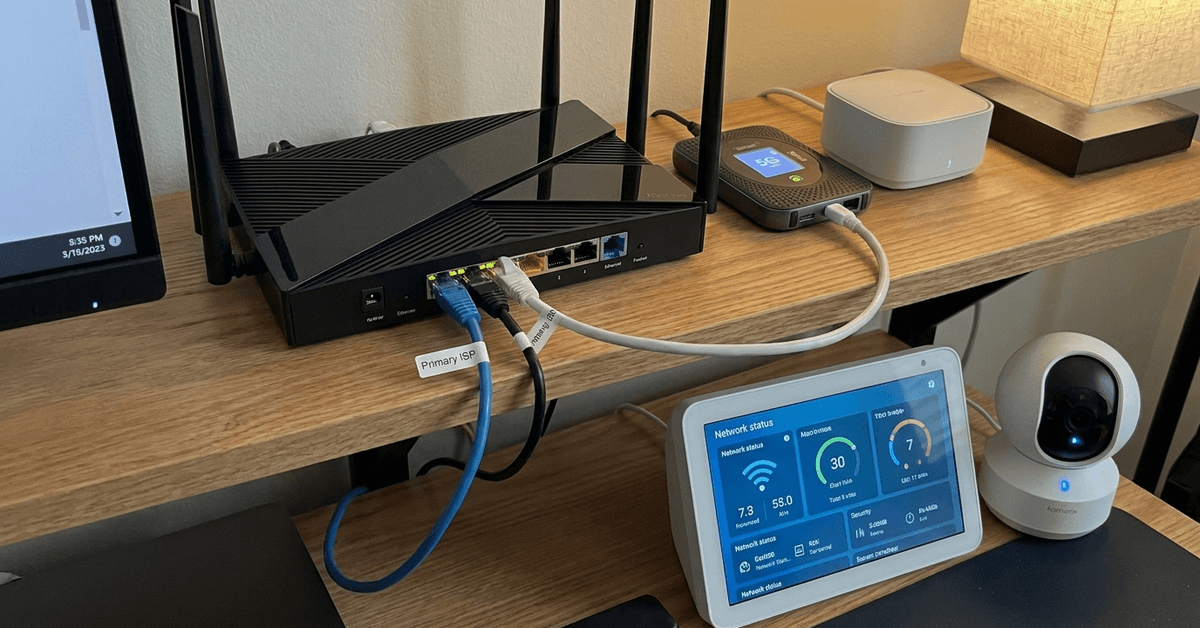
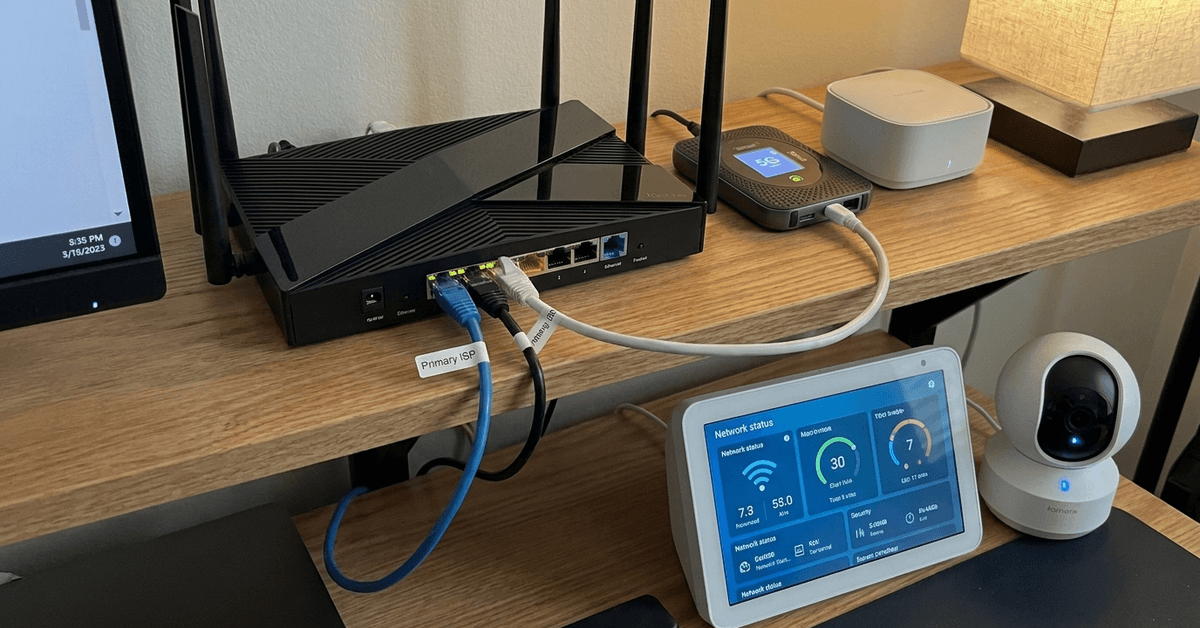
    Cellular hotspot devices use the mobile network to provide internet. Many homeowners keep a basic 4G or 5G hotspot as their emergency fallback.

    • Works independently of your main broadband.
    • Setup is often as simple as plugging it in and setting up Wi-Fi credentials.
    • Some hotspots use physical SIM cards (compatible with major carriers), others come with integrated service.

    Cellular hotspots are compact and work even if landline or fiber cables are damaged—or under maintenance. Data costs can run higher, so usage should be limited to essentials during an outage.

    Neighbor Wi-Fi as a Backup

    Some people arrange a reciprocal Wi-Fi sharing agreement with neighbors. This option provides emergency internet if you each run separate ISPs.

    • Requires a strong, secure Wi-Fi password and clear agreement on use.
    • Keep guest networks isolated from your main devices for security.

    This method isn’t always possible, and it relies heavily on good neighbor relationships and privacy safeguards.

    Wired Fallback (DSL + Cable, or Fiber + 4G)

    Combining different providers and technologies is another reliable tactic. For example, keeping a low-speed DSL line as backup to a main cable or fiber internet plan.

    • Automatic switching or manual toggling is possible, depending on network gear.
    • Maintains physical separation—vital during regional outages of one service.

    This approach provides stability but may involve extra monthly costs for maintaining two plans.

    Mobile Tethering

    Using your smartphone’s mobile hotspot function is common during short outages or for light usage.

    • Use a USB cable or Wi-Fi to share mobile data with a laptop, tablet, or even a router supporting tethering.
    • It’s a flexible, cost-effective option but may drain the phone’s battery quickly.

    Recommended Hardware for Dedicated Backup Internet

    Building a solid, reliable backup system starts with the right hardware. Here are the most popular categories for home users.

    How to Set Up a Secure Backup Internet Connection for Your Home

    Multi-WAN Routers

    A multi-WAN router connects to more than one internet source. It can automatically switch between your main and backup services when it senses a problem.

    • Popular brands include TP-Link, Ubiquiti, and Netgear.
    • These routers support failover modes and traffic balancing.

    Some models allow you to set rules on which devices get access, or even load balance for higher performance.

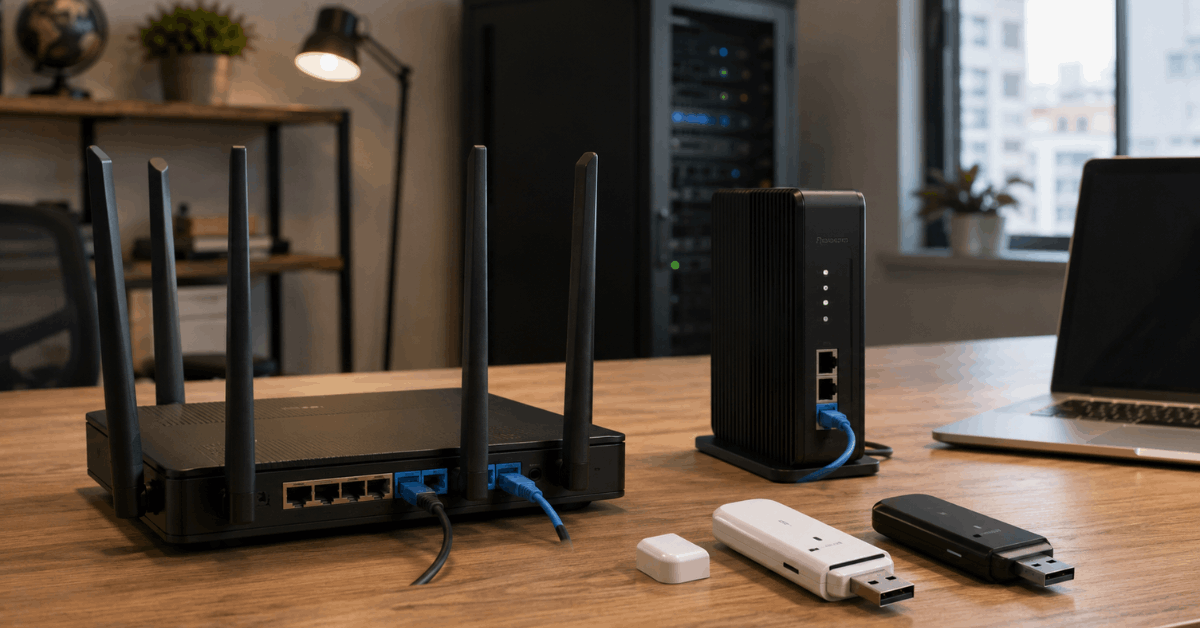
    4G/5G USB Dongles

    USB modems or dongles provide a simple way to add backup connectivity. Many routers have a USB port designed for this type of device.

    • Insert the SIM card and configure with your provider’s APN settings.
    • Ideal for brief outages or as a quick, portable remedy.

    The best results come from using a separate data plan with automatic data top-ups to avoid service gaps during emergencies.

    Standby Mesh Wi-Fi Nodes

    If you rely on mesh Wi-Fi systems, check if your hardware supports backup source failover. Some mesh brands integrate cellular or alternative WAN modules.

    • Eero, Google Nest Wi-Fi, and Asus are examples to explore.
    • Plug the backup source into the main node’s secondary WAN or USB port.

    Configuring Automatic Failover for Seamless Switching

    For worry-free backup, setting up automatic failover is highly recommended. Several consumer-grade routers support this feature out of the box.

    1. Connect your primary internet source (fiber, cable, or DSL) to the router’s main WAN port.
    2. Attach your backup (such as a 4G dongle or second ISP modem) to the secondary WAN or USB port.
    3. In the router’s management page, locate multi-WAN or failover settings—this is often under Advanced or Internet menus.
    4. Enable failover or load balancing. Set the backup connection to activate automatically if the primary link drops.
    5. Test by disconnecting the main WAN to ensure the router switches to the backup.

    Remember to monitor data usage and reset equipment as needed after outages.

    Keeping Backup Internet Secure

    All internet connections, especially backups, need strong security. Even temporary or mobile-based connections can expose vulnerabilities without precautions.

    Use Strong Wi-Fi Passwords

    Set a unique, complex password on all Wi-Fi networks—especially backup or guest networks. This reduces the risk of unauthorized access.

    Enable WPA3 or At Least WPA2 Security

    WPA3 is the latest Wi-Fi encryption standard. If your router and devices support it, enable it in your Wi-Fi settings. Otherwise, use WPA2 as a minimum.

    Update Firmware Regularly

    Vendors often release security updates for routers and modems. Set reminders to check for firmware updates on all network hardware, including cellular devices.

    VPN for Extra Protection

    For sensitive activities, connect to a reliable VPN provider like ProtonVPN or NordVPN. VPNs add a layer of security, especially when using a mobile or shared backup connection.

    Minimizing Downtime: Testing and Automation Apps

    Regular testing of backup systems can reveal problems before a real outage occurs. Homeowners often use free or paid apps to automate status checks and logging.

    • Free tools such as Internet Connectivity Monitor or Uptime Kuma help track primary and backup network health.
    • Smart home platforms like Home Assistant support internet downtime alerts and automatic switching scripts.
    • IFTTT and similar services let you set up custom notifications if connections fail or switch.

    Budgeting: Keeping Costs and Data Under Control

    Backup connectivity often comes with extra expenses. To keep costs manageable, choose a plan that matches your usage pattern and risk tolerance.

    • Prepaid mobile data SIMs avoid surprise bills.
    • Data caps on secondary plans protect against runaway costs if devices use backup connections longer than expected.

    Some homeowners prefer low-limit backup plans and manually restrict critical devices to run on the backup network only.

    Conclusion

    Setting up a secure backup internet connection for your home boosts reliability, protects vital smart devices, and reduces stress during provider outages. Whether using a cellular hotspot, multi-WAN router, or dual broadband plans, the right mix comes down to your budget, local service options, and security needs.

    Security is essential at every step—from choosing hardware to setting passwords and updating firmware. Regular testing ensures your backup connection is ready when you need it most. 

    By following these practical steps, you can transform your home’s connectivity resilience and maintain peace of mind, no matter what happens to your main internet link.