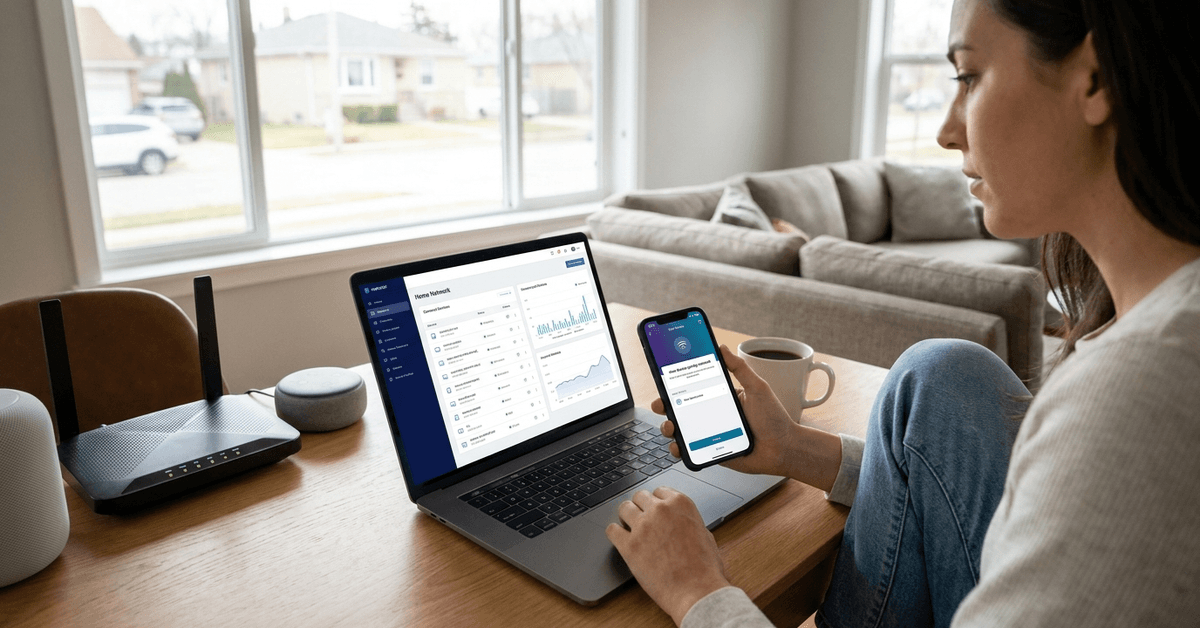
Knowing what devices are connected to your home Wi-Fi is key to securing your network and optimizing performance. Many homeowners are surprised by the number of devices quietly using bandwidth.
This guide breaks down simple and advanced ways to track devices on your smart home Wi-Fi. Whether managing a big family network or a solo setup, better visibility brings peace of mind.
Why It Matters to Track Connected Devices?
Device management helps uncover bandwidth hogs using your Wi-Fi. It also identifies unknown devices, suggesting if neighbors or strangers may have gained access.
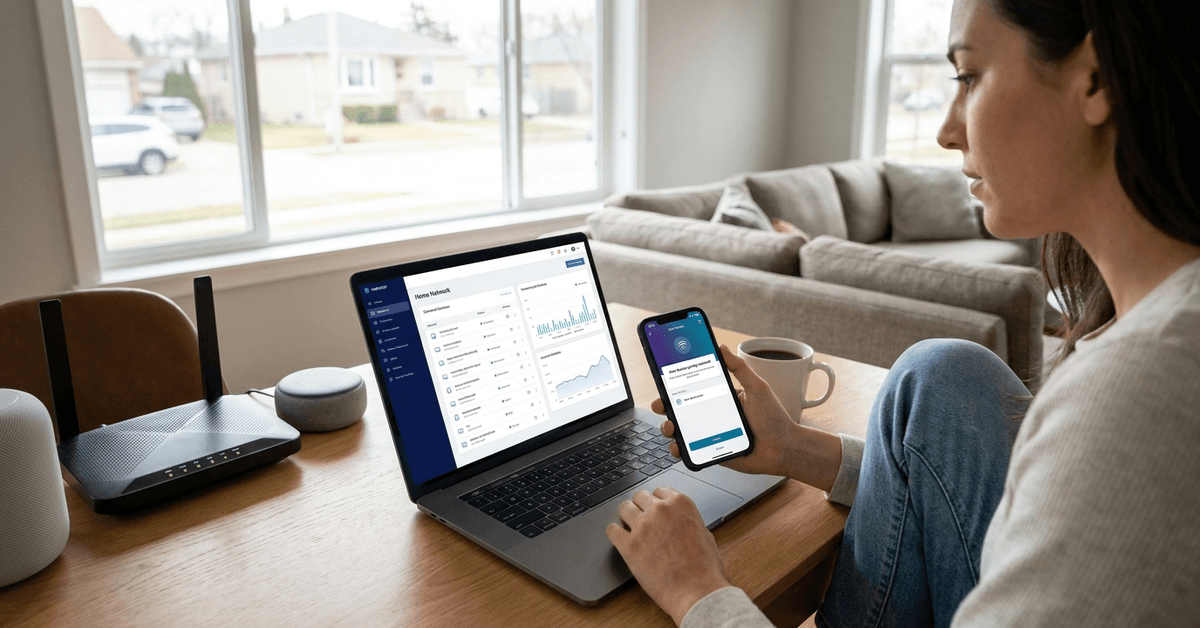
Adopting device tracking tools makes parental controls more effective and ensures internet speeds remain consistent. It is a fundamental part of any smart home security strategy.
Built-In Router Management Console
Accessing Your Router Dashboard
The router dashboard is usually the most accurate way to see all connected devices in real time. Nearly every router offers this in its web interface.
- Connect to your home Wi-Fi with a phone or computer.
- Open a browser and enter the router’s IP address (often 192.168.1.1 or 192.168.0.1).
- Authenticate with your username and password. A sticker on the router often lists these defaults.
- Look for sections labeled “Device List,” “Connected Devices,” or similar.
Device names may appear generic, like “Wireless Device” or “Unknown.” In these cases, matching MAC addresses to known devices helps.
Most Popular Router Brands’ Menus
- TP-Link: Go to “Network” then “DHCP Clients List.”
- Netgear: Head to “Attached Devices.”
- Asus: Click “Network Map” and check “Clients.”
- Linksys: Find “Device List” under the “Status” tab.
Some routers display connection type and duration, helping you spot guests or longer-term connections.
Using Official Mobile Apps for Routers
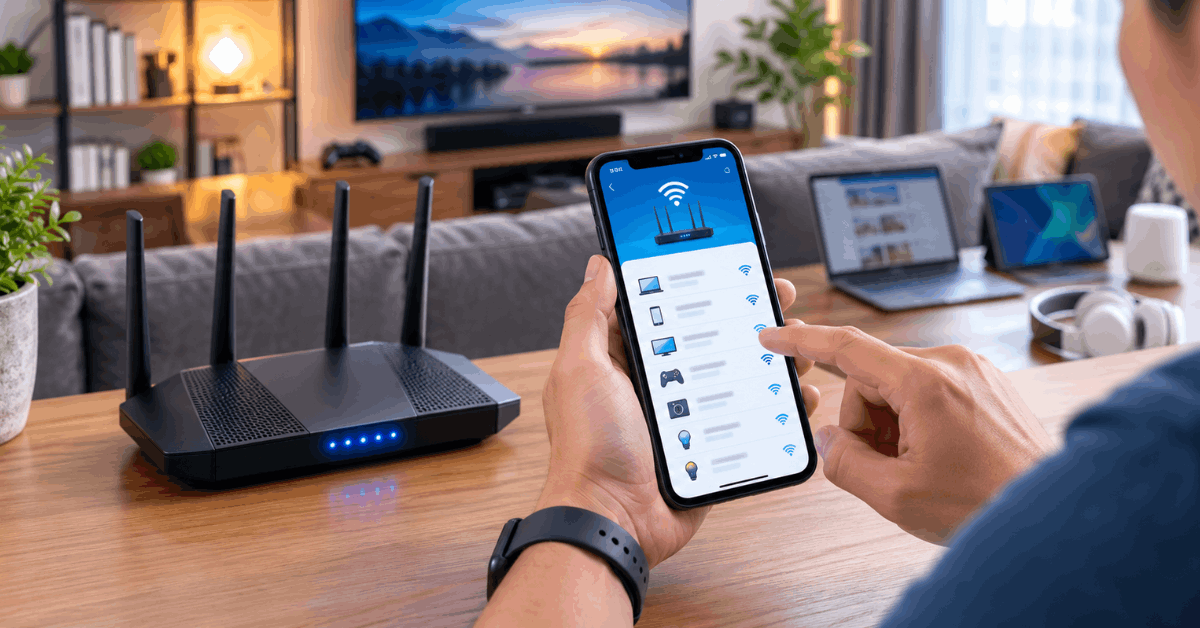
Brand-specific apps, like TP-Link Tether or Netgear Nighthawk, show device status and let you control access. These apps streamline routine checks right from a phone or tablet.
Downloading and Setting Up Apps
- Search for your router brand’s app in Google Play or the Apple App Store.
- Log in using an account or the router’s admin credentials.
- Device lists are on the main dashboard—tap for details.
Notifications alert you when new gadgets connect, placing control in your pocket anytime.
Third-Party Network Scanning Tools
Best Free and Paid Scanners
Independent tools, such as Fing, add network-wide tracking for tech-savvy users. These applications scan entire home networks for connected devices.
- Fing (Android/iOS): User-friendly and free for basic scans.
- Advanced IP Scanner (Windows): Lists all network endpoints.
- Angry IP Scanner (Windows/Mac): Fast scanning for larger set-ups.
These tools offer extra details, like device manufacturer and open ports, which can help spot unknown hardware.
Running Your First Scan
- Install the chosen app or software on a device already on your Wi-Fi.
- Launch the tool and run its network scan feature.
- Review named devices and note unfamiliar ones.
Frequent scanning, perhaps monthly, allows you to spot unwanted guests and maintain complete visibility.
Smart Home Hubs and Integrated Security Apps
All-in-One Smart Home Routers
Modern routers, such as Google Nest Wi-Fi or Eero, offer built-in mesh networking. Their respective apps include device monitoring and guest network options for smart devices.
- Google Home: Open the app and tap on your Nest router. See connected device details under “Wi-Fi,” then “Devices.”
- Eero: Open the Eero app and select the connected devices tab for a live count and activity log.
These platforms often highlight “recently active” or high-usage devices for deeper insights.
Smart Security Suites
Services like Bitdefender Box or Norton Core also integrate network scanning. Their mobile or desktop apps aim to block threats and keep a real-time log of every device using your Wi-Fi.
Identifying and Managing Unknown Devices
Differentiate Trusted and Suspicious Connections
Matching MAC addresses helps recognize familiar devices. Manufacturers often print a MAC ID on their products or packaging. A glance at your device’s network settings typically shows its assigned network name.
Suspicious or recurring unknowns might signal weak Wi-Fi passwords or overlooked smart bulbs. Disabling Wi-Fi for given MAC addresses via the router blocks unwanted access.
When to Change Your Wi-Fi Password
If mystery devices are present, homeowners often find it responsible to update their Wi-Fi password. This instantly disconnects all connected devices, forcing only authorized users to reconnect.
- Change your Wi-Fi password from the router dashboard or app.
- Update all home devices with the new credentials.
- Monitor for any reappearance of unknown connections post-update.
Key Tech Terms and Protocols Homeowners Should Know
- MAC Address Filtering : Manages which devices can join your network.
- SSID: Your Wi-Fi network’s visible name.
- WPA2 or WPA3: Encryption standards for safe wireless access.
- Guest Network: Separate access for visitors, keeping main devices secure.
Learning these basics sharpens your ability to spot uninvited guests and maintain strong defenses.
Tips for Ongoing Wi-Fi Health and Security
- Update firmware on routers and smart devices regularly.
- Enable automatic alerts for new device connections (supported in many apps).
- Run routine scans to catch overlooked devices.
- Create a guest network for visitors. This keeps your main system private.
- Label each device in your management console for easier tracking.
Conclusion
Knowing how to check which devices are connected to your home Wi-Fi brings far more than simple curiosity. It strengthens security, reveals hidden performance drains, and supports a safer smart home ecosystem.
Using routers’ built-in features, trusted mobile apps, or third-party scanners, homeowners can keep tabs on every device in real time. Matching device names, updating passwords, and running regular checks all help build control and confidence in everyday network use.
Whether you manage a few laptops or dozens of smart gadgets, regular monitoring ensures your home Wi-Fi stays fast, private, and protected from unwanted guests. Staying vigilant with these simple tactics is a routine every smart homeowner can feel good about.