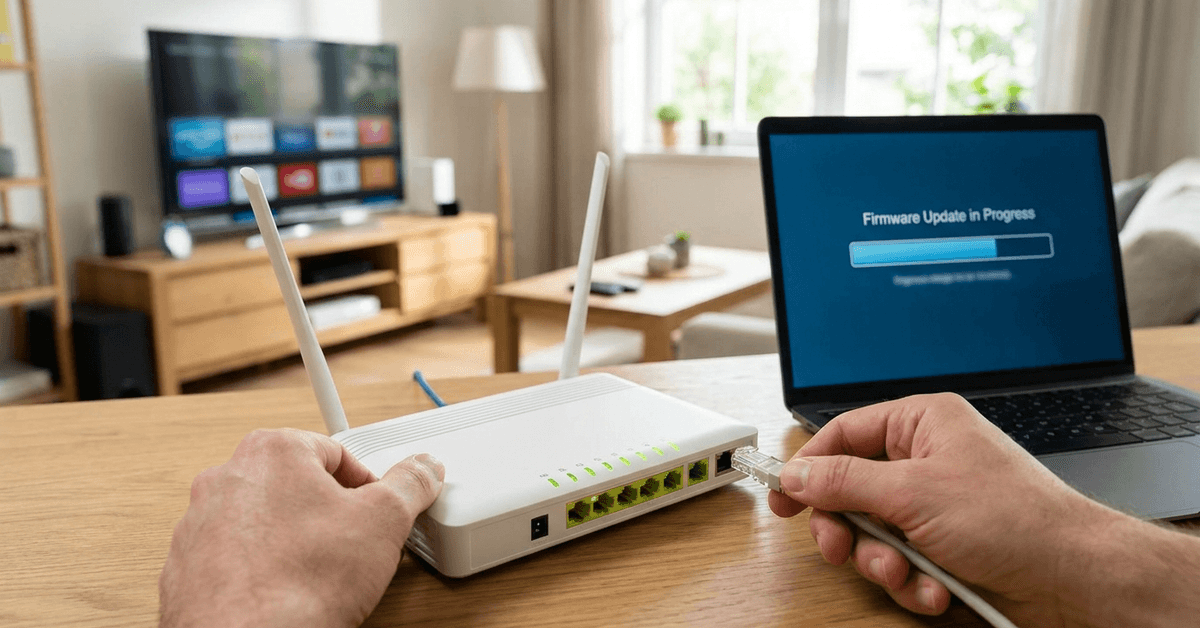
Keeping your home router’s firmware up to date is essential for anyone with smart home devices, security cameras, or even just Wi-Fi users.
Owners of connected homes rely on their router as the main line of defense against online threats and vulnerabilities.
The simple act of updating firmware can block hackers, close security holes, and lead to a noticeably better network experience.
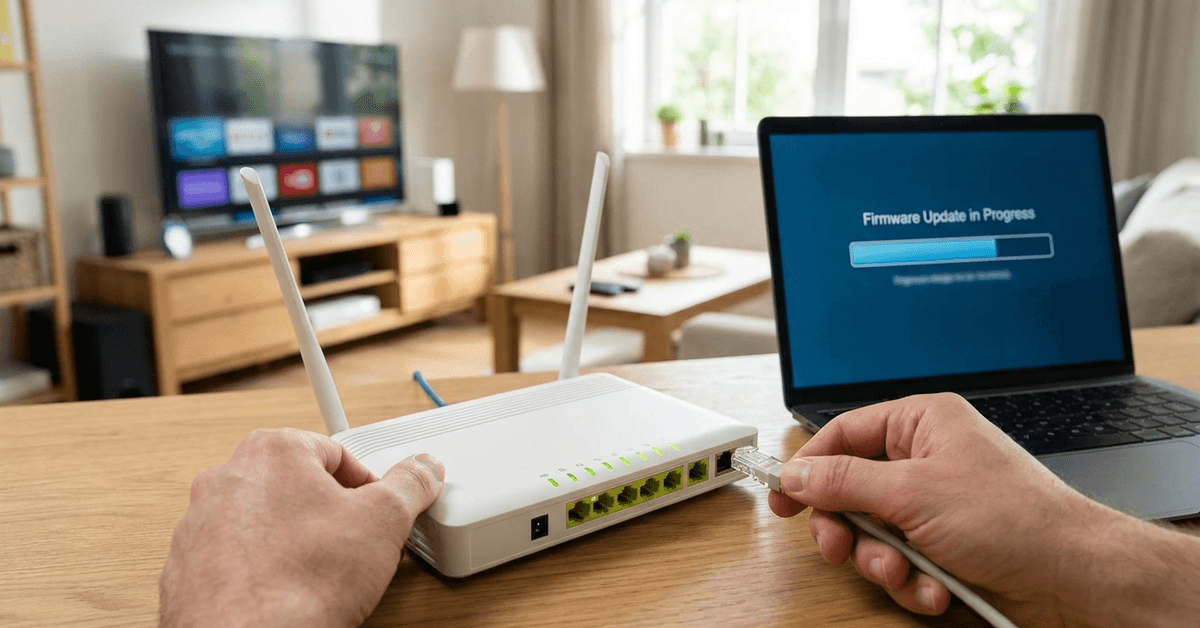
Understanding Router Firmware and Its Purpose
Firmware is the specialized software embedded in your router hardware that directs how it operates.
Unlike regular apps or programs, firmware manages device-level features: wireless connectivity, network protection, and device prioritization.
Manufacturers such as TP-Link, Netgear, Asus, and Linksys regularly release firmware updates for bug fixes, performance boosts, and vulnerability patches.
Neglecting firmware leaves older routers exposed to well-known exploits. Updated routers, in contrast, handle the latest security protocols and offer new features.
Why Updating Router Firmware Matters?
One primary benefit is improved security. Cybercriminals often target unpatched home routers with malware or remote access tricks.
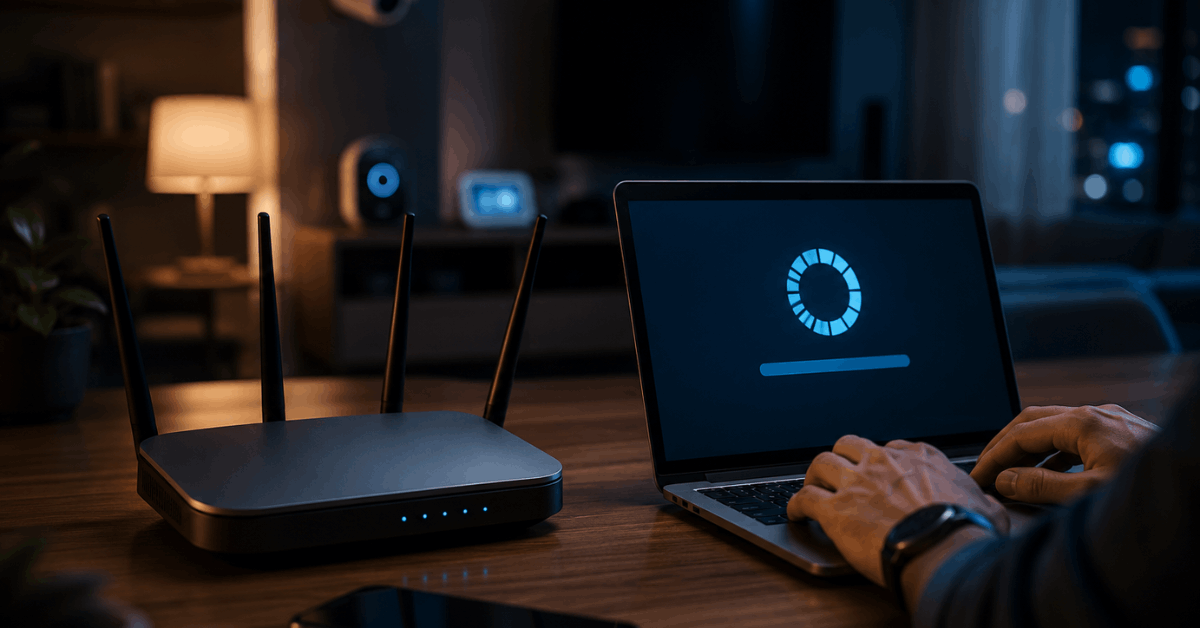
Older firmware versions are easier for attackers to compromise, possibly exposing personal devices or smart home gadgets.
Frequent updates often resolve Wi-Fi dropouts, increase speed consistency, or unlock advanced parental controls.
For anyone using smart speakers, security cameras, or smart thermostats, patched routers help devices stay connected and reliable.
Important Precautions Before Updating Firmware
While updating firmware is usually safe, preparation helps avoid hiccups.
Sudden power loss or disconnections during an update can temporarily ‘brick’ your router—making it unusable until fixed.
Precaution Checklist
- Check the router model and hardware version, often listed on a label underneath your device.
- Backup current configuration settings in the router dashboard (look for ‘Backup Settings’ or ‘Export’).
- Preferably use a wired connection (Ethernet) between your computer and router to prevent interruption.
- Confirm that you have stable power—avoid running updates during storms or power fluctuations.
How to Identify and Download the Latest Firmware?
Manufacturers typically distribute firmware through their support sites, with files listed by product and hardware version.
Locating the correct version is crucial. Applying the wrong firmware can cause glitches or even void a warranty.
Finding the Right Firmware
- Identify your make, model, and version (for example, Netgear Nighthawk R7000, v2).
- Visit the official support site for your brand: such as tplink.com/support or asus.com/support.
- Enter your router’s information and download only the latest firmware listed for your product code.
Preparing for the Update: Step-by-Step
With the right file in hand, double-check a few essentials to ensure a seamless process.
- Extract the downloaded update file if it comes zipped, and save it in an easily accessible folder.
- Connect your computer to the router via Ethernet. Wi-Fi updates risk disconnection.
- Open your web browser and enter your router’s local IP address (often 192.168.1.1 or 192.168.0.1).
- Login using your current admin credentials.
Updating Firmware Through Your Router’s Web Interface
Most home routers update directly via their built-in admin panel. The method usually looks like this:
- Navigate to Firmware Upgrade or System Tools, often under an ‘Advanced’ or ‘Administration’ tab.
- Click ‘Browse’ or ‘Choose File’ to select your saved firmware file.
- Select ‘Upgrade’ or ‘Upload’ and confirm your choice.
- Wait as the install process runs (this typically takes three to five minutes).
During this period, network connectivity will drop—avoid unplugging or restarting the router.
Automatic vs. Manual Firmware Updates
Some modern routers offer automatic firmware updates.
For example, Google Nest Wifi and certain Asus routers can check and install updates in the background if ‘Auto Update’ is enabled.
Enabling this feature is convenient, but some users feel safer verifying updates themselves.
Manual firmware upgrades offer more control, especially for those running custom settings, open-source firmware, or nonstandard configurations.
What to Do After the Firmware Update
Once flashing is complete, the router may reboot itself.
Let it restart fully before reconnecting any devices or attempting to log in again.
- Restore your saved backup configuration if settings are reset to factory defaults.
- Test Wi-Fi and wired connections for stability and performance improvements.
- Verify that smart home devices can reconnect, and check if parental controls or device QoS have changed.
- Log in to the admin panel and double-check that the new firmware version appears as installed.
Common Problems and Solutions
Real-world router upgrades sometimes meet roadblocks. In most cases, issues are easy to fix.
Failed Update or Bricked Router
If your router fails to start, try a ‘hard reset’ by holding the reset button for 10 seconds—or as directed in the manual.
Download and flash the correct firmware again via the router’s recovery mode (often accessible at 192.168.1.1/recovery).
Lost Internet or Wi-Fi Connection Afterwards
- Restart both your router and internet modem. Wait for LEDs to settle.
- Ensure cables are connected securely—sometimes ports reseat slightly during the reboot.
- Reconfigure wireless settings (SSID, Wi-Fi passwords) if they reverted to default.
Router Update Won’t Start
Verify that the firmware file is correct and matches your router model exactly. Sometimes ISPs lock firmware (particularly with ISP-provided devices). In those cases, only approved versions are accepted; reaching out to ISP support can clarify options.
Extra Tips for Maximum Router and Network Security
- Enable two-factor authentication on your router, if offered, to prevent unauthorized changes.
- Change your admin password to something unique and strong after every update.
- Disable remote management unless you absolutely need it—this blocks outside attackers.
- Schedule a reminder every few months to check the manufacturer’s support site for new firmware releases.
- Watch for signs of compromise: odd device behavior, unexpected restarts, or unexplained bandwidth use.
For smart home enthusiasts, regular router updates give peace of mind and keep a houseful of gadgets efficient and secure.
Conclusion: Keeping Your Router—and Home—Protected
Maintaining up-to-date firmware on your home router is a foundational practice for smart home security and seamless network performance.
A careful, stepwise approach to firmware upgrades helps avoid frustrating mishaps, reduces downtime, and shields your entire home from cyber risks.
Most modern routers make updates straightforward for any user, and those who stay proactive with their devices greatly improve household security.
Pausing to update router firmware now and then is a small investment that pays off in reliability and peace of mind for years to come.