Blog

  • How to Use Smart Scheduling to Prolong Appliance Lifespans

    How to Use Smart Scheduling to Prolong Appliance Lifespans

    Managing appliance longevity is a common concern for homeowners. Regular wear, unnoticed overuse, and fluctuating routines can cut short the life of even modern devices.

    “Smart scheduling” blends automation, energy control, and deliberate timing for significantly longer appliance lifespans.
    How to Use Smart Scheduling to Prolong Appliance Lifespans

    Why Smart Scheduling Preserves Appliances?

    Appliances fail sooner if they run excessively or at odd hours. Scheduling prevents that by enforcing operating windows and avoiding harmful usage patterns.

    Stress Reduction on Components

    Frequent on-off cycling and uncontrolled late-night runs can strain key parts. Scheduling lessens these risks, reducing wear and tear.

    Lower Heat and Electrical Overexposure

    Shorter, managed sessions mean less time under stress. Electronics, motors, and relays often fail when overstressed from lengthy, unscheduled operation.

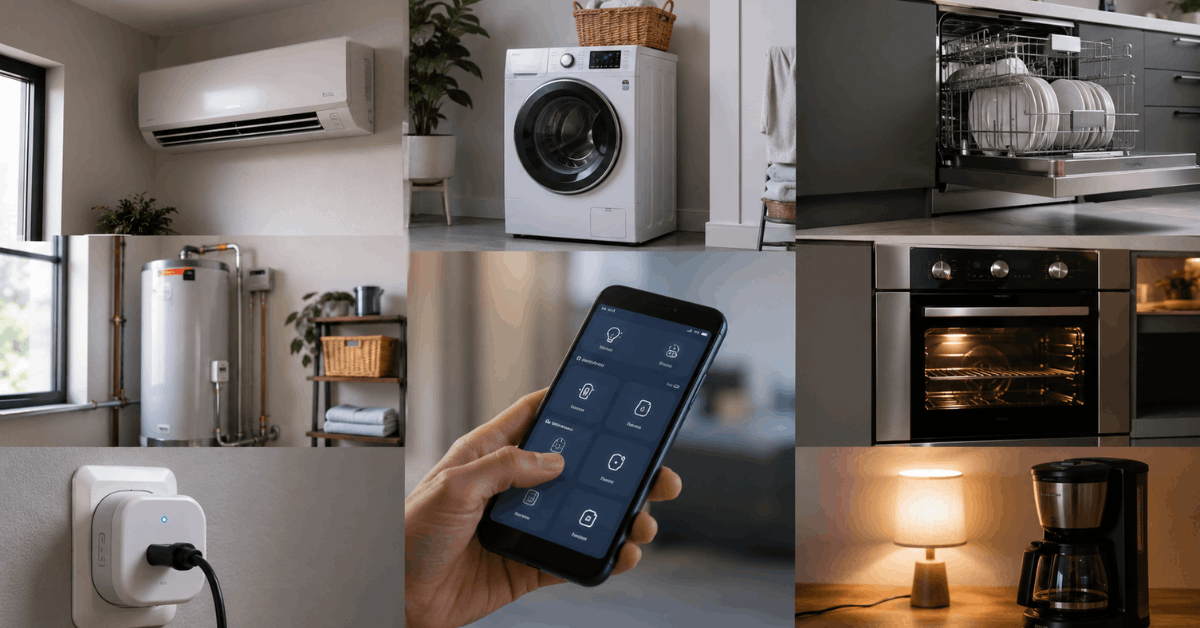
    Popular Appliance Types Suited for Smart Scheduling

    • HVAC systems
    • Washing machines
    • Dishwashers
    • Water heaters
    • Electric ovens
    • Smart plugs controlling lamps or coffee makers
    How to Use Smart Scheduling to Prolong Appliance Lifespans

    Focusing scheduling on these devices usually provides the greatest benefit in home longevity and efficiency.

    Core Technologies Behind Smart Scheduling

    Most smart scheduling relies on protocols like Zigbee, Z-Wave, or Wi-Fi connections.

    These allow devices to “listen” for schedule instructions and execute routines automatically.

    Smart Hubs and Controllers

    Hubs act as brains of the system, delivering schedules directly. Common examples include Samsung SmartThings, Hubitat Elevation, and Home Assistant.

    Plug-and-Play Smart Plugs

    Smart plugs with built-in timers can upgrade older appliances. Brands such as TP-Link Kasa and Amazon Smart Plug offer reliable app-based scheduling.

    Setting Up Effective Appliance Schedules

    It often helps to begin with foundational tools most homeowners already have access to, such as Google Home or Alexa.

    Step-by-Step: Household Appliance Scheduling

    1. Install the appliance app or connect the device to a hub (e.g., SmartThings or Home Assistant).
    2. Ensure the device firmware is current to support latest scheduling features.
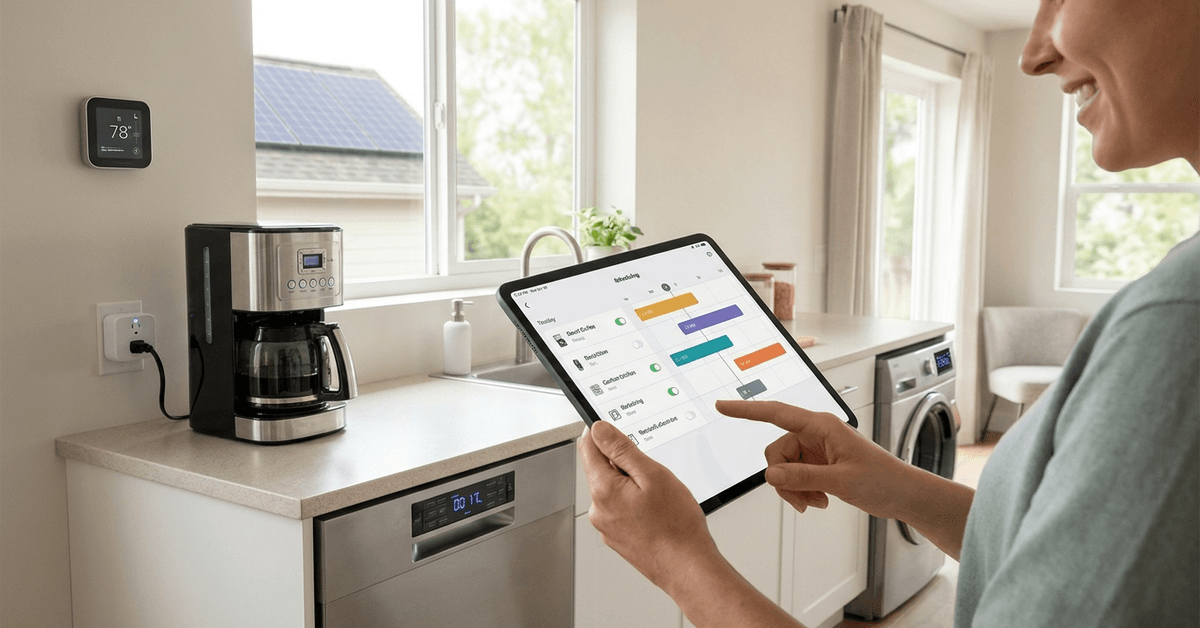
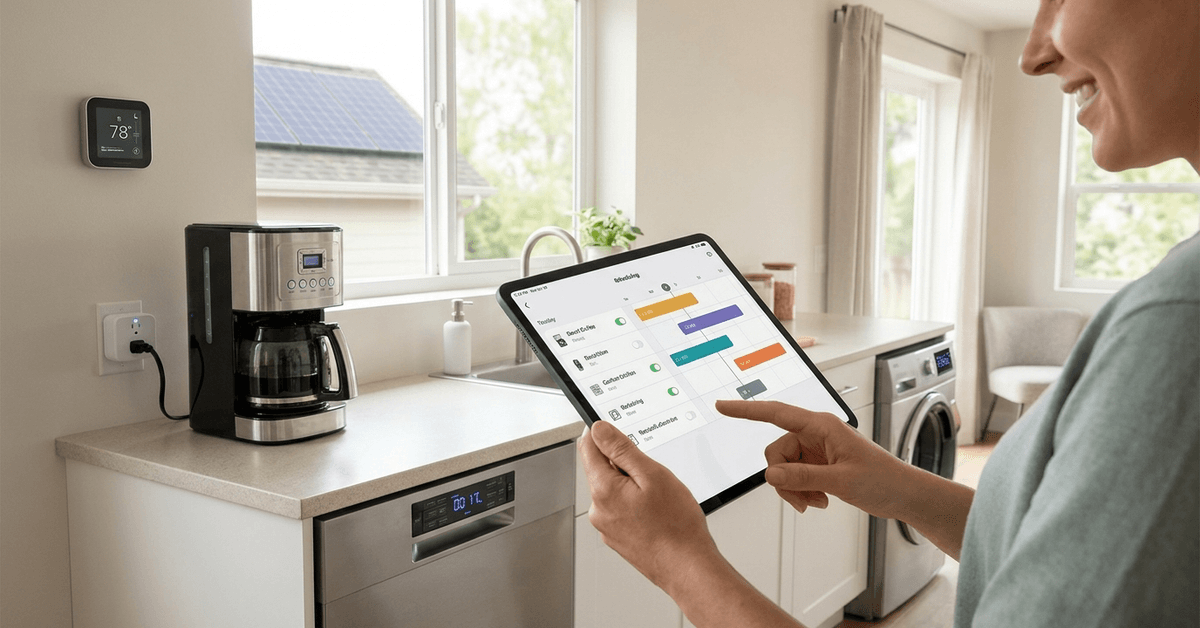
    3. Open the hub or cloud app and select your target appliance.
    4. Navigate to its scheduling or automation menu.
    5. Set start and stop times for daily or weekly routines.
    6. Confirm with a manual run, making sure the schedule triggers as expected.

    Small home appliances often need only daily basic schedules. Larger systems (like HVAC) may benefit from more complex, seasonal schedules that adjust over time.

    Real-World Example: TP-Link Kasa Plug Setup

    1. Plug appliance into the TP-Link Kasa Smart Plug.
    2. Download and open the Kasa app on your phone.
    3. Add the device in-app and connect to your Wi-Fi.
    4. Tap “Schedule” and set your desired times (example: 8:00 am on – 11:00 am off).
    5. Save the schedule and test the function with a quick “manual” on-off cycle to verify control.

    This user-friendly approach fits common kitchen or entertainment gadgets.

    Optimizing Schedules for Maximum Lifespan Gains

    It’s not just about turning devices on or off. The real benefit lies in tuning runtimes to match appliance recommendations.

    Following Manufacturer Guidelines

    Manufacturers typically share ideal runtime limits and maintenance cycles in the manual. Incorporating those figures into schedules prevents lingering operation, helping maintain performance.

    Staggered Loads and Peak Avoidance

    Scheduling laundry or dishwashers outside peak utility windows can ease system strain. This also often lowers utility bills while supporting wider home longevity.

    Routine Review and Seasonal Tweaks

    Home energy use shifts by season and schedule. Homeowners might revisit automation every few months to adjust for daylight, habits, or appliance aging.

    Top Smart Scheduling Apps to Consider

    Among the wide array, the most reputable for robust scheduling include Home Assistant, Google Home, and Samsung SmartThings.

    • Home Assistant: Versatile, supports custom automations, ideal for tech-savvy homes.
    • Google Home: User-friendly, integrates tightly with Nest devices, easy for beginners.
    • Samsung SmartThings: Multi-protocol support, reliable for both new and legacy gadgets.

    Each of these offers energy tracking, schedule automation, and compatibility with many common appliances.

    Common Scheduling Mistakes to Avoid

    Overly Rigid or Aggressive Timetables

    Locking appliances into too short or overly frequent sessions can hamper performance or frustrate users. Balanced scheduling encourages better results—occasional flexibility helps respond to unexpected needs.

    Ignoring Firmware Updates or Integration Warnings

    Outdated hub or app software may not handle newer appliances well. Staying up to date ensures reliable schedules and fewer disconnects.

    Neglecting Maintenance Reminders

    Scheduling does not replace the need for regular filter cleaning, part replacement, or basic upkeep. Adding “maintenance check” events into your scheduler can help extend device life even further.

    Smart Scheduling and Home Security

    Smart scheduling doesn’t just benefit appliances—it has a distinct role in security setups. Routinely operating lights or cameras based on occupancy schedules can deter unwanted attention.

    Platforms like Fortressmate.com often discuss how timed lighting can mimic lived-in appearances when away.

    Best Practices for Smart Scheduling Success

    • Pair schedules with energy monitoring data for optimization.
    • Review device logs monthly to spot abnormal patterns.
    • Prioritize updating hub firmware to add scheduling features as released.
    • Document all schedules and share info with the whole household.
    • Include downtime or “rest” periods between schedules for sensitive appliances.

    These small steps collectively support years of reliable service from your investment.

    Tips for Effective Appliance Scheduling

    A balanced schedule can reduce wear while keeping appliances convenient to use.

    • Avoid unnecessary operating hours.
    • Space out heavy appliance use.
    • Add maintenance reminders.
    • Review activity logs.
    • Update schedules seasonally.

    How Smart Scheduling Promotes a Resilient Smart Home?

    Smart scheduling is at the heart of modern home automation. It quietly protects your gadgets, lets them work at their best, and may even help notice trouble early.

    You might find initial setup takes a little extra time, but the rewards — longer appliance life and fewer headaches — are proven by countless homeowners.

    Conclusion

    Integrating smart scheduling into your routine extends appliance lifespans, lowers household costs, and minimizes avoidable breakdowns.

    Leaning on trusted platforms like Home Assistant or Samsung SmartThings simplifies the process while making ongoing tweaks effortless.

    For those serious about both smart automation and long-term savings, proper scheduling is one of the wisest investments for any tech-ready household.
  • How to Set Up a Secure Backup Internet Connection for Your Home

    How to Set Up a Secure Backup Internet Connection for Your Home

    Smart home devices rely on constant internet connectivity. For many, a brief outage can disrupt work, entertainment, or even security systems.

    Setting up a backup internet connection ensures your devices remain online, even during an unexpected primary network failure. This guide explores practical ways to add resilience to your home’s connectivity with real-world steps that anyone can follow.

    Why a Backup Internet Connection Matters for Home Security?

    Home network interruptions can have broader impacts than just missed emails or TV shows. Security cameras, alarms, and smart locks can suddenly go offline when your main connection drops.

    How to Set Up a Secure Backup Internet Connection for Your Home

    A secondary or backup internet solution adds a layer of protection. It helps maintain access to your smart devices and online records, reducing security risks during outages.

    Types of Backup Internet Solutions for Homeowners

    Depending on your needs and local service options, several popular backup internet connection types exist. Each has strengths and certain trade-offs.

    Cellular Data Hotspots

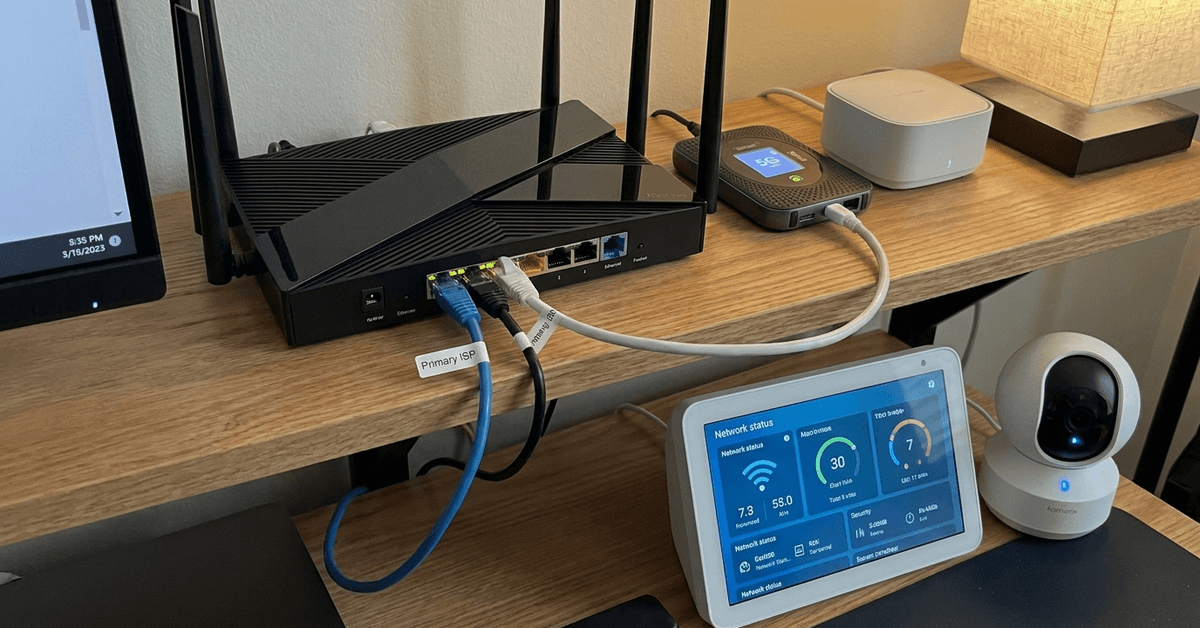
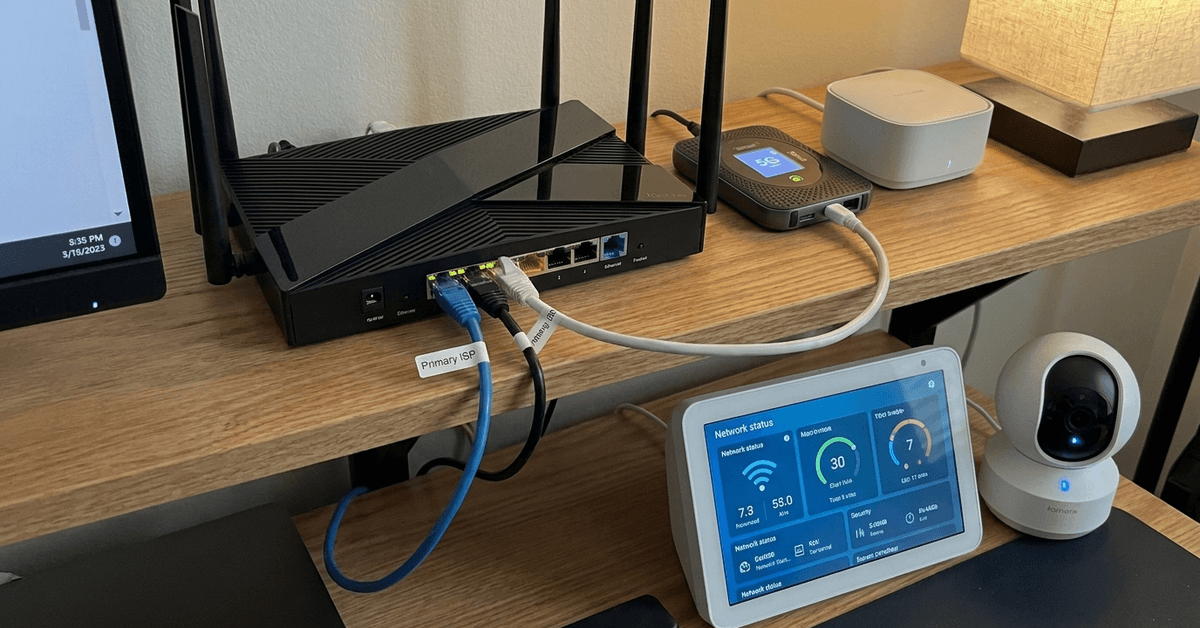
    Cellular hotspot devices use the mobile network to provide internet. Many homeowners keep a basic 4G or 5G hotspot as their emergency fallback.

    • Works independently of your main broadband.
    • Setup is often as simple as plugging it in and setting up Wi-Fi credentials.
    • Some hotspots use physical SIM cards (compatible with major carriers), others come with integrated service.

    Cellular hotspots are compact and work even if landline or fiber cables are damaged—or under maintenance. Data costs can run higher, so usage should be limited to essentials during an outage.

    Neighbor Wi-Fi as a Backup

    Some people arrange a reciprocal Wi-Fi sharing agreement with neighbors. This option provides emergency internet if you each run separate ISPs.

    • Requires a strong, secure Wi-Fi password and clear agreement on use.
    • Keep guest networks isolated from your main devices for security.

    This method isn’t always possible, and it relies heavily on good neighbor relationships and privacy safeguards.

    Wired Fallback (DSL + Cable, or Fiber + 4G)

    Combining different providers and technologies is another reliable tactic. For example, keeping a low-speed DSL line as backup to a main cable or fiber internet plan.

    • Automatic switching or manual toggling is possible, depending on network gear.
    • Maintains physical separation—vital during regional outages of one service.

    This approach provides stability but may involve extra monthly costs for maintaining two plans.

    Mobile Tethering

    Using your smartphone’s mobile hotspot function is common during short outages or for light usage.

    • Use a USB cable or Wi-Fi to share mobile data with a laptop, tablet, or even a router supporting tethering.
    • It’s a flexible, cost-effective option but may drain the phone’s battery quickly.

    Recommended Hardware for Dedicated Backup Internet

    Building a solid, reliable backup system starts with the right hardware. Here are the most popular categories for home users.

    How to Set Up a Secure Backup Internet Connection for Your Home

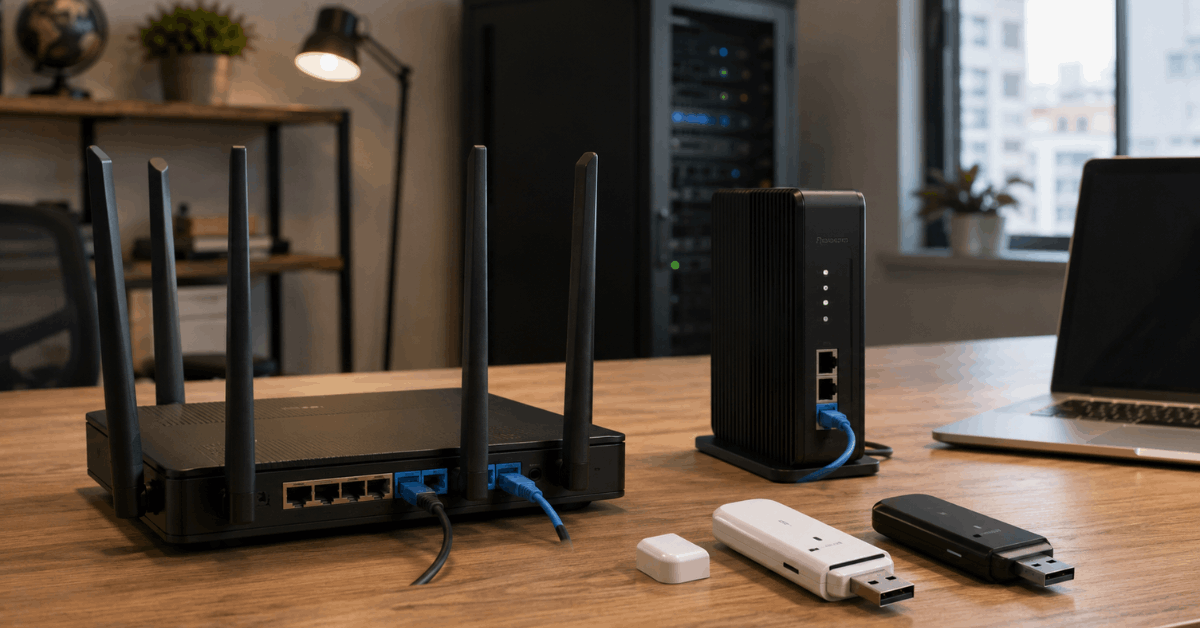
    Multi-WAN Routers

    A multi-WAN router connects to more than one internet source. It can automatically switch between your main and backup services when it senses a problem.

    • Popular brands include TP-Link, Ubiquiti, and Netgear.
    • These routers support failover modes and traffic balancing.

    Some models allow you to set rules on which devices get access, or even load balance for higher performance.

    4G/5G USB Dongles

    USB modems or dongles provide a simple way to add backup connectivity. Many routers have a USB port designed for this type of device.

    • Insert the SIM card and configure with your provider’s APN settings.
    • Ideal for brief outages or as a quick, portable remedy.

    The best results come from using a separate data plan with automatic data top-ups to avoid service gaps during emergencies.

    Standby Mesh Wi-Fi Nodes

    If you rely on mesh Wi-Fi systems, check if your hardware supports backup source failover. Some mesh brands integrate cellular or alternative WAN modules.

    • Eero, Google Nest Wi-Fi, and Asus are examples to explore.
    • Plug the backup source into the main node’s secondary WAN or USB port.

    Configuring Automatic Failover for Seamless Switching

    For worry-free backup, setting up automatic failover is highly recommended. Several consumer-grade routers support this feature out of the box.

    1. Connect your primary internet source (fiber, cable, or DSL) to the router’s main WAN port.
    2. Attach your backup (such as a 4G dongle or second ISP modem) to the secondary WAN or USB port.
    3. In the router’s management page, locate multi-WAN or failover settings—this is often under Advanced or Internet menus.
    4. Enable failover or load balancing. Set the backup connection to activate automatically if the primary link drops.
    5. Test by disconnecting the main WAN to ensure the router switches to the backup.

    Remember to monitor data usage and reset equipment as needed after outages.

    Keeping Backup Internet Secure

    All internet connections, especially backups, need strong security. Even temporary or mobile-based connections can expose vulnerabilities without precautions.

    Use Strong Wi-Fi Passwords

    Set a unique, complex password on all Wi-Fi networks—especially backup or guest networks. This reduces the risk of unauthorized access.

    Enable WPA3 or At Least WPA2 Security

    WPA3 is the latest Wi-Fi encryption standard. If your router and devices support it, enable it in your Wi-Fi settings. Otherwise, use WPA2 as a minimum.

    Update Firmware Regularly

    Vendors often release security updates for routers and modems. Set reminders to check for firmware updates on all network hardware, including cellular devices.

    VPN for Extra Protection

    For sensitive activities, connect to a reliable VPN provider like ProtonVPN or NordVPN. VPNs add a layer of security, especially when using a mobile or shared backup connection.

    Minimizing Downtime: Testing and Automation Apps

    Regular testing of backup systems can reveal problems before a real outage occurs. Homeowners often use free or paid apps to automate status checks and logging.

    • Free tools such as Internet Connectivity Monitor or Uptime Kuma help track primary and backup network health.
    • Smart home platforms like Home Assistant support internet downtime alerts and automatic switching scripts.
    • IFTTT and similar services let you set up custom notifications if connections fail or switch.

    Budgeting: Keeping Costs and Data Under Control

    Backup connectivity often comes with extra expenses. To keep costs manageable, choose a plan that matches your usage pattern and risk tolerance.

    • Prepaid mobile data SIMs avoid surprise bills.
    • Data caps on secondary plans protect against runaway costs if devices use backup connections longer than expected.

    Some homeowners prefer low-limit backup plans and manually restrict critical devices to run on the backup network only.

    Conclusion

    Setting up a secure backup internet connection for your home boosts reliability, protects vital smart devices, and reduces stress during provider outages. Whether using a cellular hotspot, multi-WAN router, or dual broadband plans, the right mix comes down to your budget, local service options, and security needs.

    Security is essential at every step—from choosing hardware to setting passwords and updating firmware. Regular testing ensures your backup connection is ready when you need it most. 

    By following these practical steps, you can transform your home’s connectivity resilience and maintain peace of mind, no matter what happens to your main internet link.