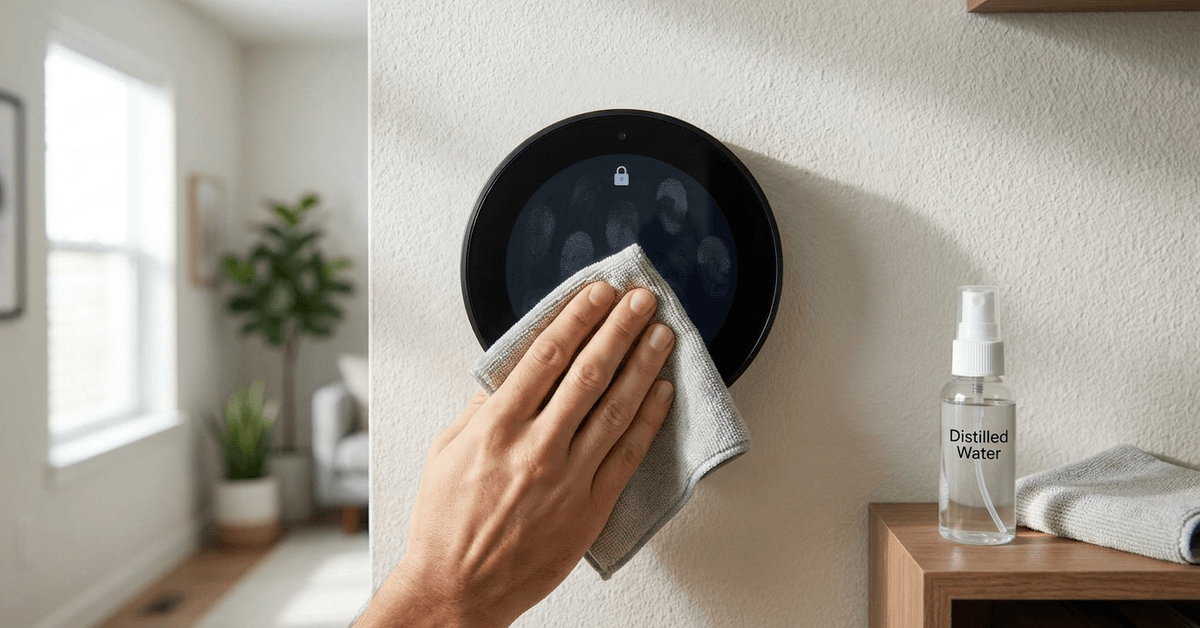
Smart thermostats are central to modern home automation. Their touchscreen interfaces make daily climate control simple. Yet these screens attract fingerprints and dust quickly. Keeping the display clean ensures clarity and device longevity.
Why Gentle Cleaning Matters for Smart Thermostat Touchscreens?
Touchscreens use sensitive sensors and delicate coatings. Using improper cleaners or methods risks damaging the device. Screen clarity and touch response can worsen with scratches or residue.
Manufacturers design most smart thermostats with glass or polycarbonate displays. However, even small abrasives can leave lasting marks. A careful approach makes a big difference in device upkeep.
Common Pitfalls: What to Avoid When Cleaning
Certain products and techniques often seem harmless. In reality, they can harm smart thermostat touchscreens. Awareness avoids costly replacement screens.
- Alcohol-based cleaners may strip away protective coatings.
- Paper towels or facial tissues contain fibers that scratch glass or plastic.
- Household window sprays sometimes leave a hazy residue.
- Pressing hard risks screen misalignment or cracks.
Many owners notice streaking after cleaning with hot water or liquid soap. This usually results from minerals in the water or soap residue. Residual moisture can also seep into screen seams.
The Safest Cleaning Supplies to Use
Maintaining smart thermostat screens is straightforward with proper supplies. Often, screens just need gentle wiping to remove fingerprints or smudges.
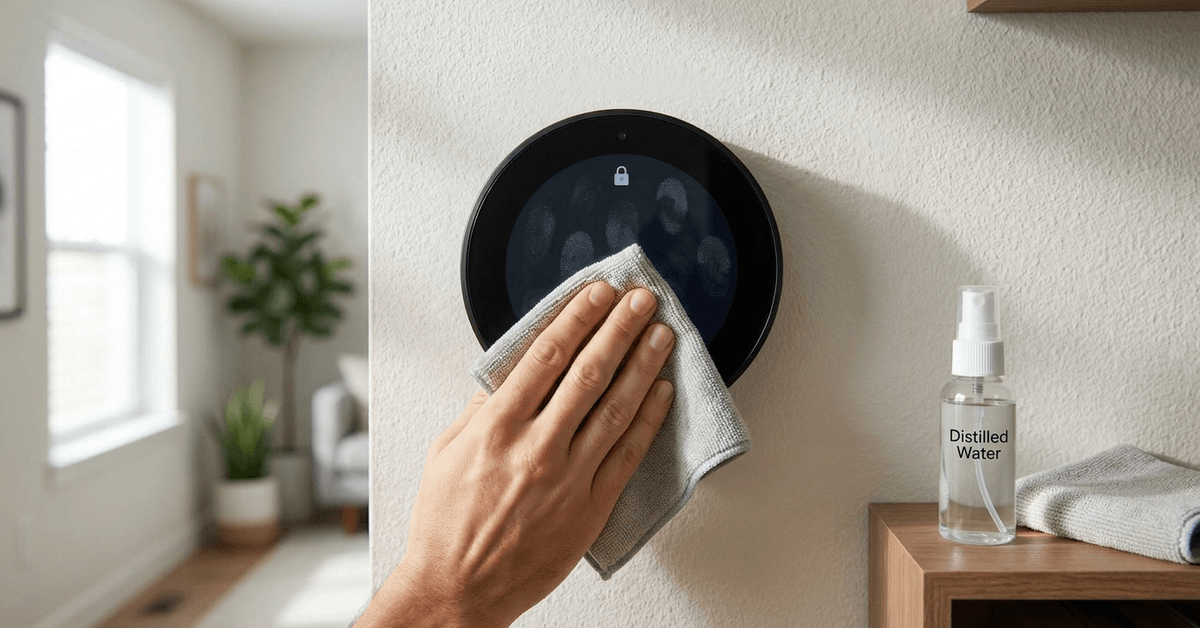
- Microfiber cloth: This removes oils and debris while protecting the screen finish.
- Distilled water: Tap water might leave mineral spots. Distilled water avoids this issue.
- Mild dish soap (optional): For stubborn marks, mix a tiny drop in distilled water.
- Compressed air: Great for blowing dust from screen edges and sensor crevices.
For routine maintenance, most homeowners rely on a dry microfiber cloth. Fewer chemicals mean fewer risks.
Step-by-Step Instructions: Cleaning Your Thermostat Screen Safely
1. Preparation: Power and Safety First
A great practice is to turn off the device before cleaning. This prevents accidental settings changes and reduces risk of electric shock.
Some thermostats offer a ‘Screen Lock’ mode that disables touches. This tool helps avoid accidental commands while cleaning.
2. Dust Removal and Gentle Wiping
- Lightly brush the screen with a clean, dry microfiber cloth.
- For dust in seams, use compressed air at a safe distance.
Typically, this step is enough for light smudges and everyday dust.
3. Removing Stubborn Smudges or Oil
- Mix one drop of mild dish soap with a cup of distilled water.
- Dampen (do not soak) a corner of your microfiber cloth.
- Wipe gently, using small circular motions on stuck spots.
- Wipe again with a dry side of the cloth to remove any moisture or streaks.
Over-wetting the cloth risks drips. Try to keep the cloth barely damp for best results.
4. Avoiding Moisture Intrusion
Directly spraying liquids onto the screen sometimes causes permanent damage. Moisture can seep through screen seams and affect internal circuits.
Instead, always apply cleaning solution to the cloth first. This prevents liquid from migrating where it shouldn’t.
Maintaining Cleanliness Between Deep Cleans
Frequent touch means fingerprints add up over time. Some basic habits minimize buildup and keep displays clearer longer.
- Wash hands before adjusting settings whenever possible.
- Use voice control apps (like the official Google Home or Ecobee apps) to reduce physical contact.
- Install thermostats away from kitchen or high-traffic entryways to limit grease and dirt exposure.
Families with kids or pets may find weekly wipe-downs essential for screen clarity.
Recommended Software and Features for Touchscreen Management
Several smart thermostat brands offer app-based or sensor-based controls. These can limit the need for direct screen interaction.
- Google Nest App: Allows remote adjustments from a phone or tablet.
- Ecobee Mobile App: Offers full thermostat control and monitoring via Wi-Fi.
- Honeywell Home App: Useful for setting schedules or temperature without touching the physical device.
This reduces screen wear and decreases cleaning frequency.
Comparing Cleaning Protocols: Glass vs. Plastic Screens
Some smart thermostats use real glass displays, while others rely on polycarbonate or acrylic. Each material benefits from a slightly tailored cleaning method.
- Glass screens tolerate more gentle moisture, but scratch easily from gritty cloths.
- Plastic screens resist shattering but are more sensitive to chemical cleaners and heat.
- Microfiber remains the best universal choice for both surfaces.
If unsure, consult the manufacturer’s manual for your exact model. Brand-specific care is sometimes advised for warranty protection.
Troubleshooting: When Cleaning Doesn’t Solve Display Problems
Occasionally, a screen resists cleaning or reveals deeper problems. Blotchy colors, lingering streaks, and unresponsive touch controls signal potential hardware issues.
- Persistent fogginess or streaking might mean internal condensation. Contact support for help.
- A scratched or deeply pitted display could require professional repair or replacement.
- Non-responsive screens after cleaning suggest possible moisture ingress, not just dirt.
Users often wonder if touchscreen-safe films or protectors might help. Some brands sell these as accessories to prevent future scratches. Only use accessories verified by your thermostat manufacturer.
Conclusion: Protecting Your Smart Thermostat Investment
Regular, gentle cleaning keeps smart thermostat touchscreens performing at their best. Using safe materials, like a microfiber cloth and distilled water, protects coatings and sensors.
Homeowners who combine smart app use with careful upkeep see fewer issues with their displays. Screen protectors, when verified for your model, add another layer of security.
Paying close attention to cleaning habits preserves screen clarity and touch sensitivity for years. In most cases, these practical methods support the efficient, long-term use of your smart home devices.