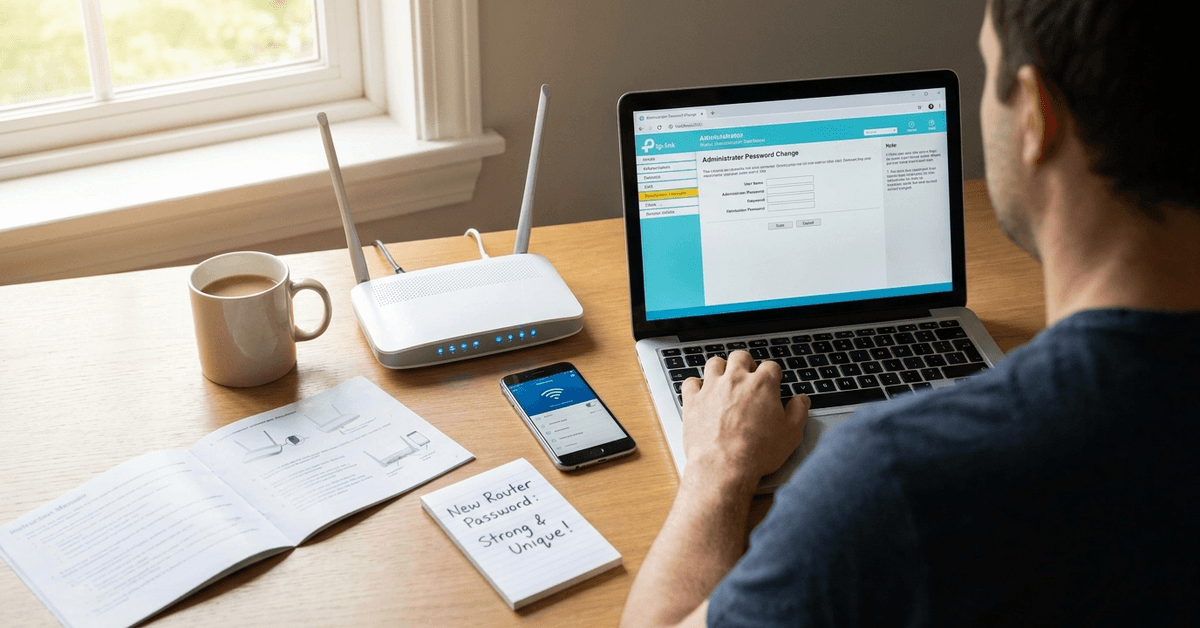
Updating your router login details improves your smart home’s security. Many people forget to change these default credentials after setup. This simple task can stop outsiders from accessing your network.
Entry-level homeowners and smart home enthusiasts who value privacy will benefit from understanding this process. With the right steps, your home Wi-Fi stays protected and reliable.
Why it matters to change your router’s default login info?
Routers are shipped with standard usernames and passwords set by the manufacturer. Details like “admin” or “password” are easy for attackers to guess. Once compromised, your personal and device data may be at risk.
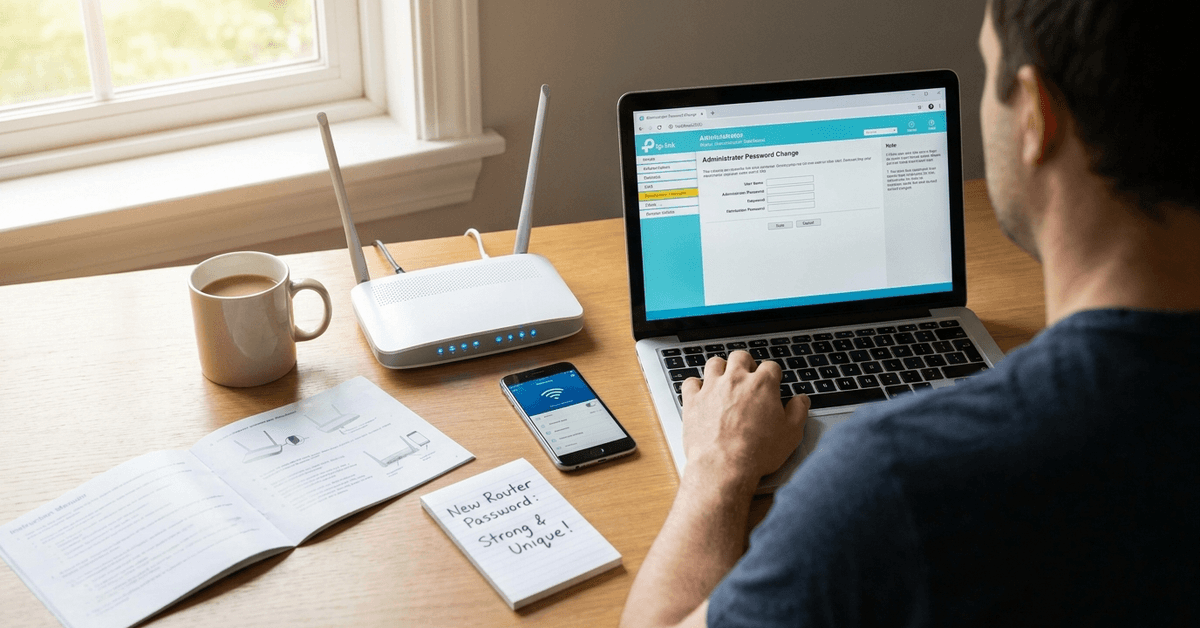
Changing credentials reduces the risk of unauthorized access. It also helps ensure only trusted users can manage smart gadgets and connected appliances.
What you need before starting?
- Router make and model for finding its admin page
- A device connected to your network (phone or computer)
- Access to your router’s power adapter or reset button
- Internet browser installed (Chrome, Firefox, or Safari work well)
It’s helpful to have the router’s manual. For digital copies, check the support site of your router brand, such as Netgear, TP-Link, or Asus. Manuals offer specific menu labels when steps differ.
Finding your router’s local IP address
The first step involves accessing your router’s admin dashboard. Usually, this interface is reached through a browser on your local network.
- On Windows: Press Windows+R, type cmd and press Enter. Type ipconfig and look for “Default Gateway”. This value is usually your router’s IP address (like 192.168.1.1).
- On macOS: Open Terminal, enter ifconfig or netstat -nr | grep default. The number shown by “gateway” is what you need.
- From a smartphone: Use apps like Fing for Android/iOS to display your network details, including the router’s IP.
If standard methods don’t show the address, check the label under the router. Brands often print access information there.
Accessing your router’s admin interface
Once you have the IP, open your preferred browser. Type the address into the address bar. Avoid using search engines at this step. Direct entry is safer and more reliable.
This brings up the login screen. Most brands use usernames like “admin” and common passwords like “admin” or “password”. These must be changed for security.
- Required: Use the default login if you haven’t changed it previously.
- If unsure, check the bottom of your router for credentials or find specific guides on sites like routerpasswords.com.
Navigating to the credentials page
Admin dashboards differ across brands. However, credentials are often found under headings like Administration, “System Tools”, or “Maintenance”. Some interfaces may refer to this as the “Management” tab.
Typical menu options to look for include:
- “Account management”
- “Change password”
- “Advanced settings” with sub-items relating to passwords or users
If your dashboard is unclear, the manufacturer’s help website is a reliable resource with diagrams and screenshots.
How to change your router’s admin username and password?
After reaching the credential settings page, a simple form is usually presented. Homeowners often find these labeled as old password, new password, and confirm new password fields.
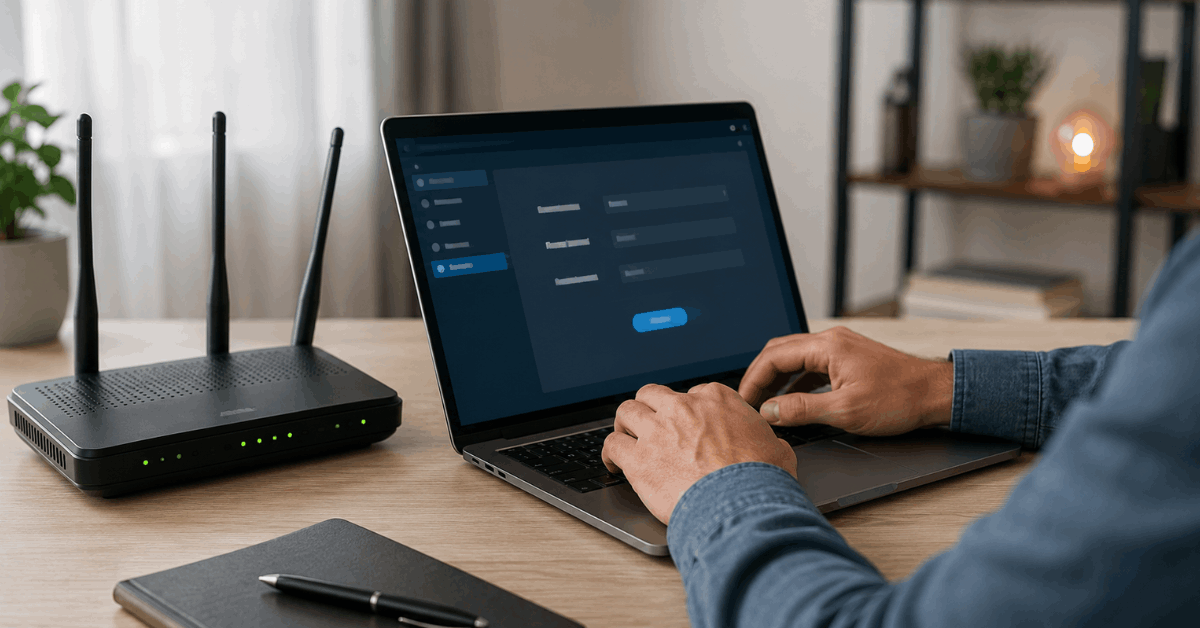
- Enter your current login credentials first if required.
- Choose a new username. Short but unique is best. Avoid “admin” or names that reveal your identity.
- Set a strong password . Use at least 12 characters, combining letters, numbers, and symbols. Tools like 1Password or Bitwarden can generate secure suggestions.
- Save or confirm changes. Some routers will prompt a reboot to apply the updates.
Document your new login details in a secure place. Avoid sticky notes or unsecured files. A trusted password manager keeps things organized and safe.
Tips for choosing and safeguarding new login info
- Avoid personal info like birthdays or pet names.
- Generate passwords that don’t resemble common dictionary words.
- Rotate your password for the admin panel at regular intervals, perhaps every six months.
- If your router supports it, enable two-factor authentication (2FA) . Some newer models from Asus, Linksys, or Netgear offer this in advanced menus.
Password managers are helpful for creating, updating, and storing credentials. Services such as LastPass or 1Password handle this securely.
Special considerations for mesh and cloud-controlled routers
More homeowners now use mesh systems, like Google Nest Wifi , Eero, or TP-Link Deco. These platforms often use mobile apps instead of web dashboards for security settings.
Steps for these models usually include:
- Open the dedicated management app (like “Google Home” or “Eero”).
- Navigate to network settings, then select the administrator profile.
- Update login email, password, and tap to confirm. Changes take effect across the entire network.
Cloud-controlled routers frequently tie access to your online account. Keep this email account secure with strong, unique passwords and 2FA wherever possible.
What to do if locked out or you cannot remember credentials?
Getting locked out is fairly common. Most routers have a physical reset button, often marked “RESET,” on the back or bottom. Using a pen tip, hold this for about 10 seconds while powered on to restore defaults.
- Consult the manufacturer’s support page for exact reset steps. Each brand handles resets slightly differently.
- After reset, log in using the default credentials printed on the device or in the manual.
- Repeat the credential change process immediately to keep your network protected.
Maintaining a secure router going forward
Routine security checks are important. Set calendar reminders to review your admin credentials and update them periodically.
- Review who has access to your admin panel.
- Apply firmware updates offered by your router brand. Keeping firmware up to date is as vital as changing credentials.
- For added control, consider setting up guest Wi-Fi networks so visitors do not need main credentials.
Conclusion
Regularly changing your router’s default login info is essential for any smart home aiming to defend against intrusion risks. These steps are straightforward for most brands and models.
Remember, this basic task can make a real difference in how well your home network stays protected. Taking a few minutes for an update is a wise habit for maintaining a secure, reliable smart environment every day.
For more guides on home network security and smart automation, exploring resources on Fortressmate.com could further enhance your digital peace of mind.