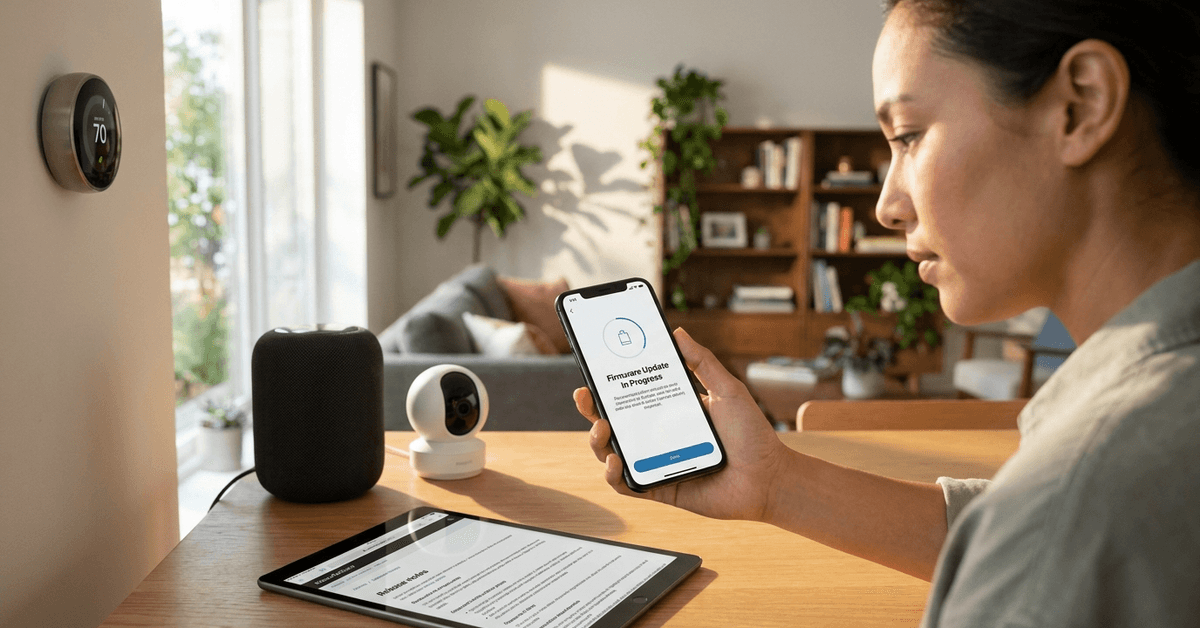
Smart home devices can transform daily life. Yet, like any tech, they sometimes develop issues. These glitches often relate to firmware—that’s the internal software running your gadgets. Reliable firmware is the backbone of secure home automation.
This guide is for anyone who owns smart locks, security cameras, sensors, or thermostats. Whether you use Amazon Alexa, Google Home, or Zigbee hubs, keeping firmware current helps prevent vulnerabilities and annoying bugs.
Why Updating Firmware Matters for Smart Home Stability?
Firmware tells your gadget what to do. Bugs in this code introduce strange behavior. Maybe your light won’t respond, or a security camera disconnects randomly. Sometimes these hiccups seem minor, but they can signal a bigger problem.
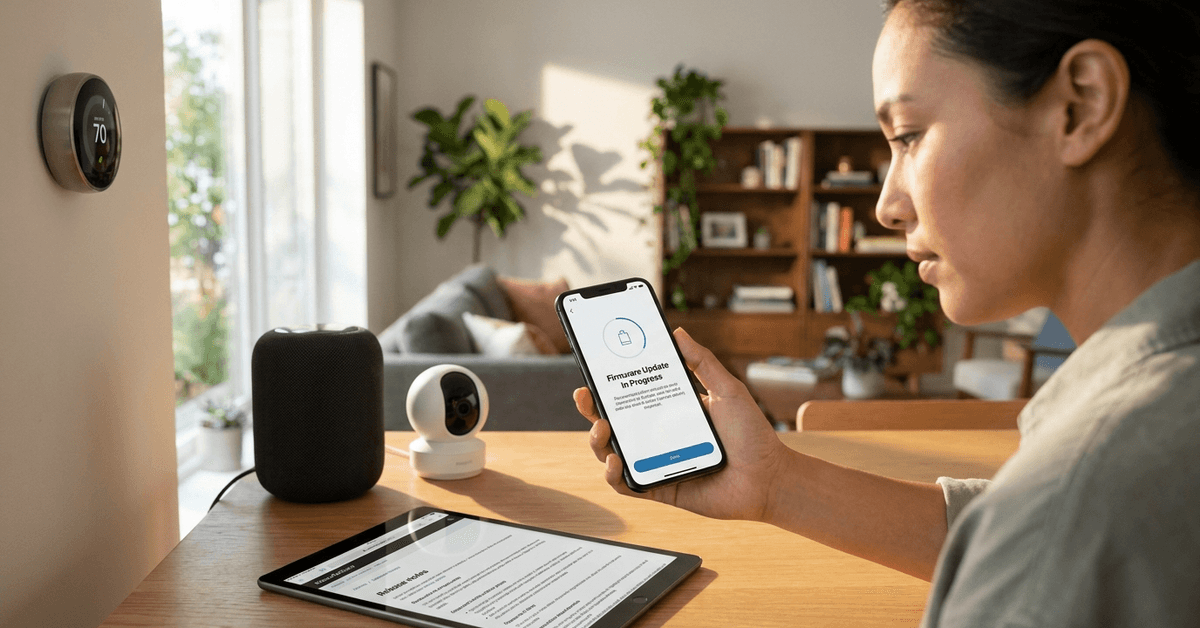
Manufacturers constantly improve device security and performance. Each firmware update usually patches known issues, adds features, or tightens security.
- Security patches protect against hacking attempts.
- Performance updates smooth out everyday glitches.
- Compatibility upgrades help old devices talk to new apps and platforms.
When Should Homeowners Check for Firmware Updates?
It’s tempting to set and forget your smart gear. Most experts think regular checks are key. Major brands like Ring, Philips Hue, or Yale, often provide updates every few months or whenever big bugs arise.
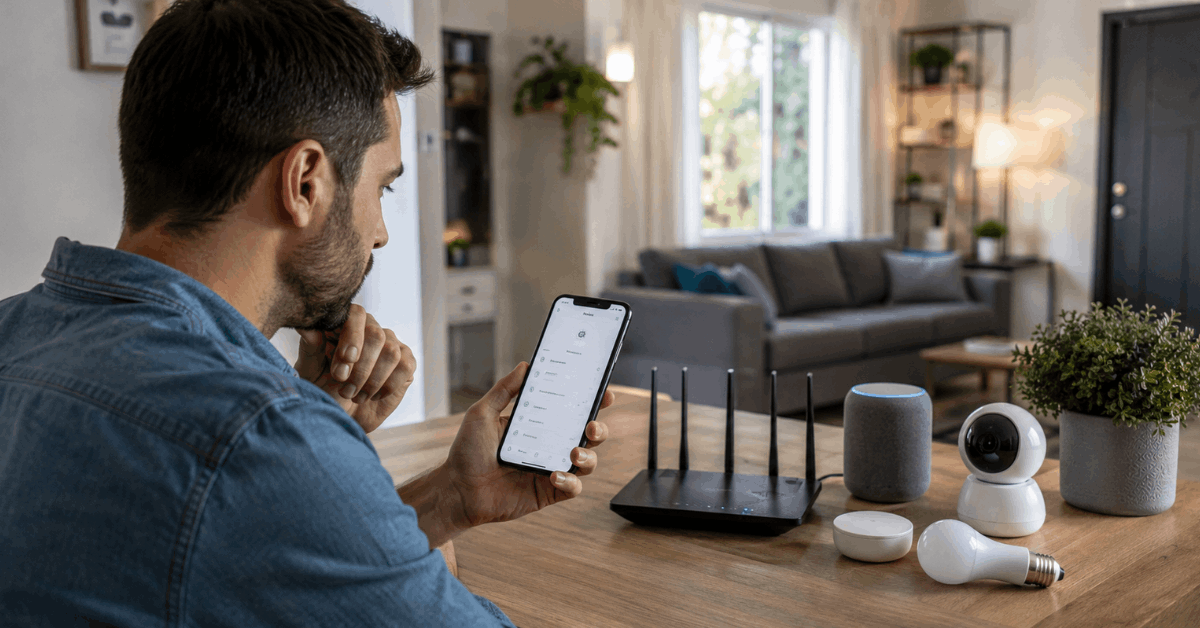
Some signs suggest a check is due:
- Delayed responses or failed automation routines
- Device disconnects from Wi-Fi or the hub
- Sudden compatibility errors after a smartphone OS update
- Privacy or security warnings within the app
How to Prepare Before Updating Your Smart Home Device?
Not every update goes smoothly. A sudden power cut or unstable Wi-Fi can interrupt the process. Careful preparation protects against failed updates that can brick a device.
Basic Steps Before an Update
- Check your device’s current firmware version in its mobile app.
- Read the manufacturer’s release notes for update details and fixes.
- Make sure your phone or tablet (used for updates) is fully charged.
- Position the gadget within strong Wi-Fi range or connect via Ethernet when possible.
- Backup device settings in the app, if this is an option.
As an extra layer of safety, some people prefer updating during daytime hours for easy troubleshooting, just in case.
Step-by-Step: Updating Firmware on Popular Smart Home Devices
The actual process varies by brand and device type. Yet, certain steps are common. Many popular smart hubs and apps include built-in tools for updates.
Updating Through the Manufacturer’s App
- Open the companion app (such as Google Home , Apple Home, or SmartThings) on your mobile device.
- Navigate to the device list and select the one needing an update.
- Search for “Device Information” or “Firmware” within its settings.
- Look for an option called “Update firmware,” “Check for updates,” or similar.
- If a new version exists, follow the prompts to download and install.
Some brands automatically push updates when the device is idle, but manual checks ensure nothing slips through the cracks.
Via Web Portal or Companion Software
- Visit the brand’s official support website (e.g., Philips Hue portal, Ring’s web dashboard).
- Login with your device account credentials.
- Navigate to the “Devices” or “My Products” section.
- Find your model and look for available firmware files or update tools.
- Follow the instructions to upload and install a downloaded file, if required.
This route is more typical with advanced devices like smart security panels or NAS-based camera NVRs.
Special Case: Zigbee and Z-Wave Devices
Devices on Zigbee and Z-Wave networks sometimes require updates through a compatible hub. Homeowners find success using platforms like SmartThings or Home Assistant.
- Ensure your hub firmware is current.
- Access the update menu for connected devices in the app.
- Start the update and keep the device powered during the whole process.
- Reboot the hub if the update hangs longer than expected.
Common Issues During Firmware Updates
Even the best-prepared routine can hit snags. Firmware glitches sometimes appear after a patch.
Failed Updates or Interrupted Installs
- If the app freezes, restart your phone and try again.
- For a device stuck in update mode, a gentle reset may be needed (follow the manual for safe reset steps).
- Never unplug or turn off the device mid-update, as this can permanently damage internal memory.
Device Unresponsive After Update
- Sometimes a device must be power-cycled—unplug it for a few seconds, then reconnect.
- If issues persist, a factory reset via the companion app or a small hardware button can restore function. Remember, this erases custom settings.
- Check the manufacturer’s support center for known post-update bugs or solutions.
How to Automate Firmware Updates (and When to Avoid It)?
Many devices allow auto-updates. This can work great; the latest code is always in place without effort. Yet, there’s a trade-off. Sometimes a new patch triggers bugs.
- Enable auto-updates only for non-critical devices (like bulbs or smart plugs).
- Hold off on rolling out new firmware immediately for security hubs or door locks. Waiting a week or two lets early bugs get patched.
A careful workaround is to subscribe to email or app alerts from your device makers. That way, you pick the best time to update.
Ensuring Network Security During and After Updates
Firmware updates often repair security loopholes. It makes sense to consider your Wi-Fi and network safety during the update process as well.
- Change default device passwords in your app settings to unique, complex ones.
- Keep your home router’s own firmware up to date. Most major routers (such as Netgear or TP-Link) offer built-in update tools.
- Use guest Wi-Fi networks for connected devices when possible so your main devices remain isolated.
Tips for Maximizing Device Performance After an Update
Once the firmware update succeeds, most glitches should fade away. Some additional tweaks help ensure best results.
- Reboot your device and the hub after updating to refresh networks.
- Test all key functions—lock, unlock, camera streaming, motion alerts—using the app.
- Review new settings or permissions introduced in the update, adjusting them as needed for your preferences.
Reliable Resources for Firmware and Troubleshooting
Always rely on trusted sources. Visiting official brand help pages or direct device forums can answer specific update and bug questions.
- Manufacturer support sections (for example, support.ring.com or support.philips-hue.com)
- Device-specific user groups on Reddit, such as r/SmartThings or r/HomeAssistant
- Firmware release note archives within your app
If a new firmware patch seems buggy, checking these spaces often reveals if others have the same problem or have suggested workarounds.
Conclusion: A Secure, Reliable Smart Home Starts with Regular Firmware Updates
Updating smart home device firmware may seem tedious. But it’s a small investment for daily peace of mind and hassle-free automation. Firmware fixes close doors that hackers love to pry open. They smooth out performance hiccups and often add new features you never knew you were missing.
For best results, make firmware checks a seasonal habit. Back up your settings (when possible) and watch for official manufacturer alerts. Investigate every update at your own pace. Careful attention today means fewer headaches and better security tomorrow.
A well-updated smart home has fewer disruptions and keeps your digital fortress standing strong. For more on safe smart home setups, consider exploring future articles at Fortressmate.com, perhaps with topics like smart lock compatibility, automation privacy, or comparing mesh Wi-Fi for secure homes.