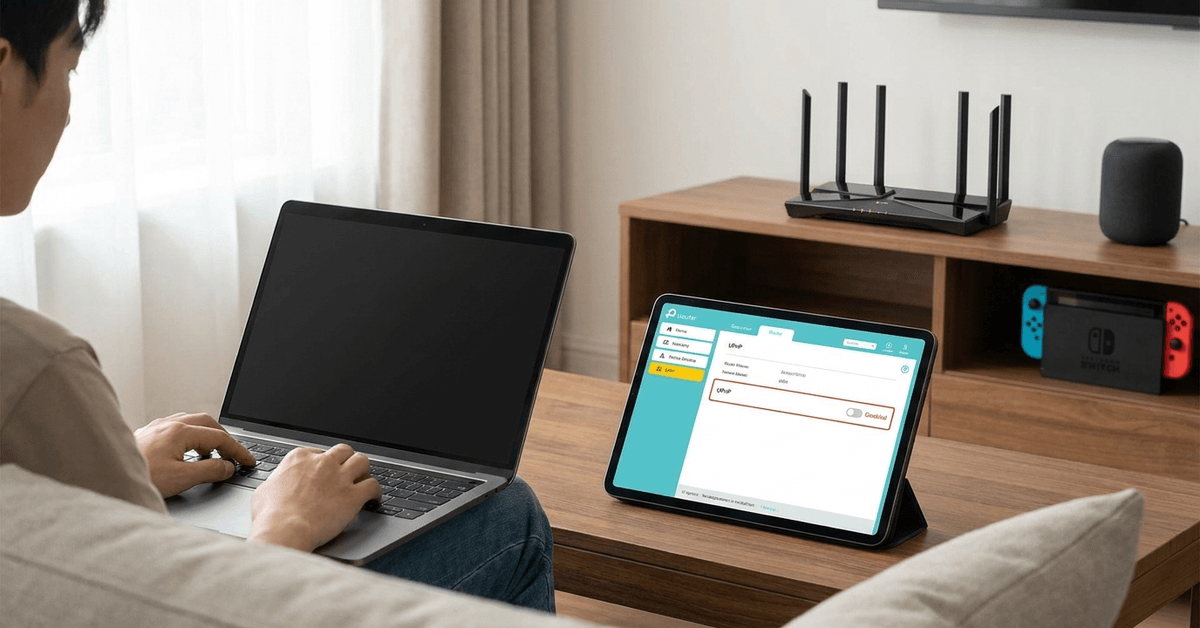
Universal Plug and Play (UPnP) is a protocol designed to help smart home devices connect easily to your network. Many homeowners use it unknowingly because it works quietly in the background.
However, this convenience sometimes leaves the door open to cyber risks. Devices exposed through UPnP can become easy targets for attackers seeking vulnerable networks.
What is Universal Plug and Play (UPnP)?
UPnP helps computers, smart TVs, consoles, and cameras find each other and communicate on your local network. It handles tasks like port forwarding without much user input.
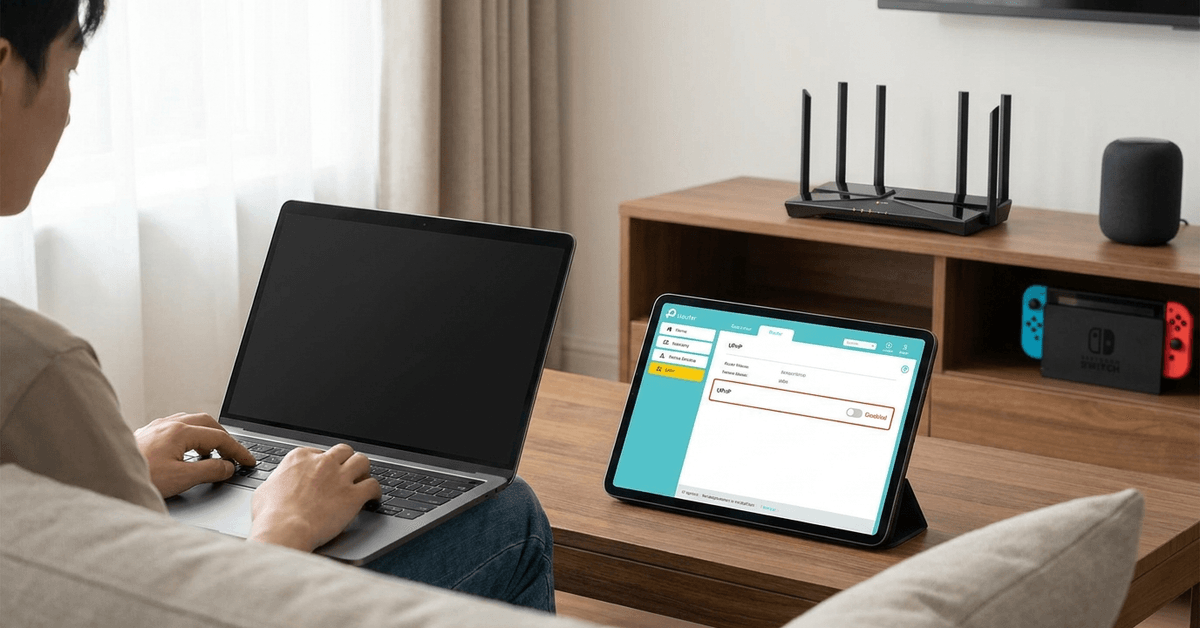
Enabling UPnP means new devices can connect without much setup. While this feels smooth, it may also allow malware or unauthorized apps to automatically open network ports.
Common Devices Using UPnP
- Smart speakers like Amazon Echo
- Wi-Fi printers
- IP security cameras
- Game consoles such as PlayStation and Xbox
- Media servers
Not every device needs UPnP. In fact, most work with manual setup or with no port forwarding at all.
Why Disabling UPnP Increases Security
UPnP lacks authentication. This means malware from one infected device can potentially open ports for outside attackers, changing your home firewall settings without direct approval.
Disabling UPnP closes this automated access. Only devices that you explicitly configure will communicate with the internet through certain ports.
Real-World Risk Examples
- Home routers targeted by botnets, like Mirai, often fall victim because UPnP opens ports without warnings.
- In 2021, UPnP vulnerabilities were found in millions of home routers, putting smart homes at risk of remote hacks.
For anyone with IoT gadgets, cameras, or kids using gaming systems, the risks become even more real. Reducing your attack surface is simply safer practice.
How to Check If UPnP Is Enabled?
Finding your UPnP setting is not always obvious. Most routers have it in their web interface, sometimes under advanced or security menus.
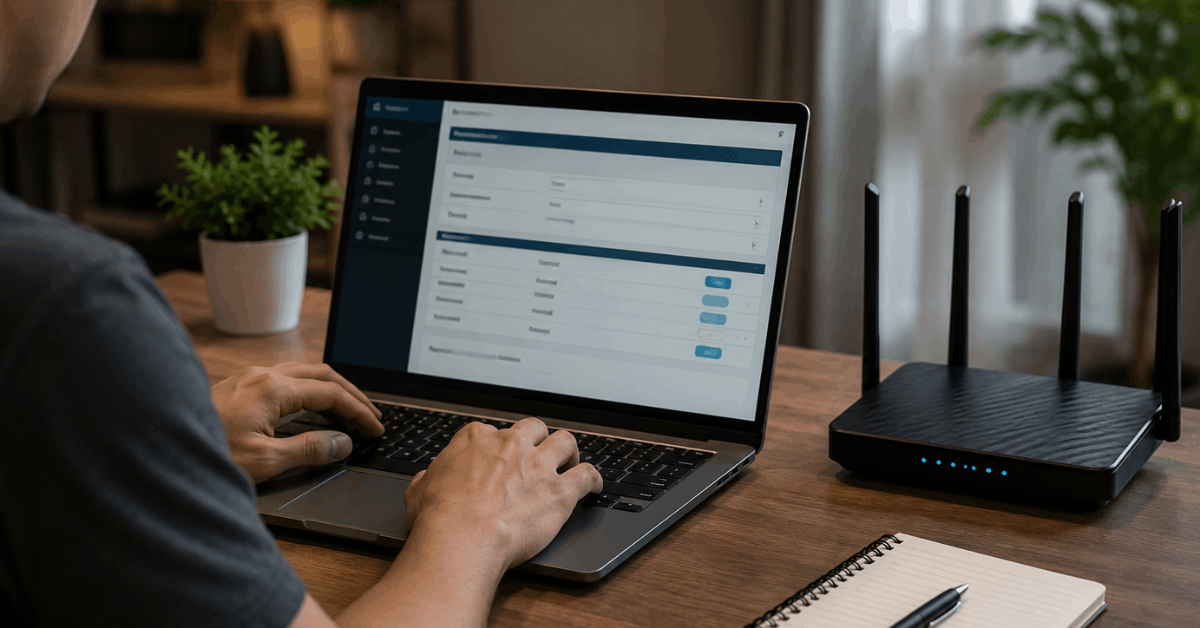
- Open a browser and enter your router’s IP address. Common addresses include 192.168.1.1 or 192.168.0.1.
- Log in using your admin credentials. If unsure, check the device label or manual for the correct username and password.
- Look for a section like Advanced Setup or NAT Forwarding.
- Find the UPnP setting. It may be listed as simply “UPnP”, “UPnP IGD”, or within a firewall menu.
If you cannot find the setting, your router’s support site often provides model-specific support pages. Searching your router model and “disable UPnP” typically brings up answers.
Steps to Disable UPnP on Popular Routers
TP-Link Routers
- Access your router’s dashboard in a browser.
- Log in as admin.
- Navigate to Advanced > NAT Forwarding > UPnP.
- Disable the UPnP toggle or setting.
- Save your changes and restart the router.
Netgear Routers
- Go to your router login page and enter credentials.
- Under Advanced Setup , select UPnP settings.
- Uncheck or turn off Enable UPnP.
- Click Apply, then reboot if prompted.
Asus Routers
- Sign into the web interface.
- Open WAN on the left menu, then click on Internet Connection.
- Scroll to UPnP and turn it off.
- Save and reboot the router.
Other brands such as Linksys, D-Link, or Ubiquiti use similar steps. If needed, refer to their official documentation for any special interface quirks.
How to Confirm UPnP Is Disabled?
After disabling, a quick scan can help check that risky ports are no longer automatically open.
- Try an online tool such as GRC ShieldsUP! to verify port status
- Within your router’s settings, review the port forwarding or UPnP table—active UPnP should be empty
No entry means automated port creation is stopped and your smart home is more secure from outside threats.
Possible Side Effects and Alternatives
The main impact of disabling UPnP is that devices like Xbox or PlayStation might give NAT warning messages, especially for gaming or video chat.
To address this, manual port forwarding is sometimes used. Homeowners can follow manufacturer documentation to forward only the needed ports, keeping their setup safe but functional.
Manual Port Forwarding: A Safer Approach
- Identify the ports your device or application needs (for example, Xbox Live uses ports 88 and 3074).
- Log in to the router dashboard and locate the Port Forwarding section.
- Manually enter the port numbers and assign them to the device’s IP address.
- Save and test the connection.
Though it takes extra steps, manual port forwarding puts decisions in the user’s hands rather than allowing devices to open ports automatically.
Extra Security Tips After Disabling UPnP
- Change the default admin credentials on your router to something unique and strong
- Enable automatic firmware updates where possible
- Turn off remote administration unless absolutely required
- Set a guest network for untrusted devices or visitors
These moves, combined with disabling UPnP, close most of the common avenues attackers exploit to breach home networks.
Useful Apps and Tools to Audit Your Network
- Fing (available on iOS and Android) helps scan for devices and open ports on your home network
- Advanced IP Scanner is a Windows tool for mapping devices and checking for unfamiliar connections
- RouterCheck app can analyze basic router vulnerabilities and unsafe settings
Checking your network regularly shows which devices are connected and flags suspicious activity early.
When Should UPnP Stay Enabled?
In highly controlled networks, like those used for gaming tournaments or large smart homes with trusted users, UPnP might still have a place. For most families and individuals, though, the security trade-off is rarely worth it.
If someone is unsure, it can be informative to temporarily disable UPnP and see if any daily devices or services are noticeably affected. Most find no impact outside of specialized use cases.
Powerful Takeaway for Safer Smarthomes
Disabling UPnP offers a straightforward way to protect your digital life from many common threats. Fewer open ports means fewer entry points for malicious actors.
This quick tweak, combined with strong router passwords and up-to-date firmware, can drastically reduce network exposure. A little investment in safety today often prevents headaches tomorrow.