Buffering can interrupt even the best movies or sports events on smart TVs. Many users find this issue frustrating when relying on Wi-Fi connections at home.
Anyone who loves seamless streaming and optimal smart home setups may notice the difference a stable connection makes.
Using a network cable often provides greater reliability and speed than wireless connections. This article explores how to use a wired network option for smart TVs, the specific advantages, and actionable installation advice.
Why Wired Connections Reduce Buffering on Smart TVs?
Streaming in high definition places strong demands on your network. Even upgraded Wi-Fi often competes with other devices, causing sudden lags or dropouts. Wired Ethernet, by comparison, delivers signals more directly to the TV.
Consistent Bandwidth for Streaming
Ethernet transmits data more steadily than Wi-Fi. Fewer interruptions occur because there’s less competition for the wireless spectrum. Homeowners with multiple connected gadgets typically see improvements when TVs are wired.
Lower Latency and Signal Stability
Network cables reduce latency, or delay, in video delivery. Streaming platforms like Netflix or Prime Video benefit from fewer buffering circles. This approach often supports more stable, predictable internet speeds.
Less Interference From Other Devices
Wi-Fi signals can suffer from interference, especially in smart homes filled with internet-enabled gadgets. Wired connections avoid most obstacles, providing each device its own direct pathway. This aspect makes a difference during busy evening hours.
Choosing the Right Network Cable for Smart TVs
Not every cable is equal in performance. Selecting the correct type ensures your setup performs at its best, matching the speed of your home internet plan. Some users realize a minor upgrade here makes a major impact.
Cat 5e, Cat 6, and Cat 7 Compared
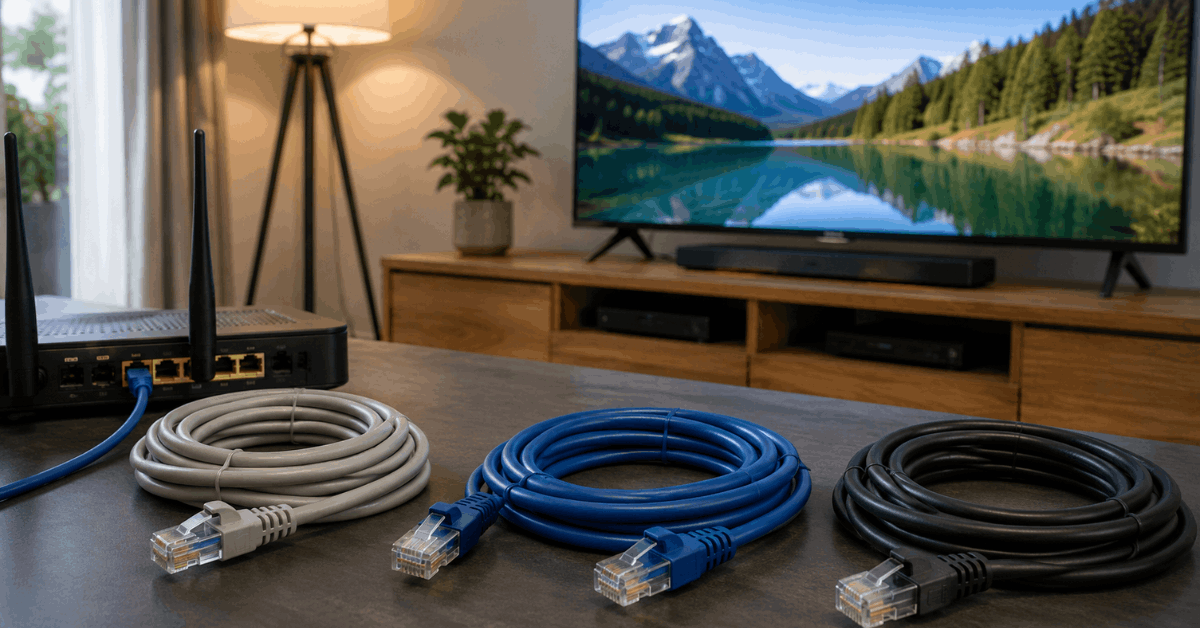
- Cat 6: Most smart TV owners find this offers sufficient speed and shielding. It’s capable of gigabit speeds, supporting modern 4K or HDR content.
- Cat 5e: Good for basic streaming. Slightly cheaper, but future-speed compatibility is limited.
- Cat 7: Provides even more shielding. Perhaps slightly overkill in typical home use, but may suit complex setups.
Checking the specs on your home router and TV will help determine the right match. Most smart TVs made after 2017 support at least Cat 6 speeds.
Recommended Cable Length and Quality
Standard Ethernet cables often reach up to 100 meters, but shorter lengths reduce the risk of signal loss. Users commonly select flat cables for easy wall routing. Reliable brand names, such as Belkin or Cable Matters, are something to consider for quality.
Locating the Ethernet Port and Preparing the TV
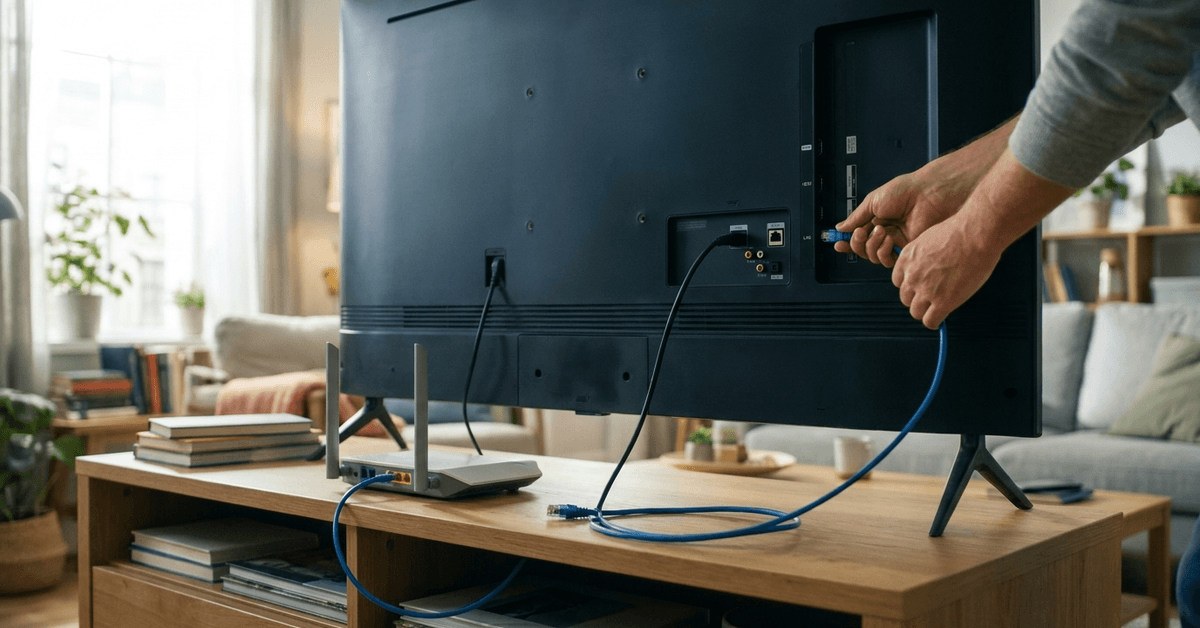
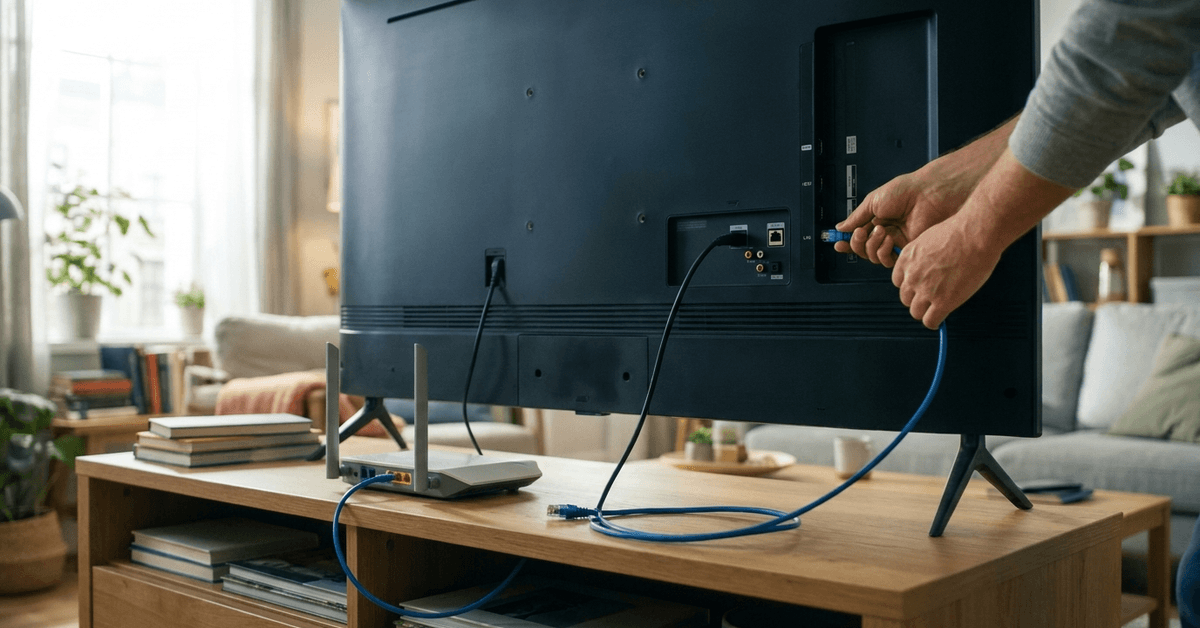
Most smart TVs have a dedicated RJ45 Ethernet port on the back or side panel. Some models may display a small network symbol or the word ‘LAN’ nearby. When in doubt, the owner’s manual usually provides a location diagram.
Checking TV Compatibility
Nearly all recent Samsung, LG, Sony, and TCL smart TVs include wired network support. If using a smaller or older model, searching for ‘Ethernet’ or ‘LAN port’ in the product manual will clarify its options.
Router Placement and Easy Cable Routing
- Position your router as close to the TV as possible to minimize cable clutter.
- If distance is unavoidable, consider adhesive cable clips or trunking for tidy installation.
- Where cable routing becomes difficult, a network switch in the same room can split the signal without loss.
Step-by-Step Guide: Connecting Your Smart TV With a Network Cable
Setting up a wired Ethernet connection involves just a few targeted steps. The improvement in streaming performance may become clear right away.
- Unplug your smart TV and router for safety before handling any cables.
- Insert one end of the Ethernet cable into the router’s LAN port.
- Connect the other end to the TV’s Ethernet or LAN port.
- Reconnect devices to power and power them on.
- Navigate to the TV’s “Network Settings” menu, found under “Settings” or “Connections.”
- Select “Wired Connection” or “Ethernet.” The TV should detect the network automatically.
- Test the connection using the TV’s built-in network test tool, usually under ‘Network Status’.
Troubleshooting Basic Connection Problems
- If “No Network Detected,” check that both cable ends click securely. Swapping ends may solve problems.
- If performance still seems slow, try using a different port on the router, or test with a second cable to eliminate faults.
- Older TVs may need a firmware update for best compatibility. Manufacturer support pages often provide direct downloads.
Advanced Network Optimizations for Buffer-Free Streaming
Even after connecting your TV directly, some users want to push streaming quality further. A few tweaks using router or TV features can optimize performance.
Quality of Service (QoS) Settings
Many modern routers include QoS or traffic prioritization. Adjusting these settings allows you to favor streaming over other background downloads. Setup details depend on the brand: for example, TP-Link and ASUS offer simple toggle options in their web setup interfaces.
Static IP Assignment
Some find manually assigning the TV a static IP address creates a more reliable connection. This step can prevent occasional drops if your home network resets. The process is usually under “Network Settings,” look for “Manual Setup” or “Static IP”.
Software and App Choices
For streaming apps on smart TVs, updating to the latest versions ensures smoother performance. Platforms like Netflix, YouTube, and Disney+ release regular fixes that improve buffering with each release. Auto-update options are found within each app’s settings menu.
When Wi-Fi Is Unavoidable: Ethernet Alternatives?
In homes where running a cable is impossible, powerline adapters present a reliable solution. These send the network signal through the existing electrical wiring, delivering near-wired speeds without new holes or major changes. Some users prefer products from TP-Link or Netgear for ease of use.
- Plug one adapter into a wall outlet near your router, connecting it via Ethernet.
- Plug the second adapter into an outlet near your TV, then connect via Ethernet cable.
- Pair the devices using the sync button. Most kits complete this in under 3 minutes.
Though Powerline is not entirely equivalent to pure Ethernet, it’s often the next best thing for minimizing buffering in distant rooms.
Best Practices for Smart TV Network Security
Smart TVs should always connect to a secure, private network. Using a physical cable actually provides added safety, as signals cannot be intercepted over the air like traditional Wi-Fi.
- Always enable strong encryption (WPA2 or WPA3) at the router, even if the TV is using Ethernet.
- Disable unused Wi-Fi networks and guest networks to reduce risk.
- Periodically check for TV and router firmware updates for continued protection.
Network security in the smart home world can always use an extra layer of attention. Practical steps support not just smooth streaming but overall privacy at home.
Tips for a Smoother Wired TV Setup
A few setup choices can improve stability and keep the connection organized.
- Use a Cat 6 cable.
- Secure both cable ends.
- Keep cables away from heat.
- Update the TV firmware.
- Test the network speed.
Conclusion: The Practical Payoff of Wired Connections
Using a network cable for your smart TV remains one of the most dependable methods to reduce buffering and lag. Real-world experiences show dramatic improvement in stability, speed, and viewing satisfaction for most home setups.
The process is generally straightforward, requiring just a little advance planning and the right cable type. Even in challenging layouts, alternatives such as powerline adapters keep options open for those seeking more reliable performance.
For anyone aiming to create the most secure, frustration-free smart home environment, connecting a smart TV over Ethernet may be the simplest upgrade that makes a massive difference.
With tech evolving quickly, wired solutions continue to offer timeless dependability and lasting peace of mind.