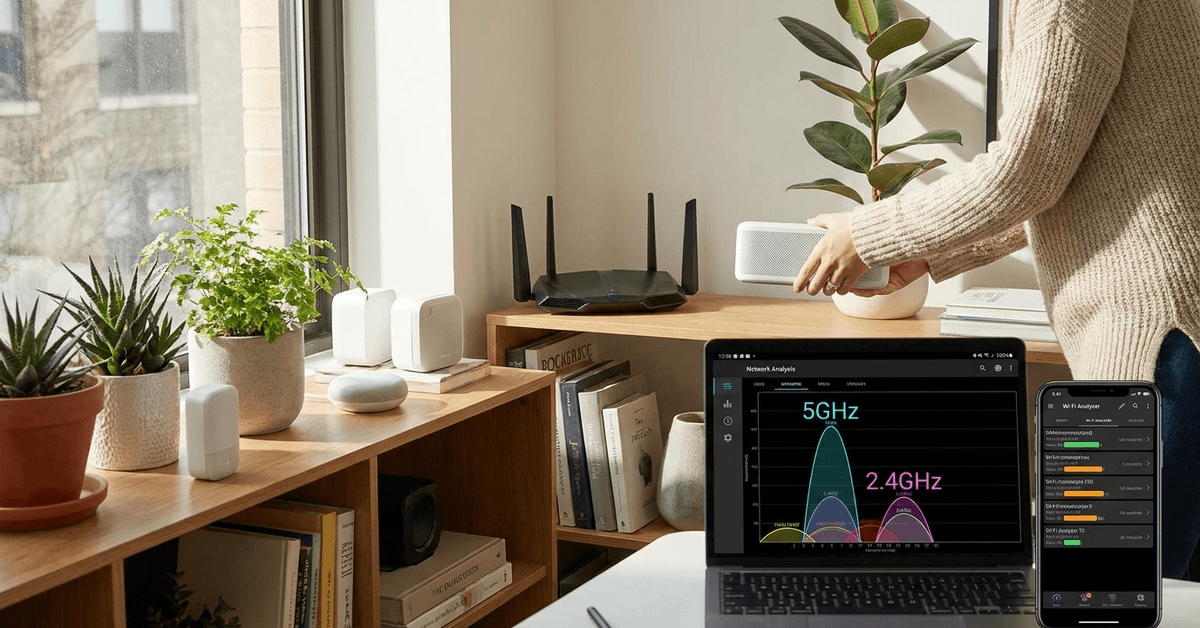
Wireless connectivity has made smart homes more flexible and convenient. Many people, however, experience frustrating glitches when Bluetooth and Wi-Fi gadgets run together.
These issues can lead to dropped connections, sluggish response, or total device failure. Homeowners keen on reliable smart tech benefit most from understanding how interference works—and how to resolve it for good.
Understanding Bluetooth and Wi-Fi Interference
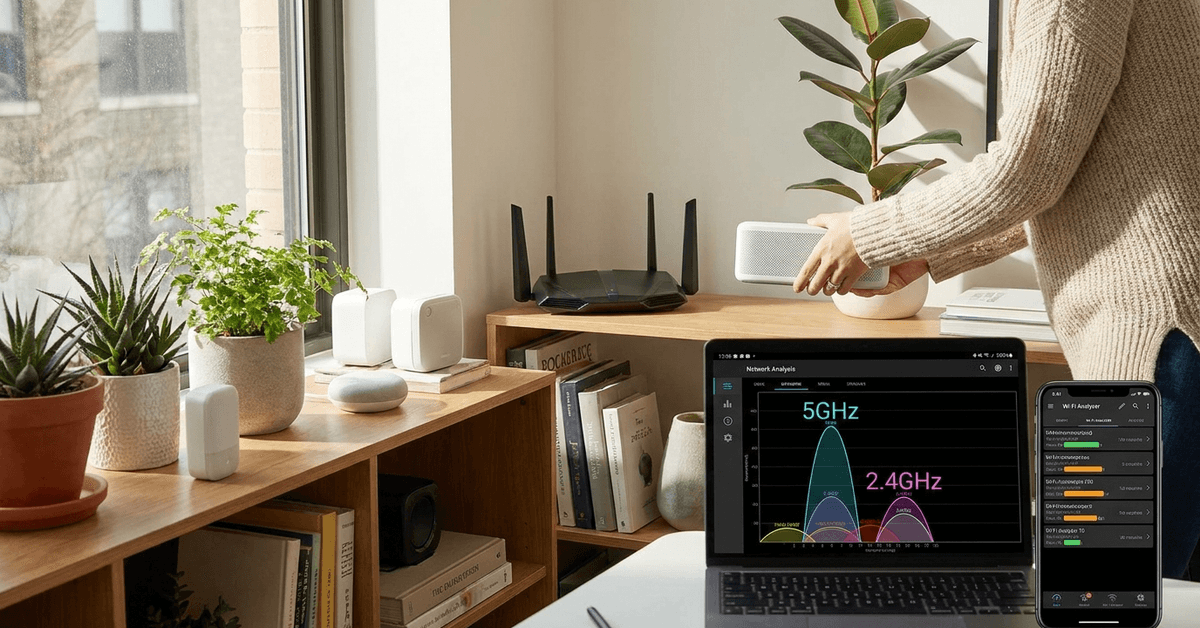
A common trait of modern wireless standards is operating in the crowded 2.4GHz band. This overlap is where most problems start.
Why Overlap Happens?
Both Bluetooth and many Wi-Fi networks, especially legacy routers, use the 2.4GHz frequency. Signals can clash, creating unpredictable disruptions.
This is more prominent in apartments or dense neighborhoods, where many wireless devices compete for the same spectrum space.
Typical Signs of Interference
- Intermittent audio drops on Bluetooth headphones.
- Lag or disconnects in smart speakers or cameras.
- Wi-Fi speed dips when Bluetooth is active nearby.
Assessing Your Home Wireless Environment
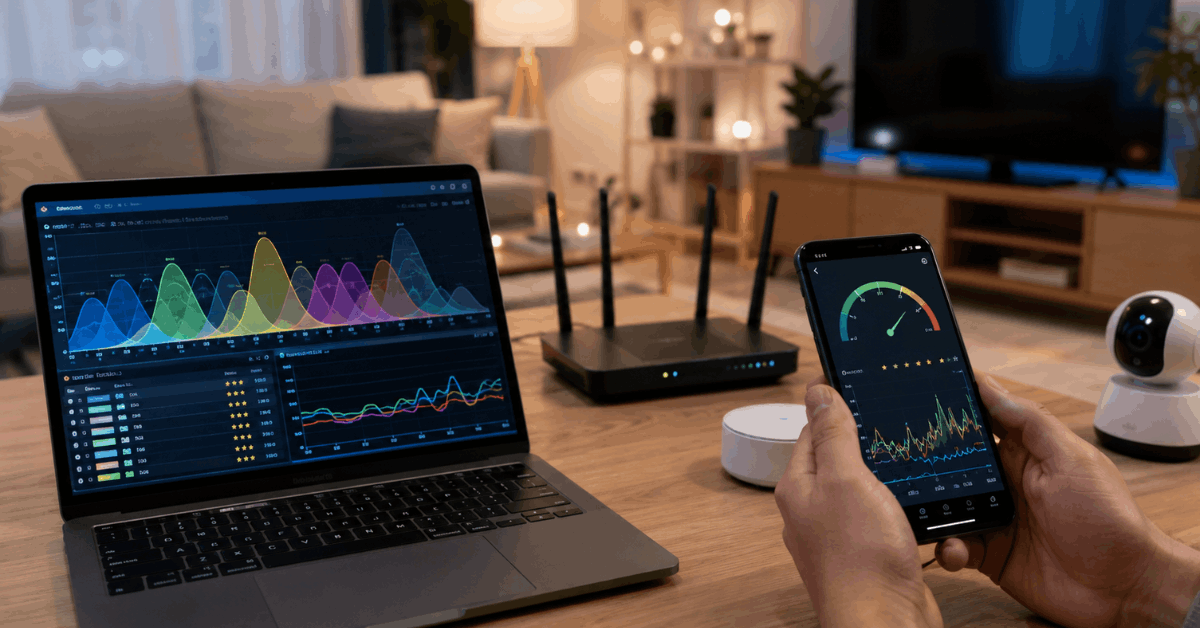
A strategic approach starts with knowing which devices and networks are crowding your airwaves. Tools help with this process.
Best Scanner Apps and Tools
- WiFi Analyzer (Android): Visualizes occupied channels.
- inSSIDer: Scans for overlapping Wi-Fi networks on PC/Mac.
- Bluetility (for Bluetooth): Shows Bluetooth signal strength and congestion.
Routine scanning provides a snapshot of the invisible issues impacting performance. A scan before and after any adjustment confirms what works.
Adopting 5GHz Wi-Fi for Reduced Bluetooth Interference
Modern routers often support both 2.4GHz and 5GHz Wi-Fi bands. The 5GHz band does not interfere with Bluetooth signals.
Benefits of 5GHz
- Less congestion from neighbors’ Wi-Fi or cordless phones.
- Better channel segregation, resulting in fewer signal collisions.
- Faster overall Wi-Fi speeds for newer devices.
Switching Devices to 5GHz
- Check your router’s name (SSID) for a “5G” or “5GHz” option.
- Connect capable devices (laptops, phones, smart TVs) exclusively to the 5GHz network.
- Ensure older “2.4GHz only” devices remain on the original network.
If a device cannot connect to 5GHz, it may require replacement or firmware updates for compatibility.
Repositioning Devices to Minimize Physical Interference
Tangible obstacles often boost the risk of disruption. Simple tweaks in placement reduce overlap between gadgets.
Building a Separation Buffer
- Keep Wi-Fi routers away from Bluetooth speakers or smart hubs.
- Position gadgets with antennas (like cameras) at least 1 meter apart.
- Move metal objects or thick walls away from the wireless signal corridor.
This spacing lowers interference and creates a more stable connection for all wireless technology at home.
Upgrading Bluetooth Devices to Newer Standards
Older Bluetooth gear can unintentionally create more interference issues. Current models, using Bluetooth 5.0+ , leverage advanced technology to limit channel conflicts.
Advantages of Bluetooth 5.0 and Later
- Better channel hopping, so the signal switches away from Wi-Fi congestion spots.
- Greater range and consistent connectivity, even if some overlap remains.
- Lower latency for real-time gadgets like lock controllers or security panels.
Upgrading just the most problematic gadgets often noticeably smooths out the rest of your network without a complete overhaul.
Manually Selecting Wi-Fi Channels for Better Reliability
Most routers auto-select Wi-Fi channels, but manual selection can sometimes dramatically reduce overlap with Bluetooth signals.
Recommended Channels
- Channels 1, 6, and 11 (2.4GHz): Do not overlap with each other, minimizing neighboring Wi-Fi interference.
Changing Your Router’s Channel
- Sign in to the router’s control panel (usually by entering the IP 192.168.1.1 in a web browser).
- Look for the Wi-Fi or Wireless Setup section.
- Switch the wireless channel to 1, 6, or 11, then save settings.
Experimenting with each channel and observing device performance sometimes makes a significant difference.
Adjusting Bluetooth Device Settings and Firmware
The right settings and up-to-date firmware can greatly reduce glitching. Occasional updates are released to tackle exactly this sort of problem.
Steps for Device Updates
- Check regularly for firmware updates via the device’s companion app or support page.
- Apply updates and restart both the gadget and host device (phone, tablet, etc.).
Making sure Bluetooth devices use the latest firmware guards against many known bugs. Factory resets are rarely needed but can help if updates alone do not work.
Disabling Unused Connections for Smoother Networks
Many smart home devices activate both Wi-Fi and Bluetooth features, even if only one is in use. Disabling the unneeded mode often frees up bandwidth and reduces interference.
How to Manage Connection Modes
- Review settings on each device to disable unused wireless radios (like turning off Bluetooth on smart TVs not using it).
- On smartphones, turn off Wi-Fi or Bluetooth temporarily if only one connection is required.
This selective usage minimizes background chatter and lowers overall congestion.
Shielding and Smart Placement as an Extra Layer
If interference is persistent, shielding methods might help. While less common, these approaches are sometimes used in home offices.
Options for Shielding
- Install wireless signal shields or metal mesh barriers between conflicting devices.
- Use furniture or purpose-built router cases to block direct interference paths.
These tactics are best for extreme environments, like when routers and Bluetooth hubs are forced into proximity for practical reasons.
Conclusion: Reliable Connectivity for Smarter Homes
Cross-interference between Bluetooth and Wi-Fi can be frustrating but predictable. Most homeowners achieve fast and stable connections by combining several of the strategies above.
Upgrading to newer standards, careful repositioning, and regular scanning ensure smoother performance for every gadget.
For ongoing issues, consulting device support forums or a smart home technician adds an extra layer of problem-solving. The end goal—strong, uninterrupted wireless connectivity for the whole home—remains within reach for anyone willing to make small adjustments.