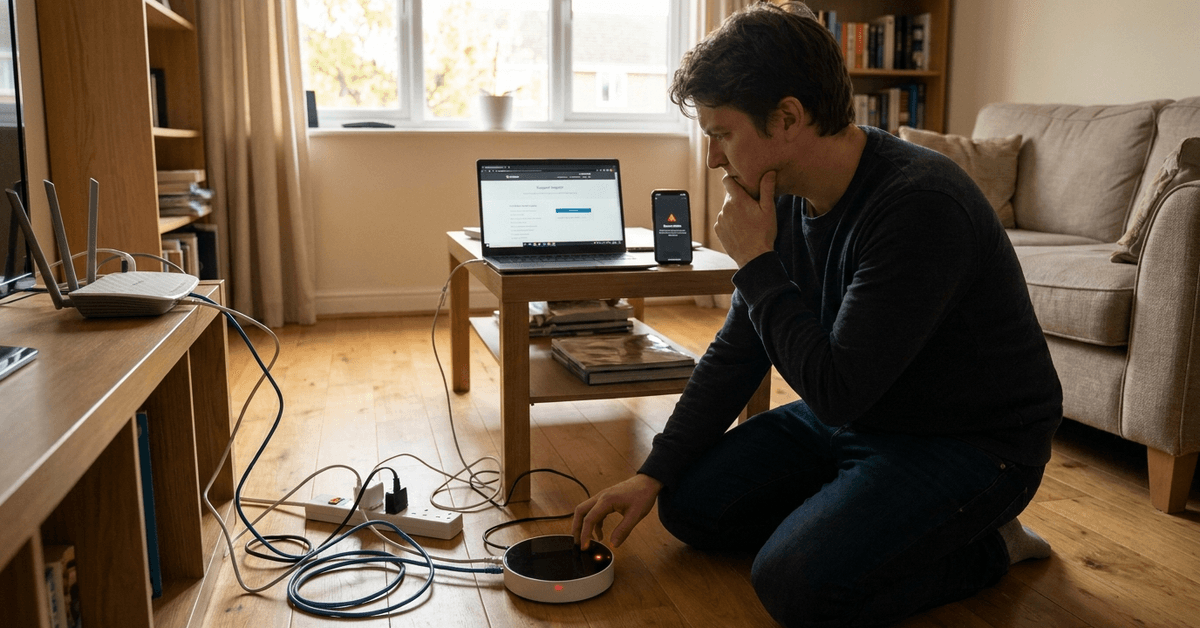
Smart home hubs rarely go offline without warning, yet it happens in many modern homes. For homeowners relying on automation for security, comfort, or energy savings, sudden outages can be both unsettling and disruptive.
This guide examines the most common causes of hub disconnection and practical steps for a safe, reliable recovery. Homeowners using platforms like Fortressmate.com often encounter these issues with hubs from Samsung SmartThings, Amazon Echo, Google Nest Hub, or Apple HomePod.
Why Smart Home Hubs Go Offline?
Understanding why hubs lose connectivity helps address the problem efficiently and protects system stability moving forward.
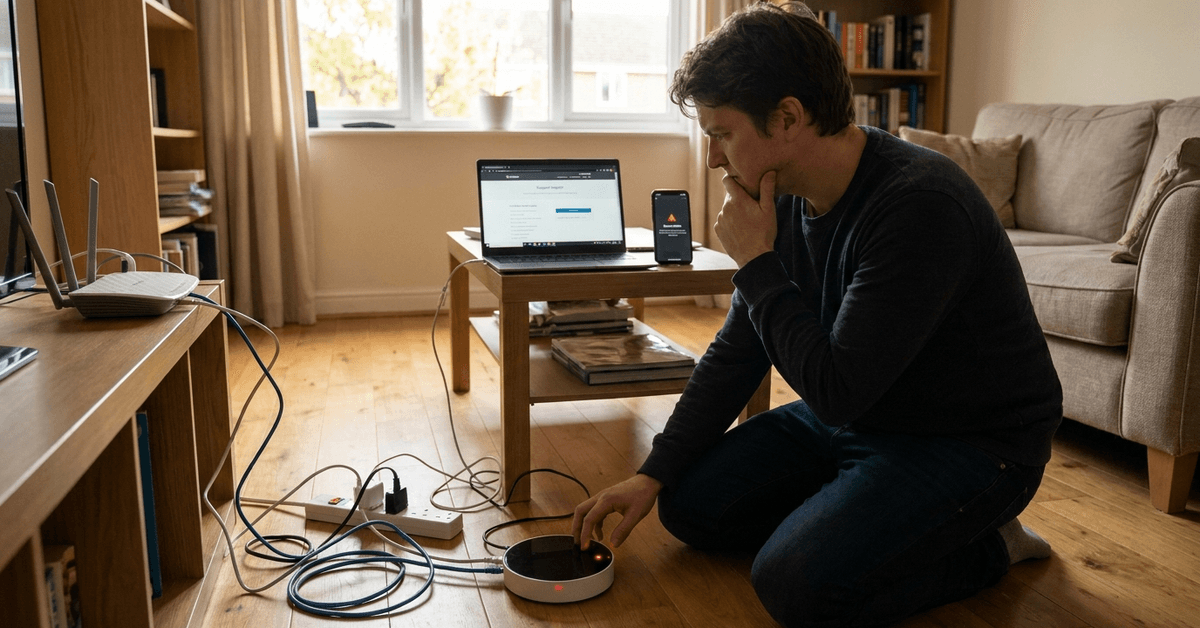
Network Interruptions
Most smart hubs are highly dependent on a steady Wi-Fi connection. Even minor router changes, outages, or firmware updates cause temporary disruptions.
A static IP configuration or poor wireless signal are typical culprits when the network is the source of the issue.
Power Loss or Hardware Glitches
Sudden power cuts or failing hardware components can disconnect a hub unexpectedly. Power surges and faulty wall adapters are also possible reasons.
Some systems may reboot automatically, while others require manual intervention before restoring service.
Cloud Service Outages
Many hubs depend on remote servers for automation routines and device communication. If major cloud providers experience downtime, local hub operations are often disrupted as a result.
Specific platforms such as SmartThings or Alexa notify users via status pages or apps if a known outage is ongoing.
Firmware or App Updates
Updating firmware or mobile apps sometimes triggers compatibility issues, causing devices to drop from the local network.
A mismatch between hub and device software versions is another potential reason for connectivity loss.
Initial Checks When Your Hub Goes Offline
Most connectivity problems can be identified within minutes using a systematic approach. Here’s a practical checklist:
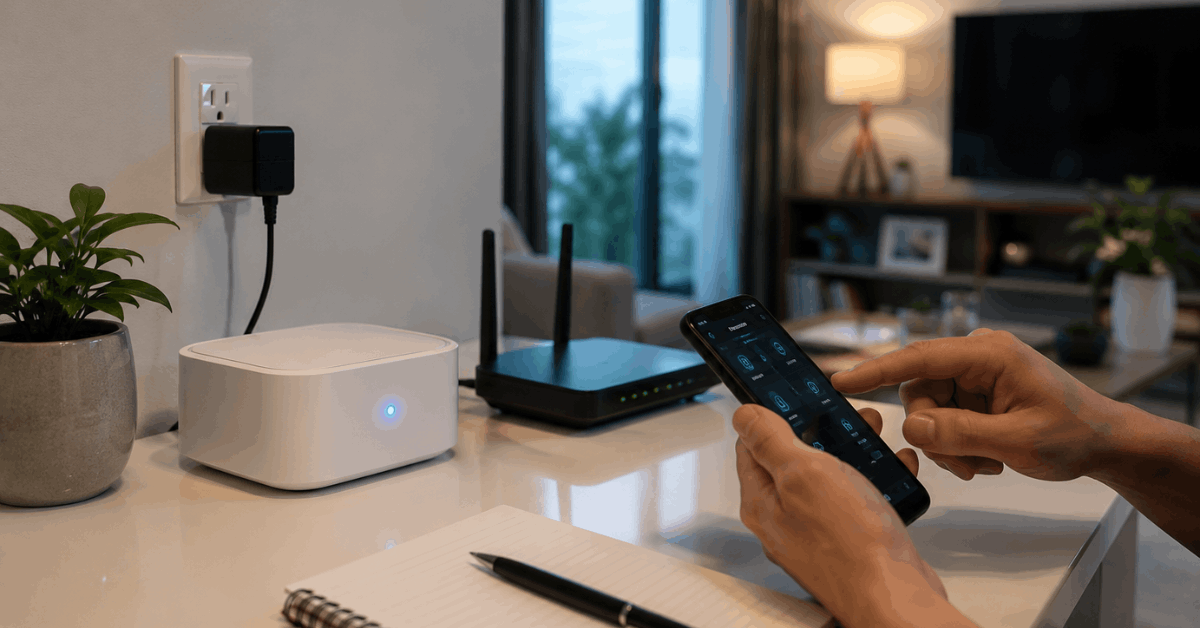
- Check the indicator lights on the hub for normal operation, such as green or steady blue status LEDs.
- Look for warning messages in your automation app or email alerts about the hub’s status.
- Confirm the Wi-Fi router is on and functioning by testing another connected device.
- Examine the power supply and wall plug for visible issues.
- Check for ongoing internet or service outages via your ISP status page.
If all of these basic elements appear normal, the next steps involve deeper troubleshooting.
Step-by-Step Recovery Process
Rebooting the Hub and Router
Gently restarting the hardware is usually a safe starting point. Smart home technicians often:
- Disconnect power from the hub for 30 seconds before reconnecting.
- Restart the Wi-Fi router by unplugging it briefly, then powering it back on.
- Wait 2–3 minutes after rebooting to allow all systems to renegotiate network settings.
Verifying Network Credentials
Network name or password changes require manual updates in the hub interface. For hubs that use Ethernet, checking the cable connection is simple but often overlooked.
Advanced users sometimes set their hub to a static IP address to prevent dynamic changes from a router reboot.
Examining Device Placement
Physical location affects wireless performance. Thick walls, metal appliances, or distance from the router can all interfere with connectivity.
- Consider moving the hub closer to the Wi-Fi router or switching to a 2.4GHz band for better reach in larger homes.
- Avoid placing the hub near microwaves or cordless phones, as they may cause interference.
Checking for Firmware Updates
Smart home apps such as SmartThings, Google Home, or Alexa all allow you to check for firmware or system updates directly within their settings menus.
Homeowners frequently find it effective to update the hub software, reboot all devices, then attempt to reconnect.
Inspecting the Mobile App Connection
Most hubs require ongoing communication with a companion mobile app. If the app itself is out of sync, users might need to:
- Log out and log back in to their hub account.
- Ensure both phone and hub are on the same Wi-Fi network.
- Delete and reinstall the app if persistent syncing issues occur.
Contacting Support Channels
When standard checks do not resolve an offline issue, reaching out to the manufacturer is a reliable option. Support agents for Samsung SmartThings, Google, Amazon, and Apple are accustomed to hub outages and can often spot configuration problems quickly.
Protocols and Standards: Compatibility Matters
Hubs interact with dozens of devices using various protocols, such as:
- Zigbee
- Z-Wave
- Wi-Fi
- Bluetooth Low Energy
- Thread (Matter-ready devices)
Incompatibility or network changes affecting one protocol may impact only certain devices, not the hub as a whole. Firmware issues can sometimes disable a single protocol temporarily until patched.
Advanced Troubleshooting Options
Restoring Factory Settings
Resetting the hub to factory default is a last-resort option when other solutions fail. This removes custom automations and device pairings, so it’s rarely advisable unless a backup is available.
Homeowners usually need to re-add all devices from scratch and restore automation routines step by step after a factory reset.
Examining Local vs. Cloud Automation
Some advanced hubs, like Home Assistant or Hubitat, offer local automation. This means core functions continue even if cloud connectivity breaks.
However, most mainstream hubs depend on a cloud connection, so any outage disables both remote control and automation until restored.
Device-Specific Apps and Third-Party Tools
Several platforms, such as Philips Hue or LIFX, operate with their own dedicated apps. In offline hub scenarios, these can be used temporarily for direct device control until the hub rejoins the network.
Preventive Measures for Future Reliability
Once the hub returns online, several practices support lasting stability:
- Adopt an uninterruptible power supply for both your router and smart hub to avoid power-related shutdowns.
- Update all software and firmware regularly through official channels to maintain compatibility.
- Document custom automation and device pairings to streamline setup if outages occur again.
- Consider breaking up the network into dedicated 2.4GHz and 5GHz SSIDs for legacy and modern devices.
When to Seek Professional Assistance?
If repeated outages persist despite all troubleshooting efforts, homeowners may want to consult a certified smart home technician through platforms like Fortressmate.com or request direct support from hub manufacturers.
Intermittent offline events can signal deeper wiring, firmware, or environmental issues that may need in-person diagnostics.
Conclusion: Restore, Secure, and Strengthen Your Smart Home
Smart home hub outages can be stressful, especially when essential security features or routines are disrupted. A stepwise process focused on network, power, and software troubleshooting handles most incidents efficiently.
For persistent problems, leveraging manufacturer support and detailed network documentation proves invaluable over time.
As smart home automation continues to advance, a proactive maintenance habit will keep systems running smoothly and ensure peace of mind for every homeowner.