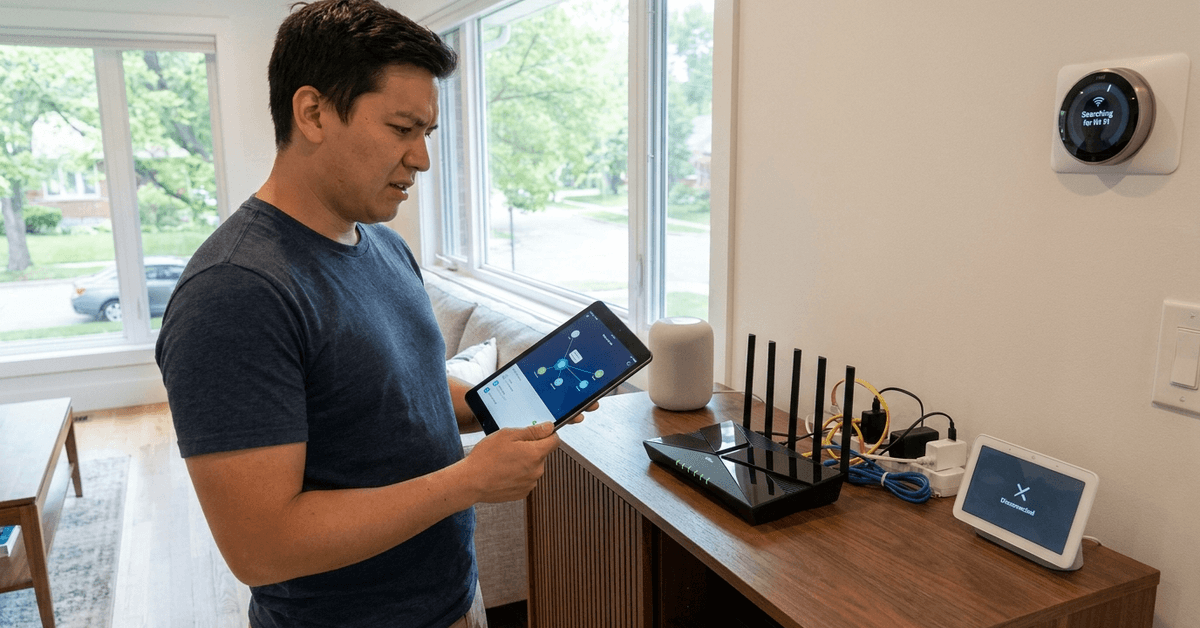
Smart home technology offers more convenience than ever, but frequent device disconnections can seriously disrupt daily routines.
This guide is built for homeowners and renters who want hassle-free, always-on smart devices for security, entertainment, or automation.
Learn expert-tested fixes, understand your tech’s limits, and discover smart ways to ensure fewer dropouts in your connected home.
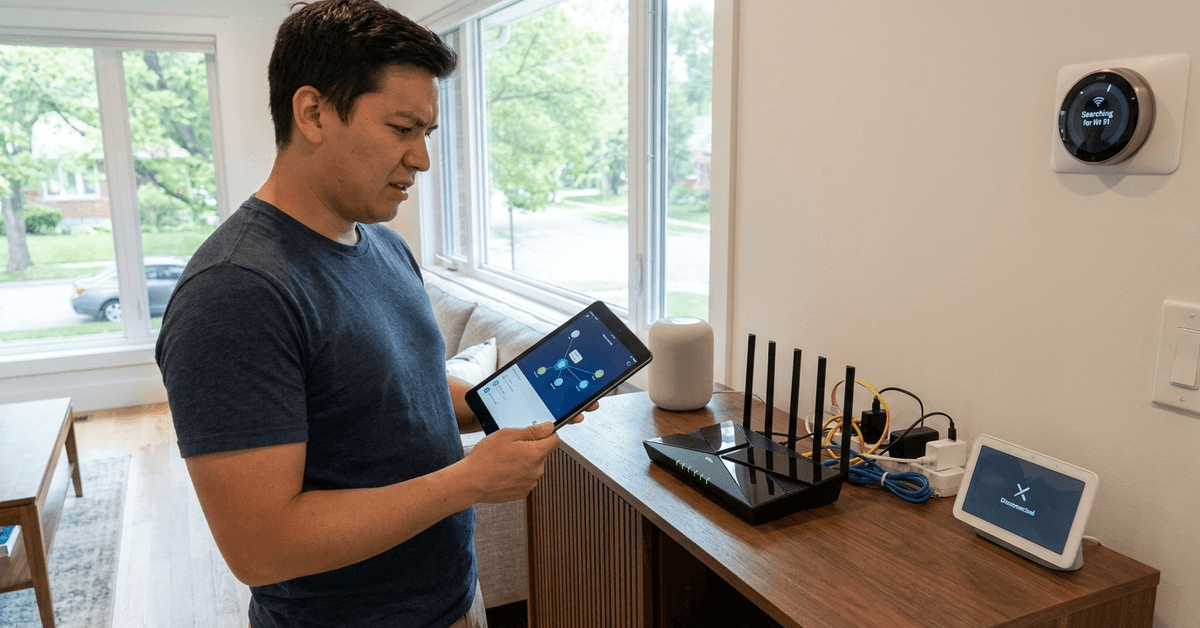
Why Smart Devices Disconnect: Common Causes?
The Weakest Link: Wi-Fi Instability
Wi-Fi networks form the backbone of most home automation setups.
The majority of smart device disconnections, in my experience, relate to unstable Wi-Fi signals.
- Concrete walls can block the signal between your router and tech.
- Microwaves, baby monitors, and even Bluetooth devices might cause interference.
- Large homes sometimes feature ‘dead zones’ where the signal is simply too weak for reliable operation.
Too Many Devices on One Network
Modern routers claim to support dozens of devices, but congestion becomes a real problem.
Once you approach the maximum connections, loss of performance or dropped devices often follows.
Software Updates and Compatibility Gaps
Older smart bulbs, locks, or plugs may lose connection after an update to your hub or app.
Frequent protocol changes mean some devices are not supported after firmware upgrades.
Power Fluctuations and Hardware Issues
An unstable power supply or failing device can trigger constant resetting or loss of contact with your setup.
Some gadgets may simply be at end-of-life, especially if they’re several years old or exposed to power surges.
Diagnosing Disconnection Problems
Pinpoint the Pattern
Try to observe when and where your device usually disconnects.
- Does it always lose connection at midnight?
- Is it only certain rooms or just one brand?
- Are multiple devices affected at once, or just a single light, lock, or camera?
This basic pattern spotting narrows down whether the issue is network, power, or device-specific.
Checking Network Health
Running a speed test (like speedtest.net ) from smartphones or laptops can help assess if your Wi-Fi is reliable where the device is installed.
If the Wi-Fi drops for other gadgets in the same spot, signal quality is likely to blame.
Router, Hub, and Device Logs
Email notifications, app logs, or web portals provided by systems like Google Home, Alexa, or SmartThings can be useful.
Look for error details or timestamps that might hint at routine maintenance, interference, or update failures.
How to Fix Smart Device Disconnects?
Optimize Your Wi-Fi or Network
- Place your router centrally, away from thick walls and obvious sources of interference.
- Consider upgrading to a mesh Wi-Fi system, such as the Google Nest Wifi or Eero, for more even coverage in large homes.
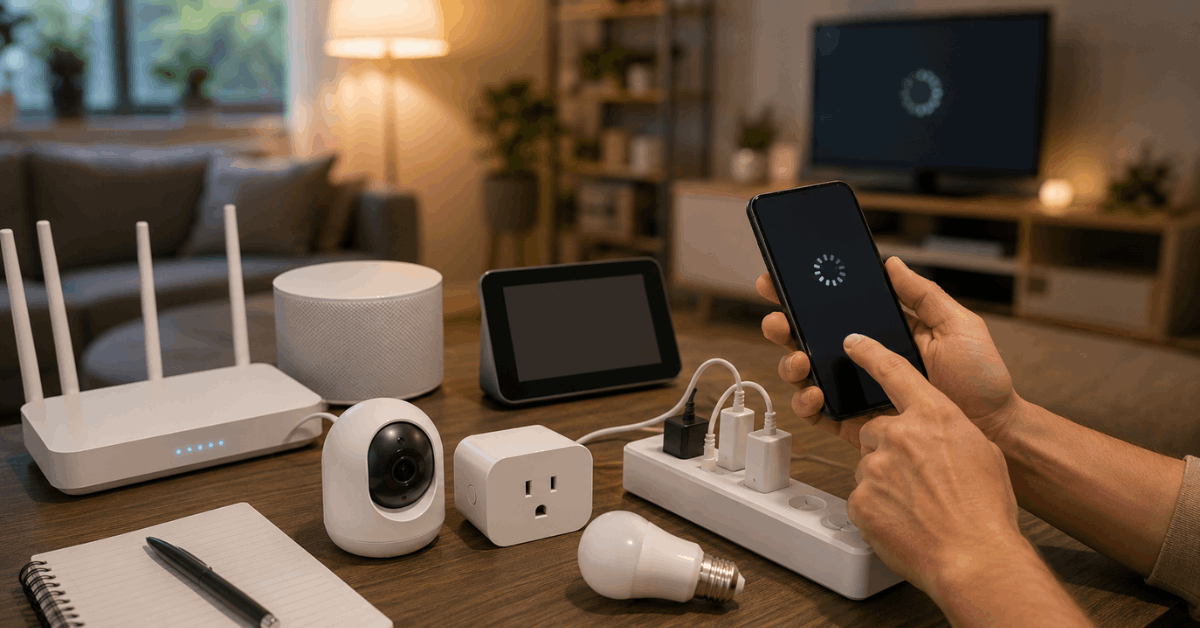
Switching to the 2.4GHz band can also help, since most smart gadgets use this frequency for better range.
Reduce Network Clutter
- If your router allows, split smart devices onto a dedicated guest or IoT network (some routers label this as “guest network”).
- Restart your router every week or two to help it manage multiple connections more robustly.
Update Firmware and Apps
Manufacturers frequently patch connection issues through firmware updates .
- Open the manufacturer app (like Philips Hue or Ring), go to device settings, and check for available updates.
- Update router and hub firmware as well, usually through their web dashboard or app.
Address Power Issues
- Plug sensitive gadgets into surge protectors.
- Replace power adapters showing signs of wear or excessive heat.
- If power cycling the device restores function, but only temporarily, consider a hardware replacement.
Reset and Reconnect Devices
- Remove the device from your app, then factory reset it according to the manual.
- Reconnect it as a new device, entering Wi-Fi or hub details from scratch.
This clean process often resolves stubborn disconnects, especially with legacy hardware.
Consider Wired Alternatives for Key Devices
While most people prefer wireless, important cameras or hubs could be connected via Ethernet for a permanent fix.
Many mesh Wi-Fi nodes offer a port for wired-in mission-critical devices.
Advanced Troubleshooting Techniques
Use Wi-Fi Analyzer Tools
Apps like WiFi Analyzer (Android) or NetSpot (macOS, Windows) can map your signal and highlight interference channels.
Changing your router’s channel might solve random disconnects if a neighbor’s Wi-Fi is causing congestion.
Investigate Home Automation Protocols
Not all smart devices use Wi-Fi. Zigbee, Z-Wave, and Thread operate differently than traditional networks.
For devices on Zigbee (like many Philips Hue bulbs), ensure your hub is centrally located to maintain a mesh network effect.
- Remove or move large metal objects that could physically block Zigbee or Z-Wave mesh hops.
- Consider using powered repeaters, such as smart plugs using the same protocol, to expand mesh coverage.
Pairing Smart Devices to New Routers or SSIDs
If you recently upgraded your router and kept the same network name, confusion between old device settings and the new system may occur.
- A complete device reset and re-pairing is often required for each affected gadget.
Preventive Tips for Reliable Smart Device Connections
Regular Maintenance
- Set reminders to update firmware, router software, and app versions monthly.
- Review connected device lists every quarter. Remove any devices you no longer use.
Choose the Right Brands and Protocols
Opting for broad compatibility (like devices with Matter support) reduces the risk of future dropouts when tech standards change.
Platforms such as Home Assistant offer vendor-agnostic control to keep all smart gadgets working under one interface.
Optimize Device Placement
- Keep smart hubs, routers, and gateways at least one meter away from major appliances and other electronic devices.
- Avoid tucking smart speakers or cameras deep into shelves where the signal gets squeezed.
When to Contact Support or Replace Devices?
Recognize Persistent or Hardware-Related Problems
If resets and network fixes do not solve the issue, the device may be failing internally.
- Contact the original vendor support, like Samsung SmartThings or Amazon Alexa help desk, for warranty or troubleshooting guidance.
Swapping a stubborn smart device out for a new model might be the only real solution in rare cases.
Conclusion: Building a More Reliable Smart Home
Smart device disconnections can be frustrating, but a methodical approach makes a big difference.
Most connectivity problems are tied to Wi-Fi instability, overloaded networks, or aging gear.
By testing network strength, updating firmware, and choosing placement wisely, most homeowners find long-term stability and peace of mind.
Staying proactive with maintenance and product selection will help your smart home run with fewer interruptions and greater reliability over time.