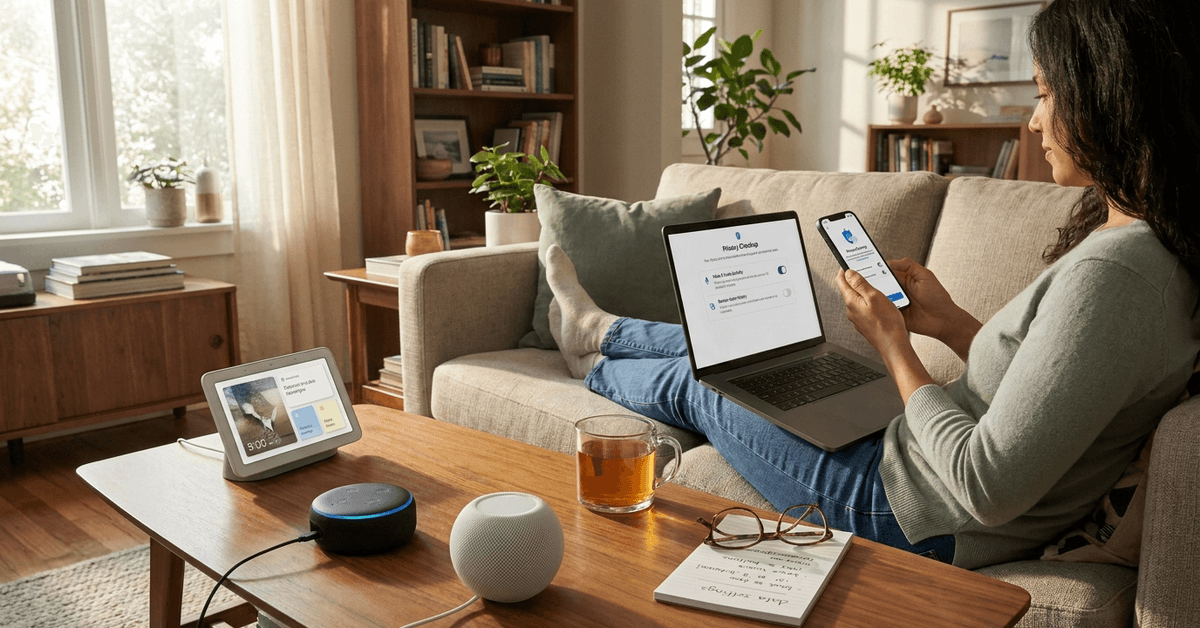
With smart assistants growing more common in homes, understanding their privacy controls has become a real priority. Many homeowners want convenience but worry about who hears their data and how it is used afterward.
This article walks through realistic steps for managing privacy settings on top-tier smart assistants. The aim is practical: anyone setting up Google Assistant, Amazon Alexa, or Apple Siri can reduce unwanted data retention or sharing.
Why Data Privacy Is Essential for Smart Assistant Owners?
Homeowners increasingly rely on voice commands to manage devices or check info. However, those same commands are often recorded and stored in the cloud for algorithm improvements.
Without proper privacy configuration, conversations might stay accessible for months or even get analyzed for targeted advertising. This, to many people, feels intrusive and concerning.
The Risks of Default Settings
Default settings for Google Assistant, Alexa, and Siri tend to be open. This means that some recordings or data might be reviewed manually by employees for quality control.
Such access is believed to optimize user experience. Still, it might expose sensitive keywords or routines to others. Adjusting these options offers more peace of mind.
How to Control Privacy on Google Assistant?
Google Assistant is available on Nest speakers, smartphones, and many third-party devices. Controlling what data is stored or reviewed is possible through Google’s privacy dashboard.
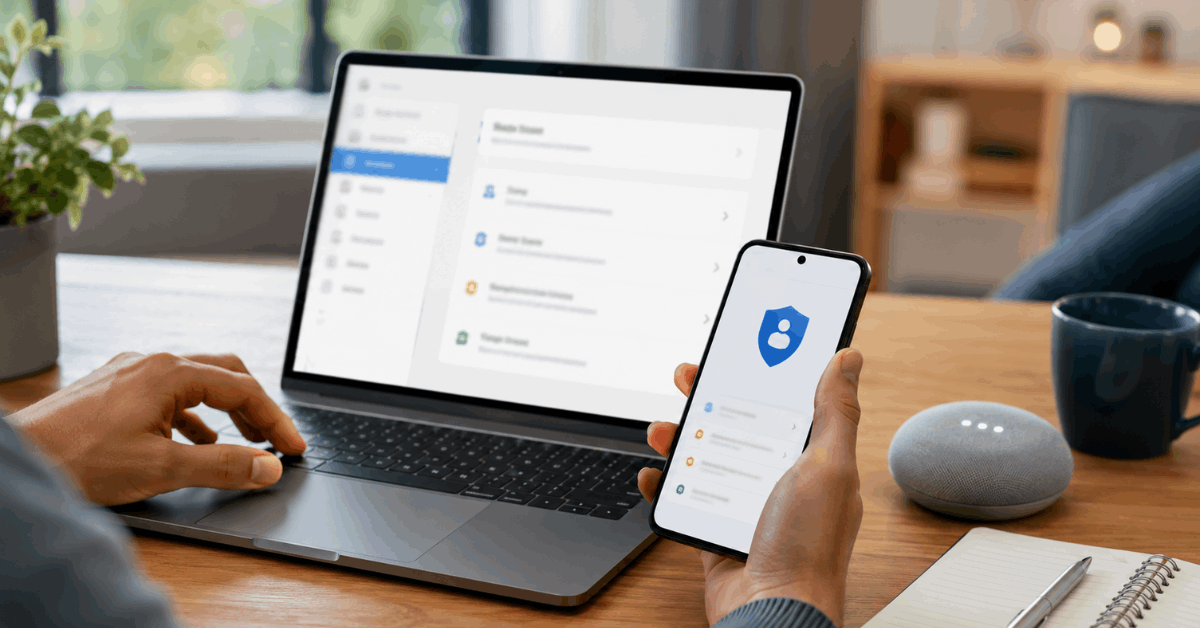
Accessing the Google Account Dashboard
- Open myaccount.google.com on a laptop or smartphone browser.
- Sign in with the main Google account used on all smart devices.
- Navigate to Data & Privacy from the side menu.
This section houses the hub for adjusting privacy across Google services, including Assistant.
Managing Your Activity Controls
- Scroll to ‘History Settings.’
- Locate Web & App Activity and tap on it.
- Turn off voice and audio recordings if greater privacy is preferred.
- Choose ‘Manage Activity’ to review past commands that have been stored.
Regularly deleting old activity is a best practice. It helps prevent any potentially sensitive information from remaining stored unnecessarily long.
Setting Auto-Deletion Timelines
- From ‘History Settings,’ select Auto-delete activity older than option.
- Pick a time frame (like 3, 18, or 36 months) that feels acceptable.
This way, Google will delete information after the selected period, reducing data buildup.
Using the Google Home App for Device-Level Privacy
- Open the Google Home app.
- Tap on the target device.
- Select the gear icon, then ‘Recognition & sharing.’
- Disable ‘Personal results’ or similar options for more privacy on shared devices.
This is particularly useful in homes with multiple users or guests.
Controlling Data Privacy on Amazon Alexa
Alexa-enabled devices like Echo and Fire TV offer control over how voice commands are managed. The Alexa app serves as a hub for adjusting privacy settings.
Reviewing Voice History
- Open the Amazon Alexa app.
- Go to ‘More’ at the bottom right, then Settings.
- Tap on Alexa Privacy – this dashboard helps manage data usage.
- Select ‘Review Voice History’ to inspect or delete recordings.
Reviewing this log is occasionally overlooked, but it often highlights just how much is retained by default.
Managing Voice Data Settings
- Inside Alexa Privacy, find ‘Manage Your Alexa Data.’
- Adjust ‘Choose how long to save recordings’ according to preference.
- Options include 3 months, 18 months, or ‘Don’t save recordings.’
Not saving any recordings provides the strongest privacy, but may slightly impact Alexa’s ability to tailor responses.
Limiting Human Review and Use of Data
- Scroll to ‘Help Improve Alexa’ and switch off permission for Amazon to use voice recordings for research.
- Also toggle off options like ‘Use messages to improve transcription.’
This helps guarantee voice data isn’t reviewed for training or development purposes.
How Apple Siri Handles Privacy and How to Configure It
Siri, available on HomePods and iOS devices, generally collects less data than rivals by default. Still, it stores some audio to enhance performance.
Disabling Siri Data Storage
- On an iPhone or iPad, go to Settings > Siri & Search.
- Tap ‘Siri & Dictation History.’
- Delete all Siri recordings associated with the Apple ID.
A clean slate ensures that older requests aren’t archived.
Managing Voice Interaction Settings
- Within Settings, revisit Siri & Search.
- Scroll to ‘Improve Siri & Dictation.’
- Disable ‘Share Audio Recordings’ to prevent recordings being kept for review.
This opt-out keeps future commands private and unshared for research.
Account Privacy and Device Access
- From Settings, navigate to Privacy & Security.
- Review Microphone settings to control which apps access voice input.
- Toggle off any app permissions that don’t seem strictly necessary.
Pruning app access reduces the risk of background listening by third-party applications.
Advanced Tips for All Smart Assistant Owners
A few extra measures can help keep conversations and routines private, no matter the platform.
Managing Third-Party Skills and Apps
- Periodically review enabled ‘skills’ (Alexa) or linked services (Google, Apple).
- Disable those not actively used.
Sometimes, third-party add-ons request wider data access than initially assumed.
Muting and Physical Controls
- Most smart speakers offer a microphone mute button —usually on the device itself.
- Activate this when privacy is doubly important (for example, during private family discussions).
Physically disconnecting a mic is always safer than relying on software settings alone.
Separate Profiles and Guest Modes
- Set up voice profiles for individual users to limit cross-account data.
- Enable guest/visitor modes to avoid storing guests’ voice history.
Shared homes benefit from account separation, keeping personal queries more confidential.
Table: Key Privacy Settings Cheat Sheet
| Assistant | Main Privacy Tool | Critical Mitigation |
|---|---|---|
| Google Assistant | Google Account Dashboard | Auto-delete Activity, Voice Activity History Off |
| Amazon Alexa | Alexa Privacy Center | No Recording Storage, Disable Research Access |
| Apple Siri | Siri & Search in Settings | Delete Siri Data, Restrict Microphone Access |
Conclusion: Taking Control of Your Digital Privacy
Smart assistants add easy, hands-free control to modern homes, but balanced privacy requires ongoing review. Adjusting settings for your main assistant considerably limits unnecessary data storage and sharing risks.
Regular account audits, housekeeping of old recordings, and occasional checks on third-party access keep controls tight. While no system feels flawless, taking these steps goes a long way toward keeping conversations and routines private within your smart home.