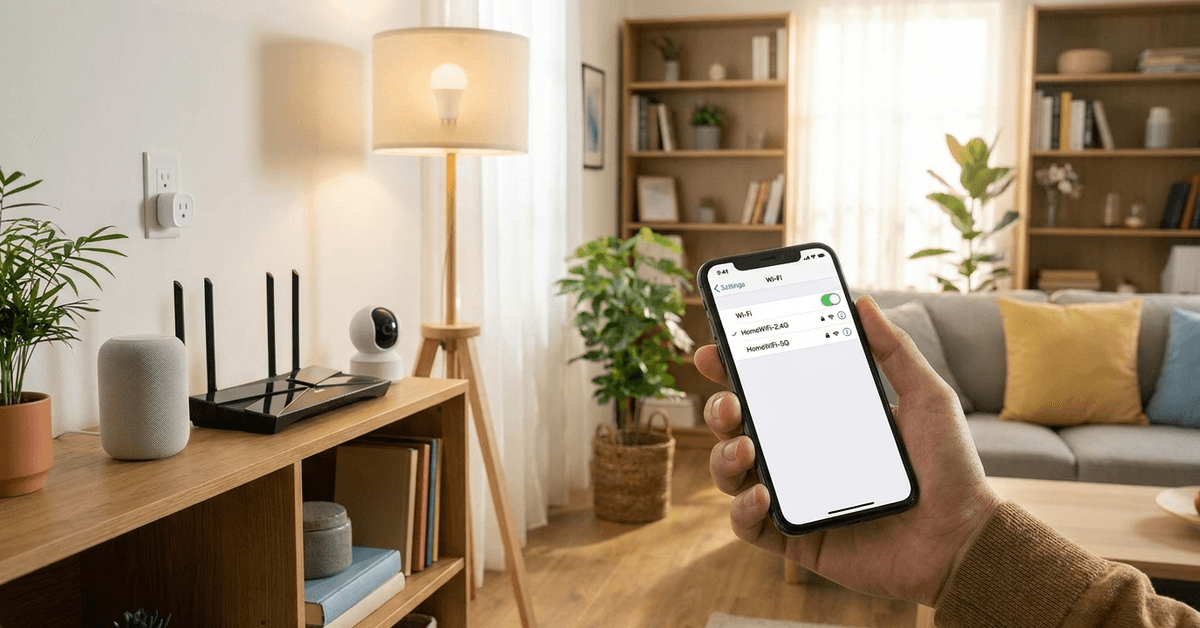
Smart gadgets are everywhere in modern homes. Choosing the right Wi-Fi band can shape how smoothly they work together.
For homeowners setting up new gadgets, this decision often feels confusing. Yet, the right choice leads to a more stable, hassle-free smart home experience.
Understanding Wi-Fi Bands in Home Gadget Setups
Home Wi-Fi networks mainly offer two frequency options. Each brings its own benefits for smart devices. The most common are 2.4 GHz and 5 GHz bands.
What is the 2.4 GHz Band?
The 2.4 GHz frequency is found in almost every home Wi-Fi router. Many older and budget-friendly smart devices connect only to this band. It provides broad range and can travel through walls.
- Longer coverage means fewer dead zones.
- Compatible with most Wi-Fi-enabled gadgets from brands like Wyze, TP-Link, and older Ring models.
- Supports wireless protocols like Wi-Fi 4 (802.11n) and some low-powered Zigbee bridges.
What is the 5 GHz Band?
Modern routers often support 5 GHz. This higher frequency supports faster data rates and less interference in dense environments. However, its range is usually shorter.
- Best for devices needing high-speed streaming, such as security cameras or smart displays.
- Less crowded airwaves reduce signal dropouts in busy areas.
- Common in premium gear like Nest Hub, Google Home Max, or Arlo Pro cams.
Key Differences: 2.4 GHz vs. 5 GHz for Smart Devices
Range and Signal Penetration
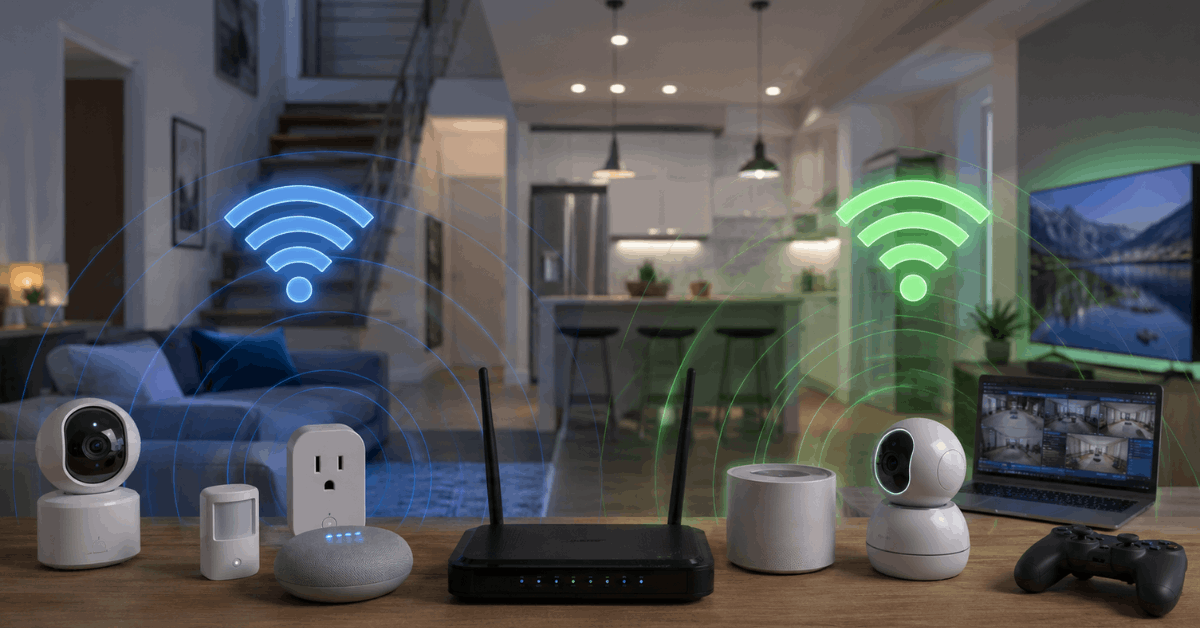
The 2.4 GHz band has an advantage in coverage. It offers stable connections even through thick walls or multi-story layouts. 5 GHz often struggles to reach distant rooms or basements.
Network Speed and Data Rates
While the 2.4 GHz band rarely goes above 100 Mbps in the real world, 5 GHz can hit several hundred Mbps. Devices with high video or audio demands typically perform better on 5 GHz.
Compatibility with Smart Gadgets
Many security cameras, older sensors, and budget switches only support 2.4 GHz. Newer, premium gadgets increasingly support both bands. Dual-band gear gives more connection flexibility.
Interference and Network Congestion
2.4 GHz can feel busier. It’s shared with things like cordless phones or microwaves. This can slow devices or randomly disconnect them. 5 GHz faces less interference except in high-rise or crowded apartments.
How to Check Your Smart Gadget’s Band Requirements?
- Start with the packaging or quick-start guide. Most brands print “2.4 GHz only” or “Dual Band” clearly.
- Visit the official support webpage for models from brands like Philips Hue or Wyze. Look for network compatibility lists.
- On your phone, scan for your Wi-Fi network using apps such as WiFi Analyzer (Android) or AirPort Utility (iOS). This reveals the band in use for connected devices.
Steps to Separate or Combine Your Wi-Fi Bands
Why Separation Matters
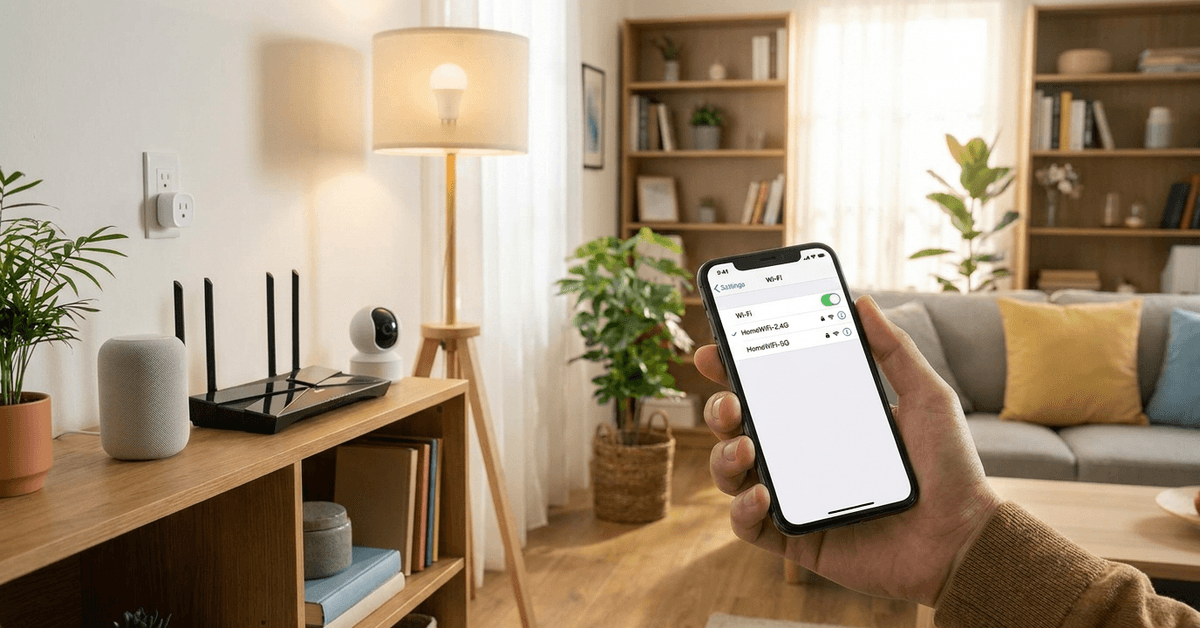
Most routers offer the option to combine (use one SSID for both bands) or separate them into distinct network names. Some devices have trouble connecting to a combined SSID.
How to Manage Bands in Your Router?
- Open your router’s admin page with a browser. Common IPs are 192.168.1.1 or 192.168.0.1.
- Login (default credentials often on the back of the device).
- Locate the wireless settings panel. Routers from Asus, TP-Link, Netgear, or Eero all offer this.
- Assign different SSID names for 2.4 GHz and 5 GHz (for example, HomeNet2G and HomeNet5G).
- Save changes. Reconnect each smart gadget to its suitable band.
Which Band is Best for Each Smart Home Scenario?
Security Cameras and Video Doorbells
Devices needing consistent, HD streams often work better on 5 GHz if close to the router. However, many doorbells require 2.4 GHz for wider range outdoors.
Sensors, Smart Plugs, and Bulbs
Entry sensors, plugs, and simple bulbs (from brands like Kasa, Feit, or Sengled) almost always use 2.4 GHz. These devices don’t send much data, so lower speeds are fine.
Smart Speakers, Displays, and Hubs
Devices supporting both bands (like Google Nest Hub or Amazon Echo Show) can benefit from 5 GHz, especially in entertainment spaces. For rooms farther away, 2.4 GHz ensures fewer dropouts.
Troubleshooting: Devices Won’t Connect to the Right Band
- Toggling Wi-Fi off and on in device setup mode sometimes helps. This is especially true for 2.4 GHz-only gadgets trying to connect while a phone clings to 5 GHz.
- Temporarily disable your 5 GHz network in the router settings. Connect your gadget, then turn it back on. This is a trick some users find practical when initial pairing stalls.
- Check if the device requires WPA2-PSK security (which is standard). Some low-cost gadgets won’t work with newer protocols like WPA3 yet.
Technical Features Worth Considering
Mesh Wi-Fi and Band Steering
Modern homes may use mesh systems like Google Nest Wifi or Eero. These solutions can route each device automatically to its best band with features like “band steering.”
- If certain gadgets repeatedly disconnect, many mesh platforms allow locking a device to 2.4 GHz from their admin panel or mobile app.
- Pro tip: Use a guest network for 2.4 GHz smart gadgets if your main mesh network keeps booting them from 5 GHz.
Channel Selection and Interference Reduction
Interference from neighbors can ruin smart gadget performance. Router setup menus often allow picking Wi-Fi channels manually (1, 6, or 11 are best for 2.4 GHz).
- Apps such as NetSpot or WiFi Analyzer help identify less congested channels.
- Placing the router centrally and away from metal objects or thick walls improves both bands’ stability.
Security Considerations for Both Bands
Regardless of band, keep firmware updated. Unpatched routers and devices are a risk. Most modern routers auto-update, but a double-check every few months is a good habit.
- Stick with WPA2-PSK for device compatibility. WPA3 is more secure but still not supported by many entry-level gadgets.
- Monitor device lists through your router dashboard. Remove unknown connections quickly to protect your network.
Conclusion: Making the Right Band Choice for Your Smart Home
Choosing between 2.4 GHz and 5 GHz comes down to device type, home size, and placement. For most smart bulbs, sensors, or plugs, 2.4 GHz is reliable and widely compatible.
However, advanced gear—like streaming security cams or smart displays—shines on 5 GHz when range isn’t an issue.
Combining bands with a modern router, regularly checking device compatibility, and updating security settings fosters a resilient, responsive smart home. A thoughtful Wi-Fi band setup supports stable automations and strong gadget security for years to come.