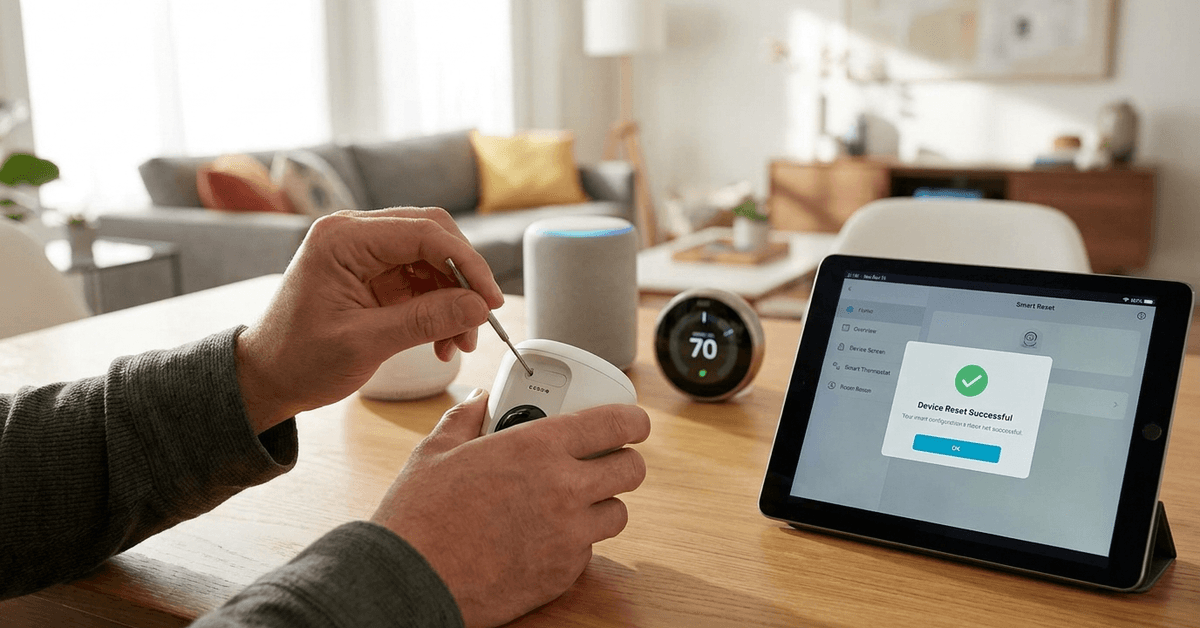
Smart home devices are now part of daily life for many homeowners. These connected gadgets store personal data, Wi-Fi credentials, and even audio or video files.
Before handing a device over to someone else, it’s essential to wipe all traces of personal information.
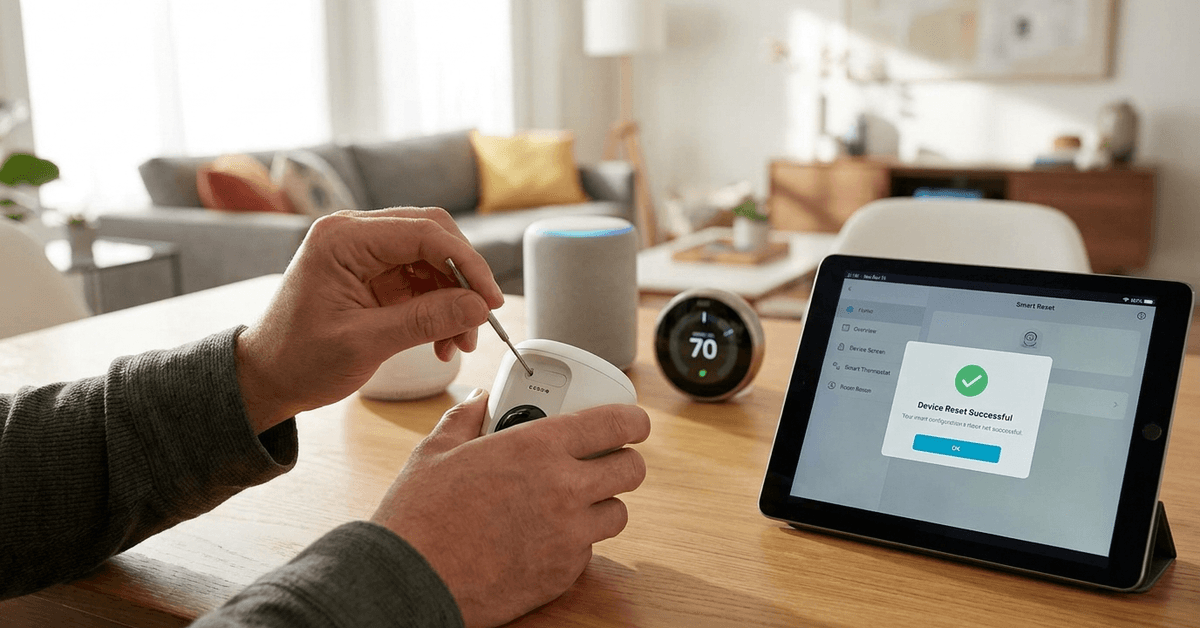
This guide is designed for anyone planning to sell or give away their smart home products, from security cameras to smart bulbs.
The main benefit? Peace of mind knowing no sensitive settings or accounts remain on the device.
Why Is a Secure Reset Important for Smart Home Devices?
Smart gadgets typically hold more than just user preferences. They can store footage, command logs, or access codes that could compromise household security.
A safe reset clears this data and also disassociates the hardware from cloud accounts. Leaving a device unreset risks giving strangers access to personal records or network information. Privacy protection is the key motivation behind a proper reset process.
Types of Smart Home Devices That Need Resetting
The variety of devices requiring attention before resale is quite broad. Generally, these include both connected and standalone gadgets.
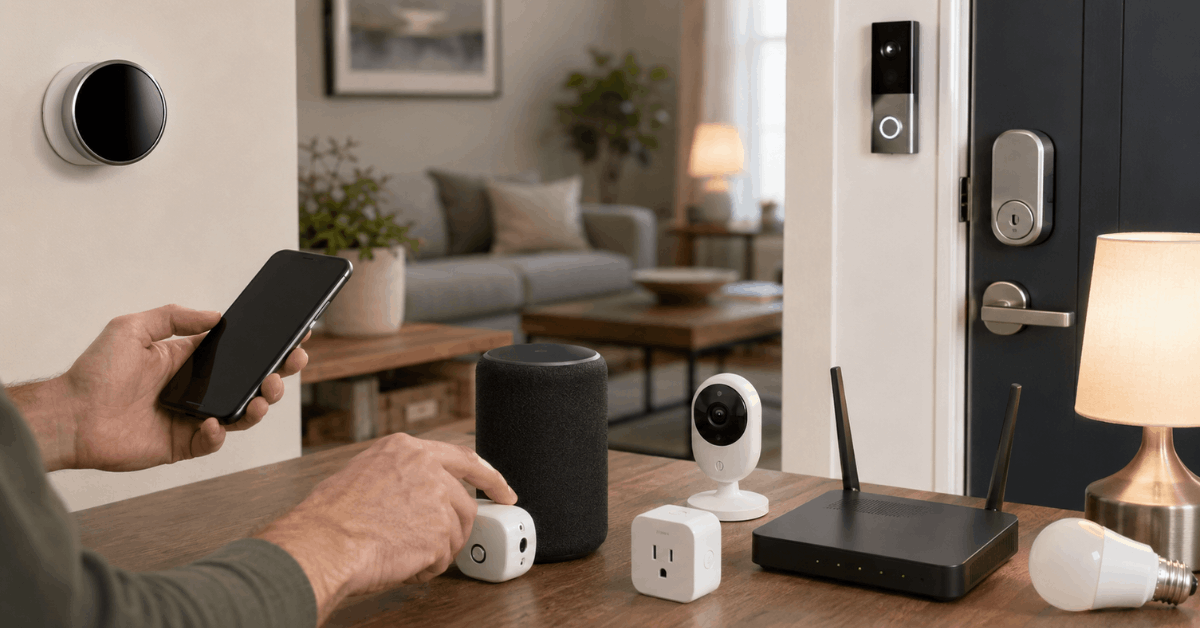
- Smart speakers (like Amazon Echo, Google Nest Audio)
- Security cameras (Arlo, Ring, Wyze, etc.)
- Video doorbells (Nest Hello, Ring Video Doorbell)
- Smart locks (August, Yale Assure, Schlage Encode)
- Smart thermostats (Ecobee, Nest, Honeywell Home)
- Connected plugs, bulbs, and appliances
- Wi-Fi routers with built-in home automation
Each device may require a unique reset process. Manufacturers often publish device-specific instructions online for these actions.
Preparation Before Resetting a Device
Owners sometimes forget simple pre-reset steps. Handling these basic actions first avoids issues and ensures a smoother reset process.
- Unlink the device from its mobile app or cloud account
- Record model numbers or serial codes for reference
- Back up any footage or logs if required for insurance or other needs
Backing up data is not always necessary, but it may help in certain circumstances. Unlinking beforehand prevents accidental re-association with the old account.
How to Reset the Most Common Smart Home Devices?
While general guidelines exist, every device model operates a little differently. Below are product-specific reset highlights organized by device category.
Resetting Smart Speakers
Amazon Echo: Most Echo devices have a reset button, sometimes combined with the microphone or volume controls.
- Press and hold the ‘Action’ button for about 25 seconds.
- Wait for the light ring to turn orange, then blue, then off.
- Release when the ring turns off, indicating factory reset.
Google Nest Audio: Each device may feature a hidden button or a reset combination.
- Press and hold the back reset button for about 10 seconds.
- The assistant will say when it begins the reset process.
- Release only after the confirmation sound.
Resetting Security Cameras
For most brands, the reset process involves sync or reset buttons.
Ring cameras: There is a small button near the battery compartment.
- Hold the button for 15 seconds.
- Release and watch for the LED to change color.
- The device will reboot and clear stored credentials.
Wyze Cam: Under the camera, users usually find a setup button.
- Press and hold this for 10 seconds.
- Wait for the light to change, confirming a reset.
Resetting Video Doorbells
Products like Nest Hello or Ring Doorbells need both app-based and physical actions.
- Open the device’s app, unlink the account or remove the device.
- Physically press the reset or setup button for the required time.
Final confirmation usually occurs with a color change or voice prompt.
Resetting Smart Locks
Locks contain sensitive codes. Their reset process often requires removing the device’s battery cover.
For example, an August Smart Lock :
- Open the August app, disconnect and remove access for all users.
- Physically remove one battery, then hold the reset button as the remaining batteries are reinserted.
Resetting wipes all stored PINs and mobile app access.
Resetting Smart Thermostats
Ecobee or Nest thermostats provide in-app or menu-based options.
- Visit settings on the unit, then navigate to factory reset.
- Follow prompts to confirm, which usually erases network and schedule data.
The hardware often displays a progress indicator during this process.
Final Device Unlinking and Cloud Detachment
Even after a hardware reset, some accounts remain linked online.
Cloud account detachment must be checked using the smart device app or online dashboard.
- Remove the device from the cloud account or authorized devices section
- Sign out of remnant integrations (like Google Home or Alexa skills)
- Double-check for lingering shared user permissions
Skipping these steps may leave access behind, even after physical resets.
This scenario arises especially with family-sharing features or third-party integrations.
Tips for a Truly Clean Slate
Protecting your next owner’s setup is as important as keeping your data safe.
- Avoid factory resets when the device is offline, as cloud sync may not clear until online again
- Test the device using a secondary account after reset if possible
- Consult the device user manual or manufacturer’s reset documentation for any model-specific quirks
When in doubt, visiting a brand’s support page gives the most current reset instructions.
If privacy functions seem limited or confusing, manufacturers’ support hotlines are worth a call.
Best Apps and Tools for Managing Device Resets
Some brands offer special mobile apps to help with secure device removal or reset.
The SmartThings App works well for many Samsung and compatible third-party devices.
- Often allows unlinking devices remotely
- Gives error messages if wipes are incomplete
The Google Home app, Amazon Alexa app, Apple Home, and MyQ for smart garage systems all offer similar remote account management functions.
The main challenge? Not all brands offer these features. Manual button resets remain necessary for many products.
Potential Risks If Smart Devices Aren’t Properly Reset
In practice, skipping a secure reset creates multiple risks.
- Personal voice commands and security footage could be retrievable by others
- Wi-Fi network credentials might become exposed
- Future device malfunctions if lingering accounts interfere with set up
Rarely, smart locks and video doorbells have been known to remain accessible to previous owners after routine resets if cloud permissions are left unchecked.
Erring on the side of caution protects both parties in the handoff process.
Conclusion
Resetting a smart home device before selling is more than a formality. It’s a core privacy and ownership step.
Every major device—whether a camera, speaker, or thermostat—has its own approach for secure reset. Most importantly, unlinking from the cloud is non-negotiable.
A methodical approach ensures no sensitive data or private settings remain. For the new owner, this reduces problems when pairing the device to their home network or deleting your old preferences.
Combined with short, device-specific instructions and careful cloud account checks, homeowners can move forward confidently. Extra caution today means no regrets later for either party.