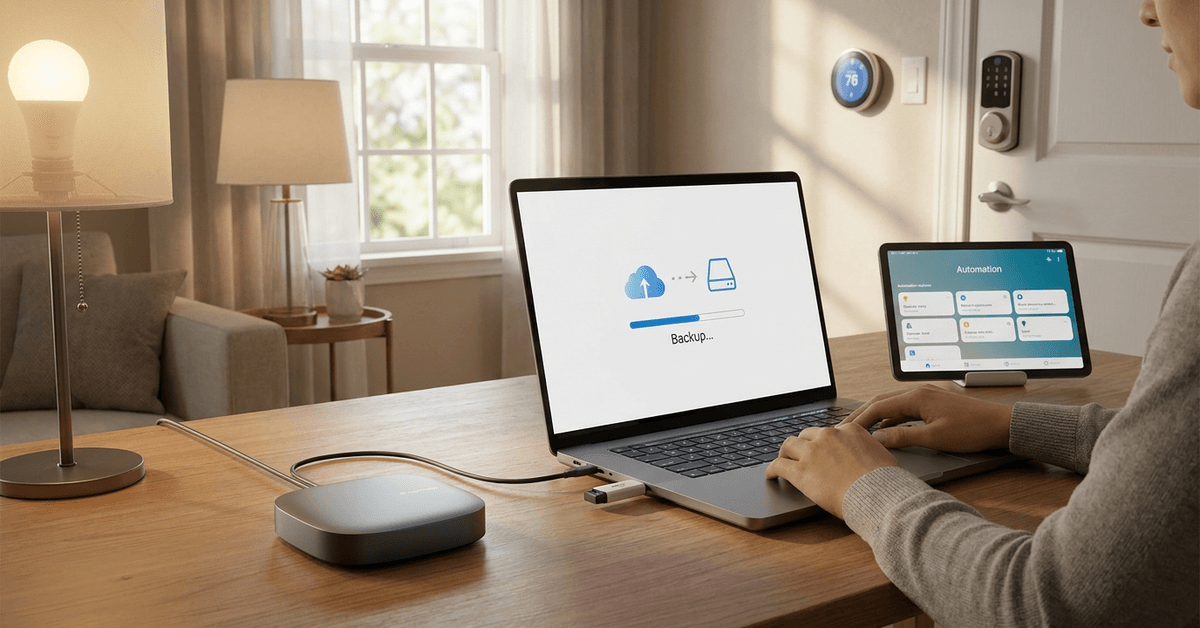
Smart home hubs now control everything from lighting and locks to voice-enabled scenes. Losing those carefully crafted configurations can be stressful.
For homeowners on Fortressmate.com looking for a simple, safe way to back up smart home hub setups, knowing the right protocols, tools, and habits is key.
This guide helps you secure your smart technology investment with real-world steps and minimal technical hurdles.
Understanding Smart Home Hub Configurations
Every smart home hub stores its automation rules and device pairings as unique configuration files. These files might live in the cloud, on the hub itself, or on a network drive. Knowing where your hub saves settings is the first step toward a safe backup routine.
Common Storage Methods
- Local Storage – Configuration data saved internally on the device or SD card.
- Cloud-Based Sync – Settings backed up to an online account automatically.
- Manual Export – User-triggered save to PC, NAS, or external drive.
Risks of Not Having Backups
- Factory resets or firmware updates can wipe all automations instantly.
- Power surges or device failures sometimes corrupt configuration files.
- Changing or upgrading hubs without a backup can force a complete re-setup.
Preparation: What to Know Before Backing Up
Checking the hub model and firmware version is important. Some hubs like Home Assistant, SmartThings, and Hubitat have their own protocols and backup file formats.
Compatibility varies between brands and generations. Understanding these details increases the likelihood of a smooth restore in the future.
Identify Your Hub Platform
- Log into the hub dashboard using a browser or the dedicated app.
- Locate the version number, storage options menu, and integration list.
- Review manufacturer support docs to confirm recommended backup processes.
Backing Up: Platform-Specific Steps
Backing up differs for each leading hub provider. Here are the main methods for the most popular smart home ecosystems.
Backup for Home Assistant
- On the Home Assistant dashboard, access the Supervisor tab.
- Select “Backups” (sometimes labeled “Snapshots”).
- Initiate a full backup, choosing to save both configuration and add-ons.
- Download the created backup file to a computer or upload it to cloud services like Google Drive via add-ons such as “Home Assistant Google Drive Backup.”
Backup for Samsung SmartThings
- SmartThings currently lacks a native local backup tool.
- Settings and device pairings sync automatically to your Samsung Account cloud.
- Keep login credentials safe and verify that your account is up to date.
- Use two-factor authentication for extra account protection.
Backup for Hubitat Elevation
- Log into your Hubitat admin panel.
- Go to Settings > Backup and Restore.
- Create a new backup, saving either locally to the hub or downloading to your PC.
Backup for Apple HomeKit
- Apple Home configuration syncs to iCloud if enabled.
- Regularly verify iCloud backup is turned on for your device in iOS settings.
- If using Homebridge or HOOBS, access their web interface’s backup/export function for configuration files.
Backup for Google Home
- Google Home saves automations to your Google Account by default.
- Review security settings to ensure sync is enabled and credentials are current.
- Export automation routines manually if supported by device management apps (rare for Google Home core features).
Best Practices for Reliable Backups
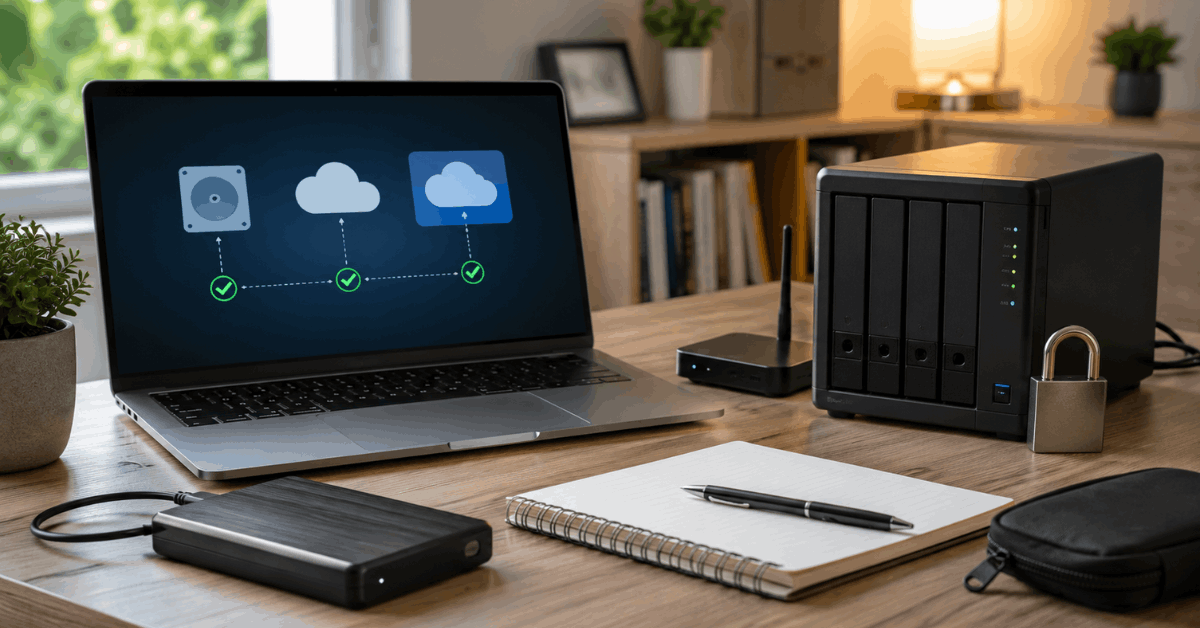
Establishing a routine around backup frequency and storage location further strengthens configuration safety. Redundancy is essential for critical setups.
Create Multiple Backup Copies
- Primary File – Save to a local device such as a laptop or external drive.
- Cloud Copy – Store one version in Google Drive, Dropbox, or iCloud.
- If possible, schedule automatic backups or reminders monthly.
Verify Backup Integrity
- After every backup creation, attempt to restore the file to a test system or review file contents.
- Check file size and last modification date to confirm a recent copy exists.
Keep Backup Files Secure
- Use password protection or encryption if saving on a shared computer.
- Store external backup drives in a safe location, not attached to the hub itself.
Restoring From a Backup
Restoring is often a mirror of the backup process, but each hub handles file imports differently.
Some platforms perform a complete configuration overwrite, while others merge imported settings with existing ones. Reading the latest official docs before restoring is always a wise step.
General Restore Steps
- Access the hub’s admin panel or app controls.
- Find “Restore,” “Import,” or “Recover” under settings or backup sections.
- Upload the chosen backup file and confirm the action.
- Double-check that all devices and automations are present after completion.
Using Automation Tools for Scheduled Backups
For hubs supporting custom scripts or add-ons, scheduling regular configuration backups provides hands-off reliability. Home Assistant Google Drive Backup is a common choice for automating the process, especially in advanced setups.
Homebridge users may leverage cron jobs or scripts to automate daily or weekly saves to cloud storage.
Advantages of Automated Backups
- No need for manual intervention, reducing the risk of forgetting.
- Works in the background, minimizing configuration gaps after major updates.
Legal and Security Considerations
Backing up home hub files rarely presents legal obstacles if you own the hub and devices. Staying aware of privacy and security best practices helps maintain the trustworthiness of your setup.
Security Tips
- Use official manufacturer tools and cloud services only for storing sensitive configuration files.
- Avoid sharing backup files on unprotected drives or within insecure email messages.
- If using open-source projects, routinely check for security updates regarding backup and restore features.
Data Privacy Awareness
- Configuration backups sometimes include Wi-Fi credentials or integration tokens.
- Keep all backup files encrypted when possible and never upload them to public download locations.
Conclusion: Keeping Your Smart Home Hub Setup Safe
The habit of making timely, secure backups often goes overlooked until it is too late. Smart homeowners understand the value of both routine and redundancy. Whether your hub is cloud-managed or fully local, options exist for nearly every platform to create reliable configuration archives.
Choosing official tools like Supervisor in Home Assistant, cloud sync in SmartThings, or downloadable backups in Hubitat offers the best peace of mind.
Protecting access, using strong passwords, and keeping copies offsite or in the cloud helps ensure that unforeseen resets, hardware failures, or accidental updates never erase months or years of automation effort. Staying proactive preserves not just convenience, but security and peace in the modern automated home.