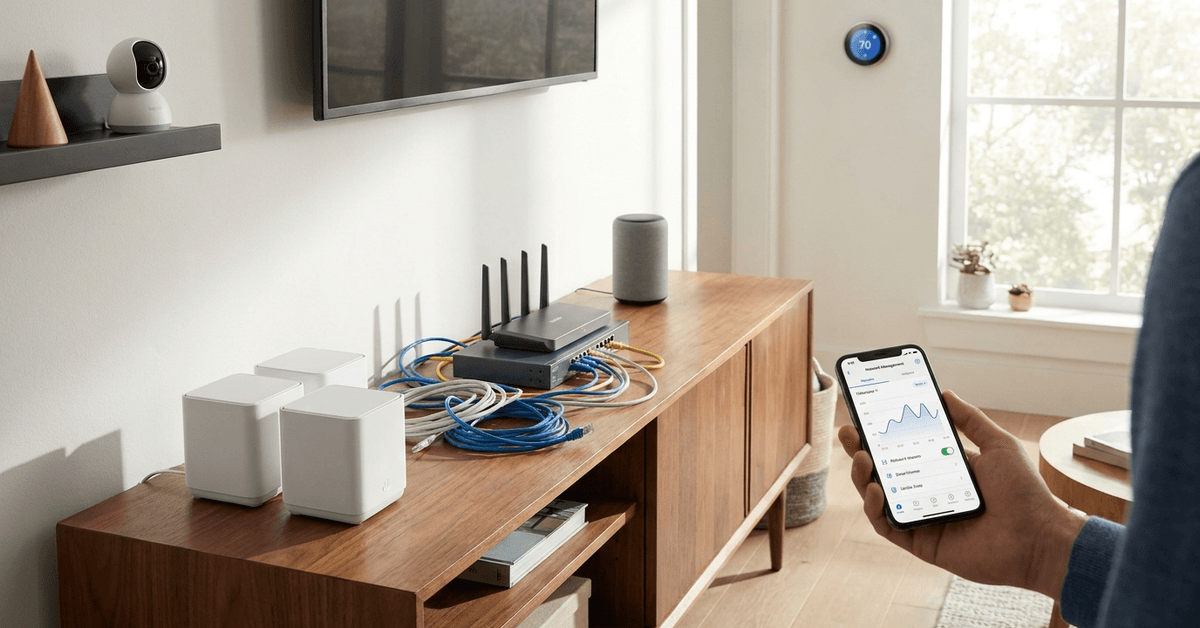
In a modern smart home, dozens of devices talk to your network each day. Everything from security cameras to light bulbs depends on stable, fast connections.
For tech-savvy homeowners, network lag can be especially frustrating. It interrupts real-time monitoring, automation, and overall convenience.
With data-hungry devices, mesh networks, and smart assistants, the risk of congestion grows. The solutions, however, are usually straightforward and highly effective.
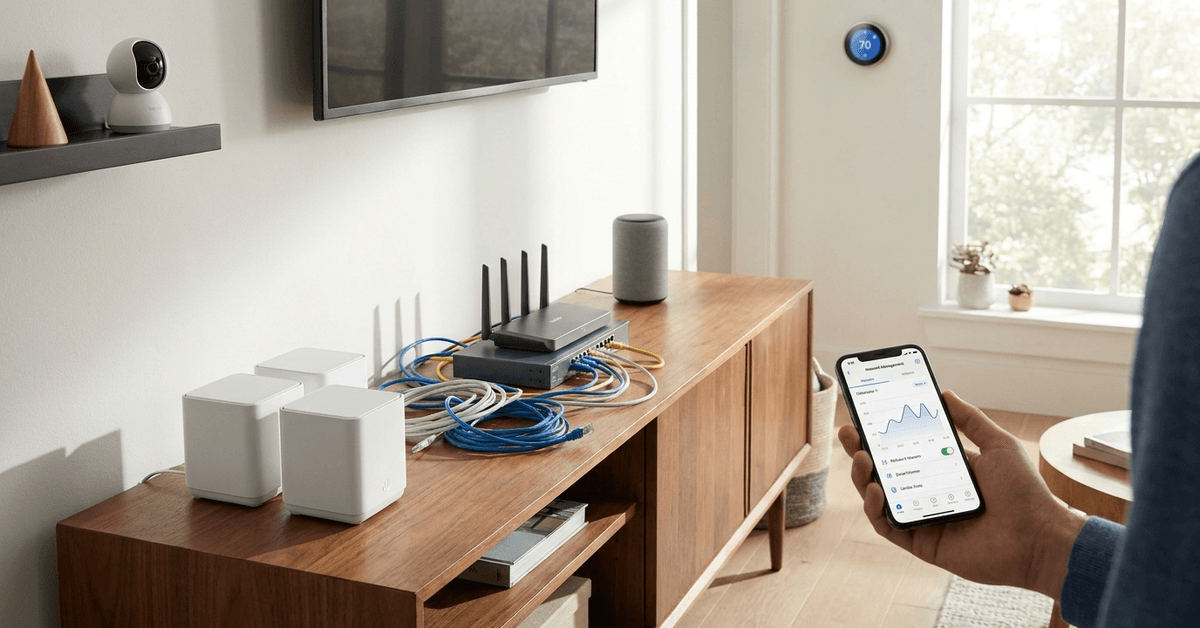
Understanding the Causes of Network Lag
Network lag is not always caused by a single device. Often, it’s a combination of several factors. Identifying the most likely bottlenecks lays the groundwork for effective improvement.
Device Overload
Most routers support a limited number of simultaneous connections. When surpassing this, performance usually drops. Smart homes often exceed typical consumer hardware limits.
Insufficient Bandwidth
Heavy traffic from cameras, speakers, and cloud-connected sensors can saturate available bandwidth. Households using 4K security cameras, for example, notice this quickly.
Interference
Wireless networks are sensitive to physical barriers and radio signals from other devices. Wi-Fi congestion from neighbors on the same channel is common in urban settings.
Outdated Firmware
Older device software can create compatibility issues or miss network optimization features. Regular updates keep routers and hubs performing more smoothly.
Optimizing Your Router Settings
The router is the backbone of any connected home. Optimizing its settings drastically reduces lag.
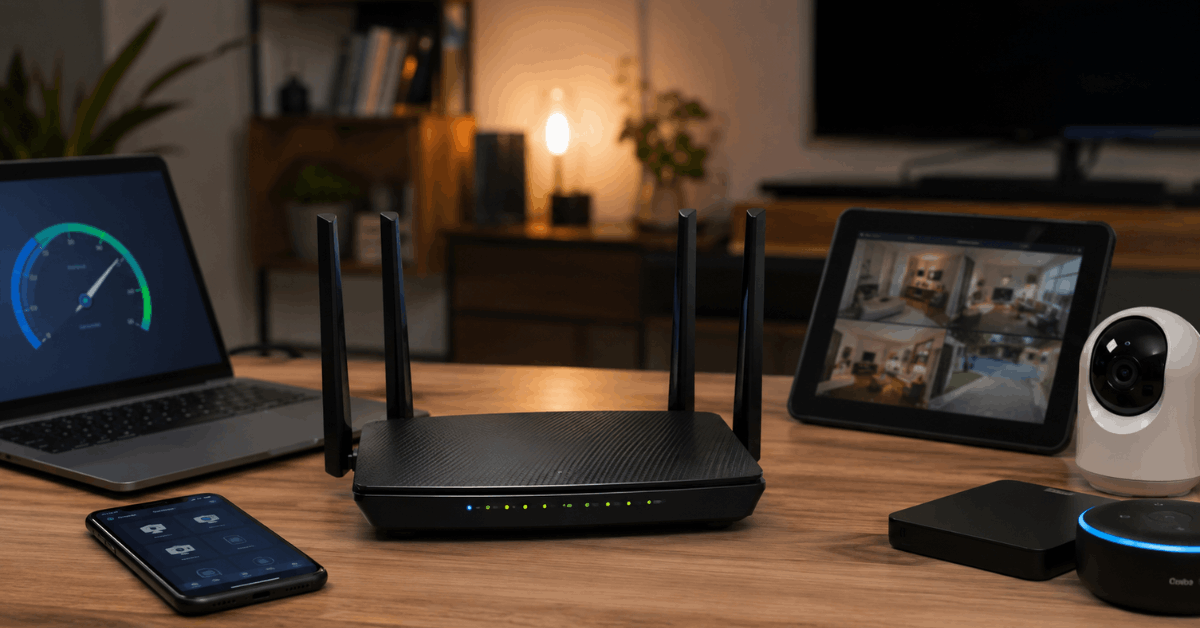
Choosing the Right Wi-Fi Band
Modern routers offer both 2.4GHz and 5GHz bands. The 5GHz band is often less crowded and supports higher speeds. Connecting bandwidth-intensive smart hubs or cameras to 5GHz can help.
Quality of Service (QoS)
Quality of Service settings let you prioritize smart devices that need real-time data, like doorbells or cameras.
- Log in to your router’s interface
- Locate the QoS section
- Assign high priority to critical smart home devices
Guest Network Isolation
Running guest and smart home devices on separate Wi-Fi networks prevents unnecessary broadcast storms. This also minimizes security risks.
Firmware Updates
Most routers now support automatic update options. Enabling this ensures better performance and security features are not missed.
Implementing Wired Connections where Possible
Wireless is convenient, but many devices offer the option to connect via Ethernet for reduced lag. For stationary gadgets like hubs, switches, or media servers, this is effective.
- Use Cat6 or better cables for reliability
- Connect high-bandwidth devices like security NVRs or smart TVs directly to the router or unmanaged switch
Expanding Coverage with Mesh Networking
Larger homes, or those with thick walls, benefit from mesh Wi-Fi systems. Mesh Wi-Fi platforms like Eero or Google Nest Wifi create overlapping coverage zones.
This ensures no dead zones and reduces packet loss between smart devices and the core network.
- Place mesh nodes strategically to eliminate weak spots
- Connect key devices to the nearest node rather than the main router
Reducing Interference From Neighboring Networks
Even advanced smart homes suffer from Wi-Fi interference caused by outside devices.
Manual Channel Selection
Most routers select channels automatically, but a manual scan with a tool like WiFi Analyzer often identifies low-interference channels.
- Scan for current channel congestion
- Switch to a less crowded channel in your router settings
Band Steering
Enabling band steering encourages capable devices to use the less-congested 5GHz frequencies.
Many routers manage this automatically, but a settings review is worth considering.
Managing Device Prioritization and Traffic
Not all smart devices require constant, fast connections. Prioritizing is more efficient than upgrading hardware.
Smart Device Scheduling
For non-security automations, like lights or vacuums, scheduling updates minimizes peak load hours.
Some hubs and platforms, such as Home Assistant, include options for staggered polling and updates.
Limiting Cloud Polling Frequency
Reducing how often devices check the cloud server conserves bandwidth.
Settings can typically be found in advanced device menus.
Exploring Smart Home Protocols That Reduce Lag
Not all smart home gadgets rely on Wi-Fi or Ethernet. Protocols like Zigbee and Z-Wave operate on separate frequencies.
These allow certain devices to bypass local Wi-Fi entirely, minimizing congestion.
- Smart bulbs, switches, and sensors are widely available in Zigbee and Z-Wave variants
- A dedicated hub is required, such as Samsung SmartThings for Zigbee
Thread is another emerging protocol, optimized for reliability and speed in dense setups.
Tips for Reducing Smart Home Network Lag
Small network adjustments can improve speed and device response times.
- Move the router centrally.
- Wire stationary devices.
- Prioritize security equipment.
- Separate crowded Wi-Fi bands.
- Monitor heavy data users.
Advanced Monitoring and Troubleshooting Tools
Many advanced users adopt network analyzers to review smart home traffic in real time.
Recommended Tools
- Fing: Offers device detection, latency checks, and intruder alerts
- Wireshark: Useful for examining detailed packet flow, though best only for advanced users
- Router manufacturer apps: Netgear Genie and TP-Link Tether provide bandwidth analysis
Step-by-Step: Diagnosing High Latency
- Run a speed test on the main broadband connection
- Use Fing or similar apps to identify devices with high network usage
- Temporarily disconnect or schedule heavy-use devices to run at off-peak hours
- Log network performance changes for each adjustment
Smart Security Devices Without Networking Overhead
Some security setups avoid real-time video streams, lowering network burden.
Systems using local storage (e.g., a microSD card in a smart camera) or event-triggered uploads conserve bandwidth.
Selecting devices with smart notifications, rather than 24/7 uploading, further reduces network lag risks.
Conclusion: Achieving a Responsive, Secure, Smart Home
Building a heavily automated smart home introduces complex networking challenges. Yet, minimizing lag is often achievable with thoughtful setup, the right protocols, and occasional monitoring.
Homeowners who plan for both Wi-Fi and alternative protocols, regularly update device software, and embrace mesh or wired connections, usually see substantial lag reduction.
The key takeaway: prioritizing network health is the foundation of any reliable smart home experience. A robust and responsive setup keeps all gadgets working, and security uncompromised.