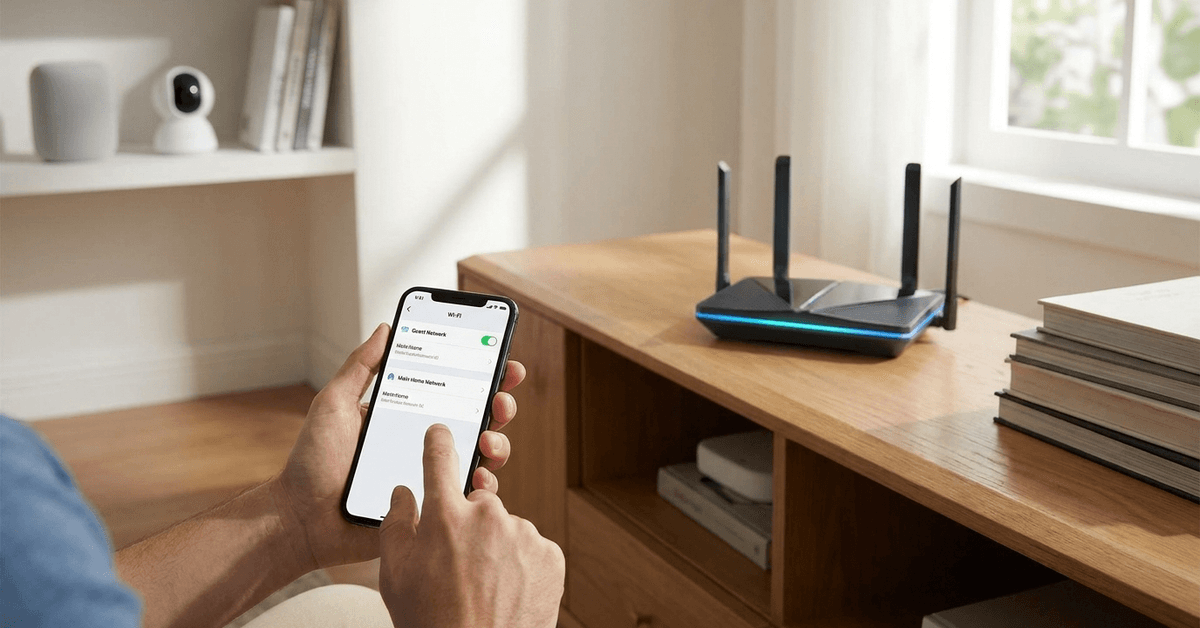
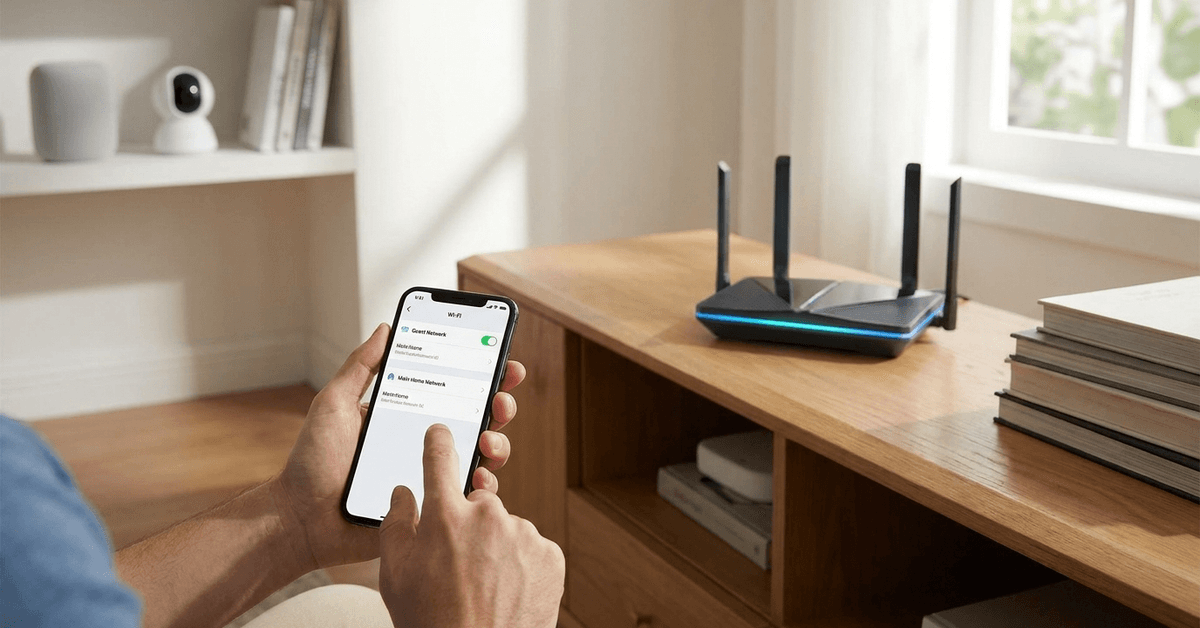
It’s common to welcome visitors into a smart home, but sharing Wi-Fi details has its risks. Creating a secure guest network keeps your main devices and personal data protected, even when friends or service providers connect.
Why a Separate Guest Wi-Fi Matters for Smart Devices?
Allowing guests or new smart devices onto your main Wi-Fi can accidentally expose your central network. This is especially risky with IoT devices prone to weak security or outdated firmware.
With a dedicated guest Wi-Fi, you create a boundary. That means if a device is compromised, it cannot access your primary systems, cameras, or sensitive information.
Primary Risks of Sharing Your Main Network
- Guests may install vulnerable apps or malware that travel your network.
- Smart speakers, lights, and plugs often lack strong security controls.
- Personal files and connected work devices remain at risk from outside devices.
Key Features of a Secure Guest Network
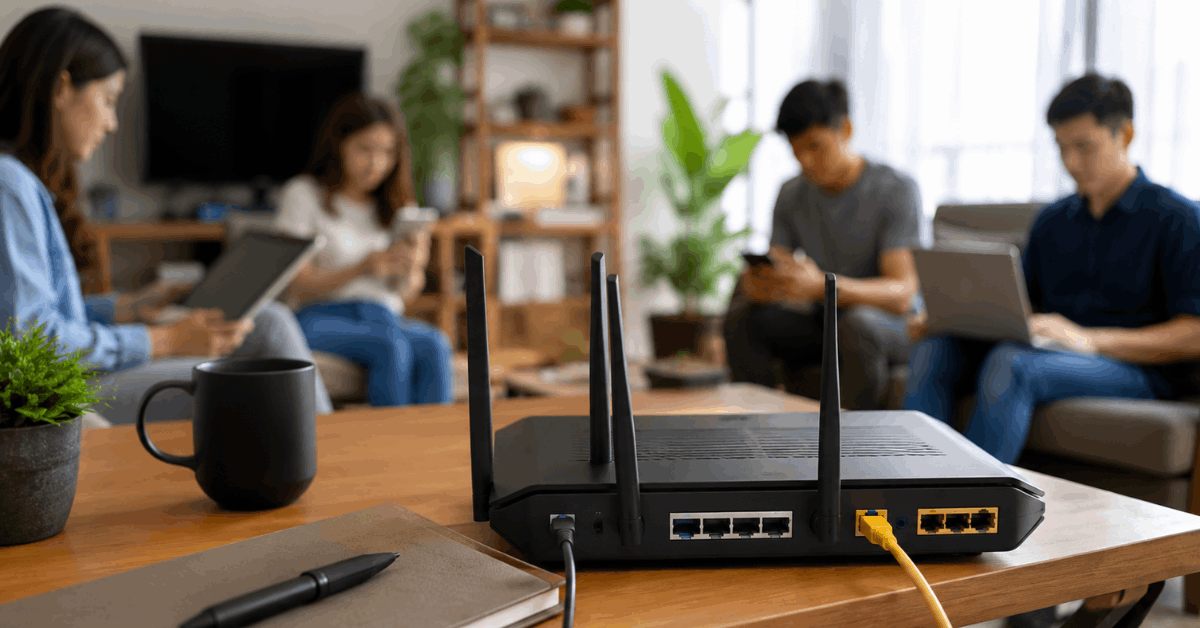
Good routers allow you to enable guest Wi-Fi with limits. Look for features that keep your main and guest networks isolated at all times.
- Network isolation: Guest users can’t interact with devices on your main network.
- Individual Wi-Fi name (SSID), separate from your primary home’s name.
- Customizable password or time-limited access code for every guest.
- Limits on the number of connected devices to minimize network load.
Choosing a Router with Strong Guest Wi-Fi Controls
Many popular brands like TP-Link, Asus, Netgear, and Google Nest WiFi support robust guest networks. For smart home environments, routers offering robust firmware and app support often lead to easier adjustments when needs change.
The Asus RT-AX58U is an example that offers intuitive guest controls. Google Nest WiFi also makes it simple to create a guest network from any phone or tablet with the official Google Home app.
Step-by-Step: Setting Up Your Guest Wi-Fi
The process varies depending on your router, but some steps show up everywhere. Below is a common sequence homeowners often find successful:
- Log in to your router’s admin interface using a browser or official app.
- Navigate to the wireless or Wi-Fi settings menu.
- Look for the guest network option and switch it on.
- Pick a unique SSID for the guest network (e.g., “Smiths_Guest” instead of your main one).
- Choose a strong password that is easy to tell guests verbally, but not guessable (consider a four-word random sequence).
- Review settings for network isolation, bandwidth limits, and time limits if available.
- Save changes and test the new network by connecting a phone or tablet as you would as a guest.
Best Practices for Maximizing Guest Network Security
Several habits can make your guest Wi-Fi even safer. These aren’t complicated, but they significantly cut risk in everyday use.
- Update router firmware regularly to patch vulnerabilities.
- Never use the same password for both main and guest networks.
- Enable WPA3 if possible for stronger wireless encryption (most new routers support this).
- Separately name each Wi-Fi network so it’s obvious for guests.
- Turn off guest Wi-Fi when not needed, especially if you have no short-term visitors.
App-Based Control for Smart Home Guest Access
Many routers now provide companion apps, making control from your phone practical. The TP-Link Tether app and Google Home both allow you to toggle guest access, reset passwords, and set bandwidth rules on the go.
This is especially handy if a guest needs time-limited access, or if a smart device functions as a temporary access point (like for contractors or short-term tenants).
Configuring Smart Devices for Guest Access
Sometimes it’s better to connect certain IoT devices to the guest network, especially products from lesser-known brands or items that only need online access, not control inside your home.
Devices like budget smart bulbs, third-party plugs, or rental-friendly hubs are good candidates for guest Wi-Fi only. This helps limit exposure if their security is untested.
How to Move Devices to the Guest Network?
- Factory reset the device, or select “Change Wi-Fi” in its companion app if supported.
- Connect using the new guest SSID and password.
- Test the device’s functions to confirm connectivity is working as expected.
- Monitor activity for the first day to ensure no loss in control from your main network.
Controlling Access and Monitoring Usage
Advanced routers feature the ability to view who’s connected to your guest network in real time. Asus AiProtection, Ubiquiti UniFi, and Netgear Armor all provide dashboards for device oversight.
The most useful tool here is network access control , letting you ban unknown devices or block connections that seem suspicious. This keeps unfamiliar guests from overstaying their welcome, online or offline.
Recommended Monitoring Steps
- Check the guest network’s device list at least monthly, or more often during busy periods.
- Review connected device names for anything you don’t recognize or didn’t expect.
- Change the guest password periodically, especially after hosting multiple different guests.
- Set alerts in your router app for new guest device connections (available in routers by Asus or TP-Link).
Common Troubleshooting: If Devices Can’t Connect
Some smart devices struggle to join guest networks due to isolation settings or compatibility quirks. If connection issues appear, homeowners often find it useful to:
- Toggle off AP/client isolation temporarily while pairing then restore it immediately after.
- Ensure the guest network’s band (2.4GHz vs. 5GHz) matches what the device supports.
- Update the device firmware before moving it to the guest network.
- Consult the official device support page if pairing fails repeatedly.
Conclusion
Setting up a secure guest Wi-Fi network is one of the simplest ways to protect your smart home from the unexpected. By separating visitor and device access, you cut off vulnerabilities that put your main systems at risk.
Routers with robust guest controls, strong passwords, and clear app management make the process accessible for anyone. Routine monitoring and simple best practices help keep surprises to a minimum, even as more smart devices and guests come through your door.
For those focused on practical security and a hassle-free home tech experience, a dedicated guest Wi-Fi is not just optional. It’s one of the smartest steps you can take to keep your family, data, and connected gadgets safe down the road.