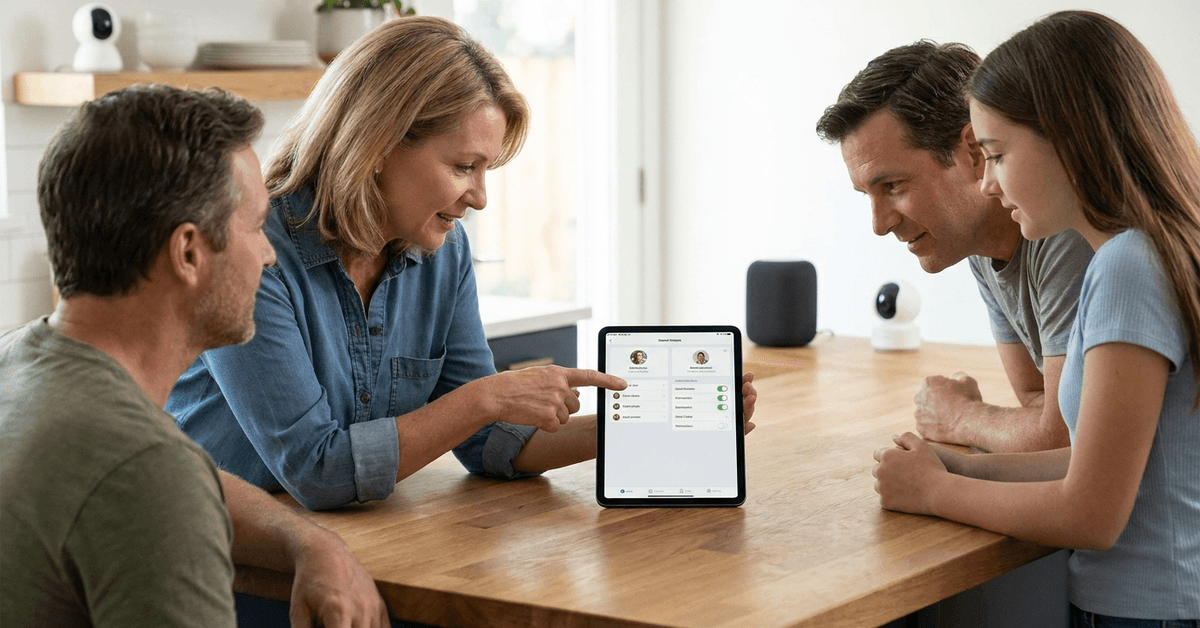
Managing smart home devices is easier than ever. Yet, controlling who can access your system is critical for privacy and safety. For families, the balancing act is real.
It’s about making life easier—without opening the door to security risks. If you are a homeowner or the main tech manager, this guide will help you safely grant app access to family members, step by step.
Why Safe Sharing of Smart Home App Access Matters?
Every smart home setup hinges on device control. If access isn’t managed carefully, vulnerabilities creep in. Unrestricted sharing may sound convenient, but it risks exposing private data, personal habits, or even entry permissions to the wrong people.
Children, guests, and relatives might accidentally alter settings or trigger routines. Extra caution keeps everyone safe, ensures things keep running, and avoids tech headaches down the road.
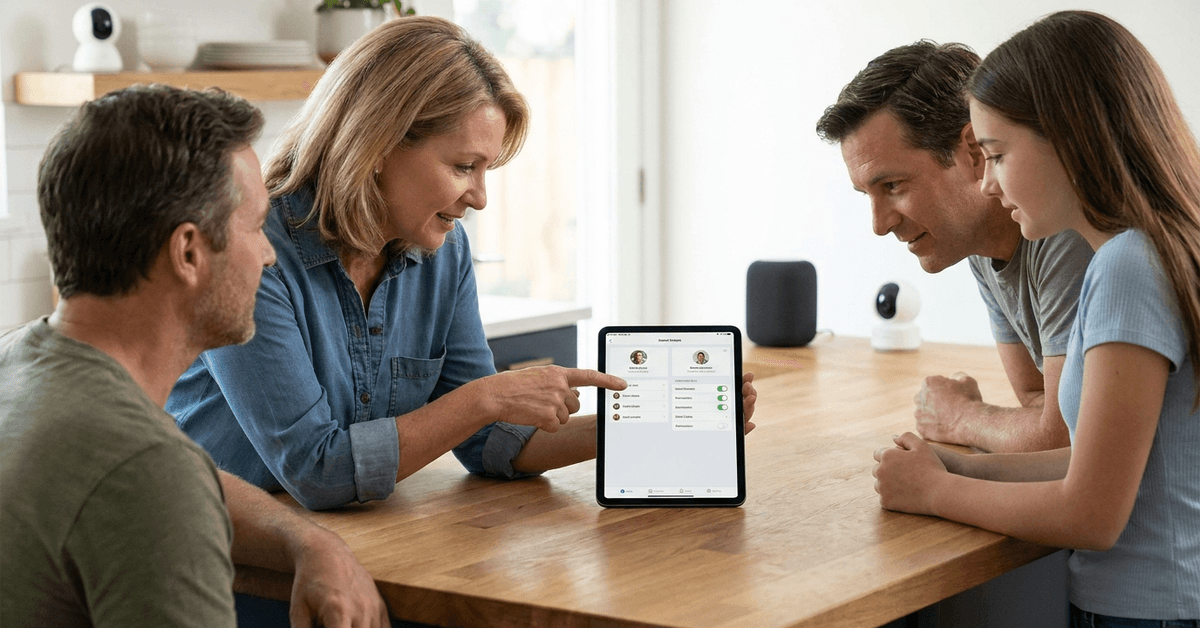
Main Ways to Share Smart Home Access
Popular platforms offer several access-sharing models. Some prioritize admin controls, while others let anyone in the house tweak automations. Understanding these is the first real step.
Account Linking (Official Household or Family Features)
Google Home, Apple Home, and Amazon Alexa all provide native household sharing.
- Homeowners typically invite others via email or phone from the app’s ‘Home Members’ or similar section.
- Invited users receive limited access and can’t always change main account settings.
- Admins can revoke or rearrange privileges as needed. This is usually the safest route.
Guest Access or Temporary Pass Codes
Some systems, such as smart locks, let you create temporary pins or guest modes. Useful for visitors or caregivers who need access but shouldn’t have full app control.
- Yale, August, and Schlage locks support unique guest codes and scheduled permissions.
- Smart alarms may offer a ‘Guest’ profile, keeping sensitive settings protected.
Step-by-Step: Sharing Access Safely in Top Smart Home Ecosystems
The safest way to share access often depends on your ecosystem. Here’s how to set up secure sharing for the leading platforms—
Google Home
- Open the app, select your home, and tap ‘Settings’.
- Navigate to ‘Household’ or ‘Add Member’.
- Enter the person’s Google email, then send the invite.
- Recipients accept via email and install the app to join.
- Admins control who can adjust devices, routines, or settings.
Apple Home (HomeKit)
- Launch Home, tap the Home icon, and select ‘Home Settings’.
- Choose ‘Invite People’.
- Enter the family member’s Apple ID.
- After accepting, they’ll appear in the list of household users.
- Permissions, like camera access or remote control, can be fine-tuned for each invitee.
Amazon Alexa
- Go to ‘Settings’, then tap ‘Household Profile’ .
- Follow prompts to invite family by sending a notification.
- User accepts through their app, joining your Alexa Household.
- Skill-sharing, music libraries, and device control can be split or limited per person.
SmartThings
- Open app, tap the three-dot menu, and find ‘Manage locations’.
- Choose the location, then ‘Add Member’.
- Use an email address to invite new users to your hub or location.
- SmartThings supports role-based permissions, with admin and guest levels.
Ring
- In the app, tap the menu and select ‘Users’.
- Add ‘Shared Users’ by entering their email.
- Limit what devices or alerts the new user can see.
- Ring does not share account credentials, only partial access.
Tips to Minimize Risks When Sharing Access
Limiting what each user can do and see helps maintain security. Not everyone needs control over every door lock or camera feed. Precision here matters.
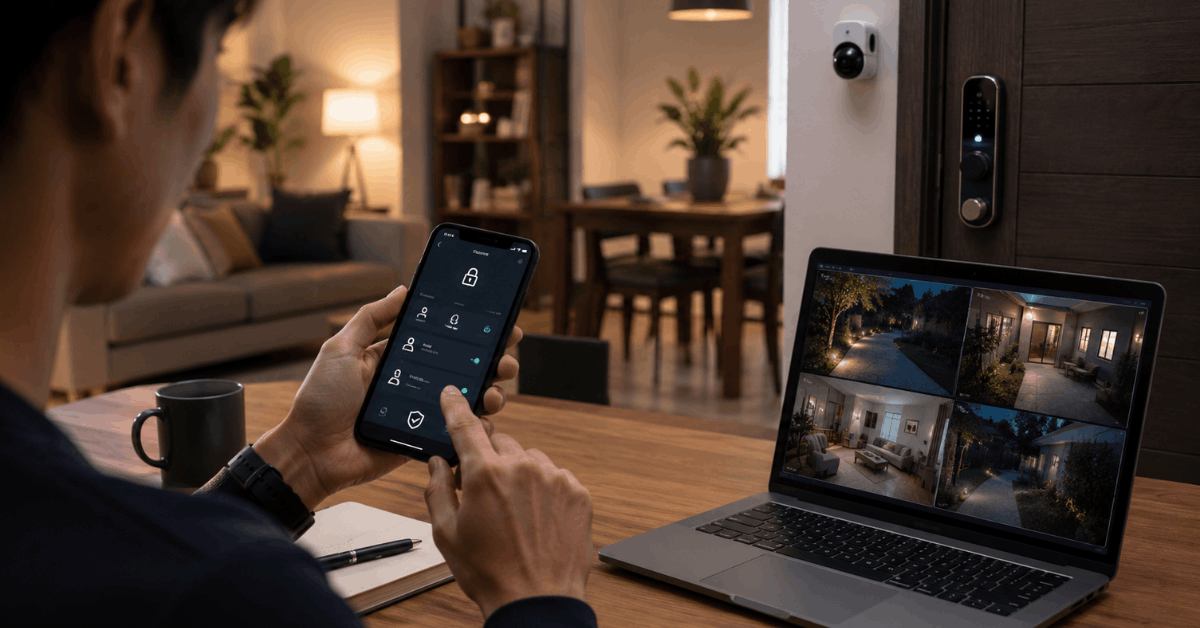
Use Unique Logins
Platforms such as Google Home or Apple Home prefer each member sign in with a distinct account. Family credentials must never be given out directly, as it muddles audit trails and increases risk.
Set Proper Roles and Restrictions
Most popular apps allow roles like ‘Admin’, ‘Member’, or ‘Guest’. Granular controls stop mistakes and help protect sensitive devices, such as external security cameras.
Regularly Review Shared Users
A useful habit is to check the app’s member list every few months. Remove old invitations or accounts that are no longer needed. Some families find a quarterly review fits well.
Two-Factor Authentication
If the main app offers it, enabling two-factor authentication adds an extra layer of security. It prevents access if a password leaks, catching most basic attacks.
Child, Teen, and Elderly User Considerations
Younger kids and elderly relatives might struggle with complex apps. A great option is to use simplified profiles or guest modes where possible, limiting their risks if something goes wrong.
- Smart locks offer one-time codes for children or helpers who don’t use a smartphone.
- Alexa Kids and Google Family Link let parents control device access and restrict accidental purchases or dangerous settings.
- Seniors often appreciate voice control, or routines triggered by arrival, rather than full app access.
Advanced Security Protocols for Families
Families often wonder how secure these sharing features actually are. Industry standards keep evolving, but paying attention to protocols provides peace of mind.
End-to-End Encryption
Key household data is safer if the app supports end-to-end encryption , especially for camera feeds or recorded footage. Apple HomeKit, for example, excels here by encrypting HomeKit Secure Video data at each point.
Device Firmware Updates
Outdated hardware can become a loophole. Enabling automatic firmware updates (if available) and checking device status ensures that bug fixes and new features reach every part of your network.
Common Mistakes Families Make When Sharing App Access
- Sharing primary account passwords instead of using invitation features.
- Neglecting to set guest access codes for temporary users.
- Leaving too many users with ‘admin’ rights.
- Failing to remove old roommates, housekeepers, or guests from member lists.
- Ignoring alerts about unusual logins or failed access attempts.
Conclusion
Sharing smart home app access with family members is both convenient and complex. Using official features in platforms like Google Home or HomeKit provides a strong foundation.
Assigning the right roles, regularly updating access, and fine-tuning security help families enjoy home automation with peace of mind. The goal is always safety without sacrificing convenience.
As device options and app features keep evolving, it pays to stay curious and keep tinkering. You’ll find that well-managed access isn’t just about tech—it’s about trust, responsibility, and making life smoother for everyone in your home.