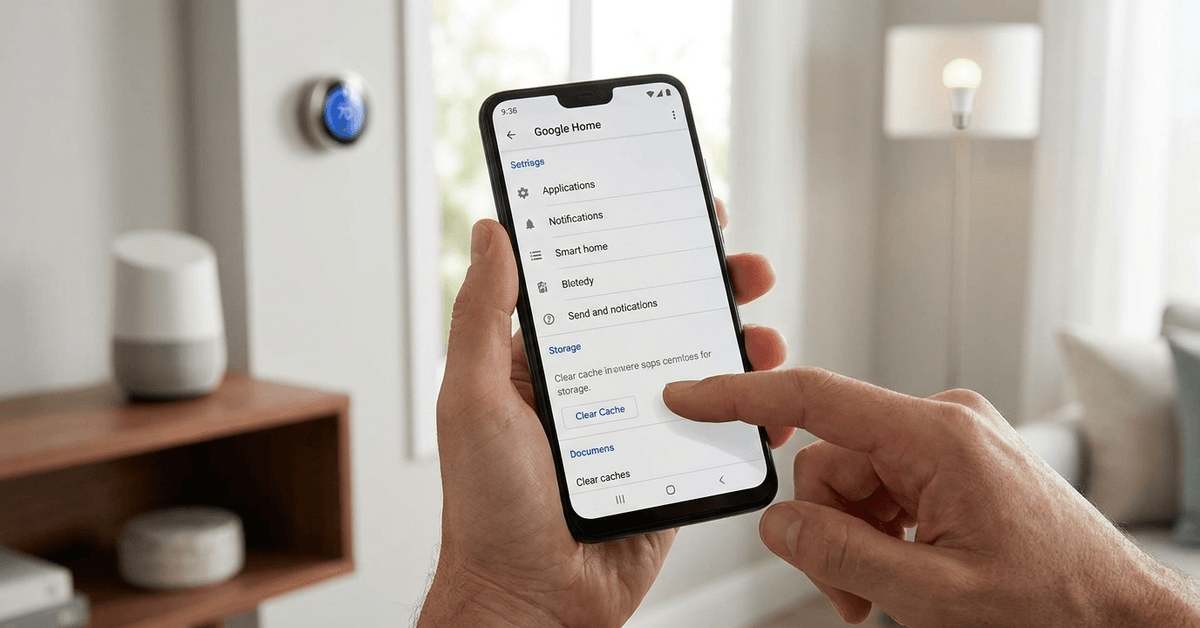
Smart home control apps can experience sudden glitches, slowdowns, or unusual lag. Many homeowners notice problems like lost device connections or delayed automations. These issues often trace back to cached data that has built up in the app over time.
This guide offers practical advice for those managing smart locks, cameras, thermostats, and smart displays at home. Anyone wanting a smoother, more reliable system may benefit from resetting cached data. A clean cache can solve bugs fast without requiring advanced troubleshooting.
Why Cached Data Can Cause Bugs in Smart Home Control Apps?
Smart home control apps retain temporary information. This process lets them load quickly and store device settings or login data locally. Over time, the cached information can become corrupted or outdated.
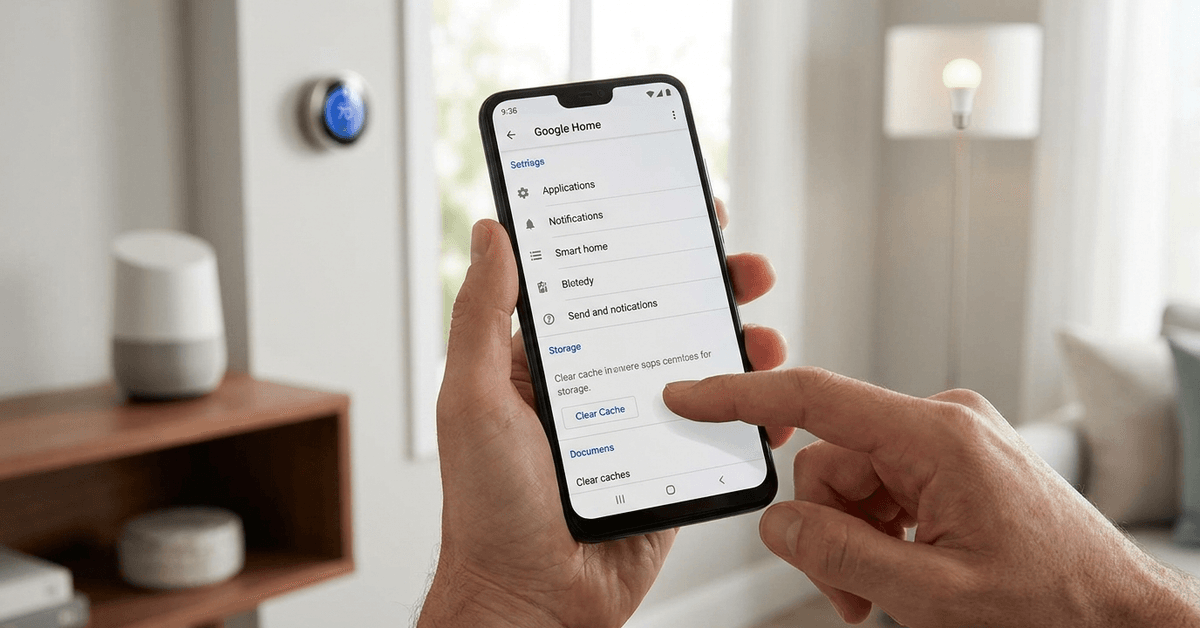
When this happens, users might encounter issues like:
- Controls not syncing with devices instantly
- Scenes or automations failing to trigger
- Frequent app crashes or freezing screens
- Incorrect display of live camera feeds
The buildup can occur in any app: Google Home, Apple Home, Amazon Alexa, or popular proprietary apps like SmartThings, Tuya Smart, and Aqara Home.
When Clearing Cache Is Helpful?
Clearing cache may not solve every malfunction, but it often works for small, sudden bugs. Some signs that suggest a cache reset might help include:
- Recent software updates causing instability
- Smart accessory icons missing or taking too long to appear
- Automations or schedules executing incorrectly
- Notifications not reaching your device as expected
Occasionally, just signing out and back in can fix the issue. More persistent problems often need a deeper refresh via cache clearance.
How to Clear Cache on Android Smart Home Apps?
Most Android smart home control apps support built-in cache management. Clearing the cache does not delete personal data, device settings, or account logins.
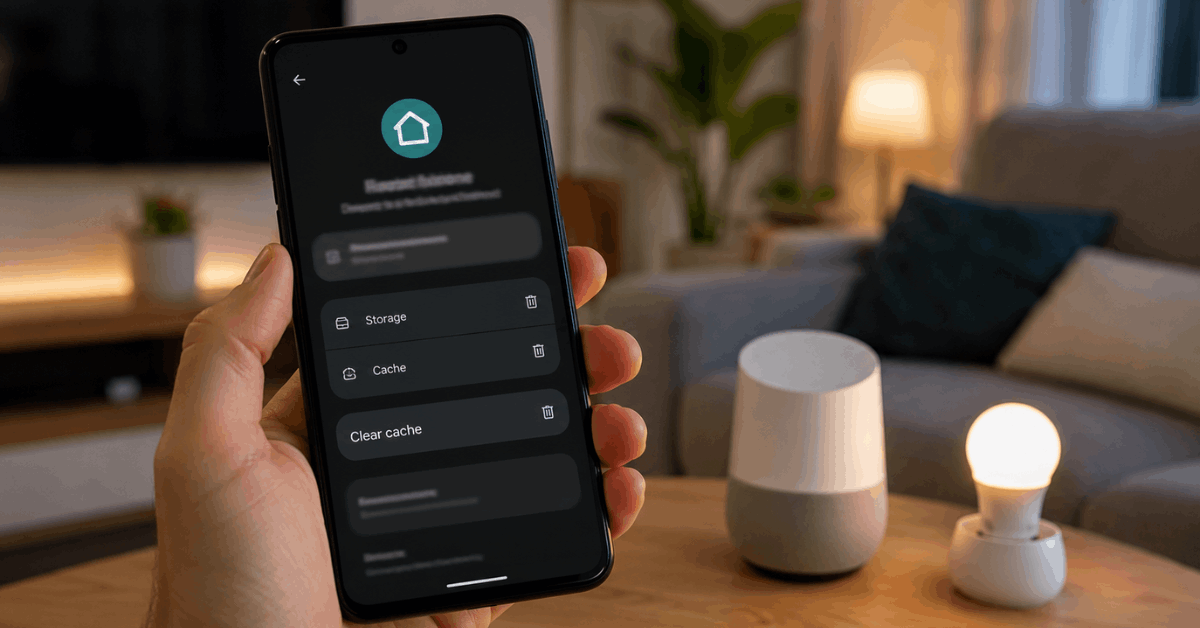
The process generally takes less than a minute and is safe to repeat whenever troubleshooting bugs.
Step-by-step: Clearing cache for apps on Android
- Locate the app icon, such as Google Home or Philips Hue, on your smartphone.
- Press and hold the icon until a menu appears.
- Select “App Info” or tap the small “i” symbol.
- Find and tap the option labeled “Storage & Cache”.
- Choose “Clear Cache” (not “Clear Storage”).
After these steps, open the app again. Often, device lists and automation triggers will refresh and function more smoothly.
Apps with cloud backup: Caution notes
Apps that sync with the cloud, like SmartThings, maintain your information securely online. Clearing the cache only removes temporary files from your phone.
However, some custom notification settings or display preferences could be reloaded after the reset.
Clearing Cache on iOS Smart Home Control Apps
Apple iOS does not provide a direct “clear cache” button for individual apps. Instead, several methods can force a reset of cached files, improving app reliability when bugs appear.
Method 1: Offloading the app
- Go to iPhone Settings, then tap “General”.
- Choose “iPhone Storage” and find the desired app, such as Apple Home or Aqara Home.
- Tap the app, then select “Offload App”.
- Reinstall the app from the App Store when prompted.
This process removes cache and app binaries but generally preserves key settings and login details.
Method 2: Delete and reinstall the app
- Long press the app icon and select “Remove App”.
- After deletion, visit the App Store and download the app again.
For some users, this is the only way to get a fresh cache outside developer mode.
Cache Management on Popular Smart Home Control Platforms
Leading smart home platforms may have specific options for cache-related troubleshooting. Users might have slightly different experiences depending on which solution they choose:
Google Home
Android users can clear the Google Home app cache directly as explained above. iOS users need to uninstall or offload.
Amazon Alexa
The Alexa app permits cache clearing on Android via the usual process. For iPhones, offload and reinstall as described for iOS apps.
Samsung SmartThings
SmartThings on Android permits cache clearing from App Info. Sometimes, reinstalling the app helps on iOS.
Philips Hue and proprietary apps
Other brands, including Aqara Home and Tuya Smart, follow the same process: clear cache on Android, re-install on Apple devices. No user settings are lost unless “Clear Data” is selected by mistake.
When Clearing Cache Does Not Help?
Occasionally, app bugs are linked to software incompatibilities or firmware issues rather than cached data. In such cases, alternate solutions are more effective.
- Check for updates to the app or your device’s operating system
- Restart your phone and affected smart home hubs
- Verify Wi-Fi connectivity and local network stability
- Consult support forums from the official brands for recent bug notices
In rare instances, compatibility problems stem from outdated network protocols like WPA or IPv6 support. Some homeowners find it useful to review their router admin page for security updates.
Extra Troubleshooting for Advanced Users
More technical users occasionally use developer options for deep cache diagnostics. Android offers tools like “Force Stop,” while iOS users investigate logs with Mac utilities.
These steps are generally not needed for typical homeowners, but can uncover hidden conflicts on rare occasions. The safest route is to rely on standard reset processes before advanced tweaking is considered. Caution and backup are always wise when attempting in-depth app maintenance.
Tips to avoid recurring app bugs in the future
Frequent cache-related bugs tend to signal a deeper issue with your system.
- Update apps as soon as new versions are released
- Minimize the number of third-party add-ons or plug-ins
- Restart smart home hubs and routers monthly for best stability
- Secure your devices with strong passwords to reduce risks of abnormal network traffic
- Consider joining official app beta testing programs for earlier bug fixes
Conclusion: Restoring reliability to your smart home experience
Clearing the cache on smart home control apps is a proven way to resolve common bugs quickly. Whether using Android or iOS, the process often restores lost speed, fixes device controls, and updates device icons.
Persistent issues typically trace back to outdated software or device configuration, so keeping apps updated and your network secure pays off long term.
Reliable automation leads to safer, simpler, and more convenient smart homes. Occasional cache resets can help anyone maintain a hassle-free experience on Fortressmate.com and stay in control of every connected gadget.