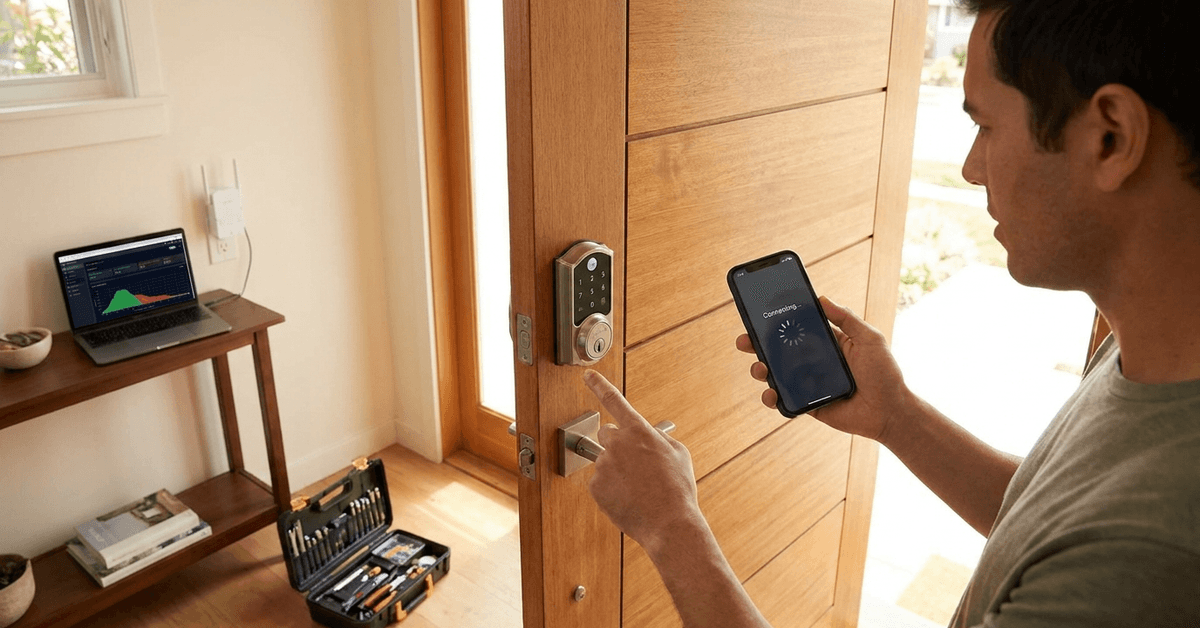
Smart locks make homes more secure, but a laggy app can undermine convenience. This article is for homeowners, renters, and anyone relying on mobile apps to control smart locks.
Quick, reliable app performance is key for peace of mind. We’ll break down the most common causes of lag, share expert troubleshooting, and help you keep your smart lock app working smoothly every day.
Common Causes of Lag in Smart Lock Apps
Poor Wi-Fi or Bluetooth Signal
Unstable network connections are the most common culprit. Signal strength can drop due to walls, floors, or interference from other electronics.
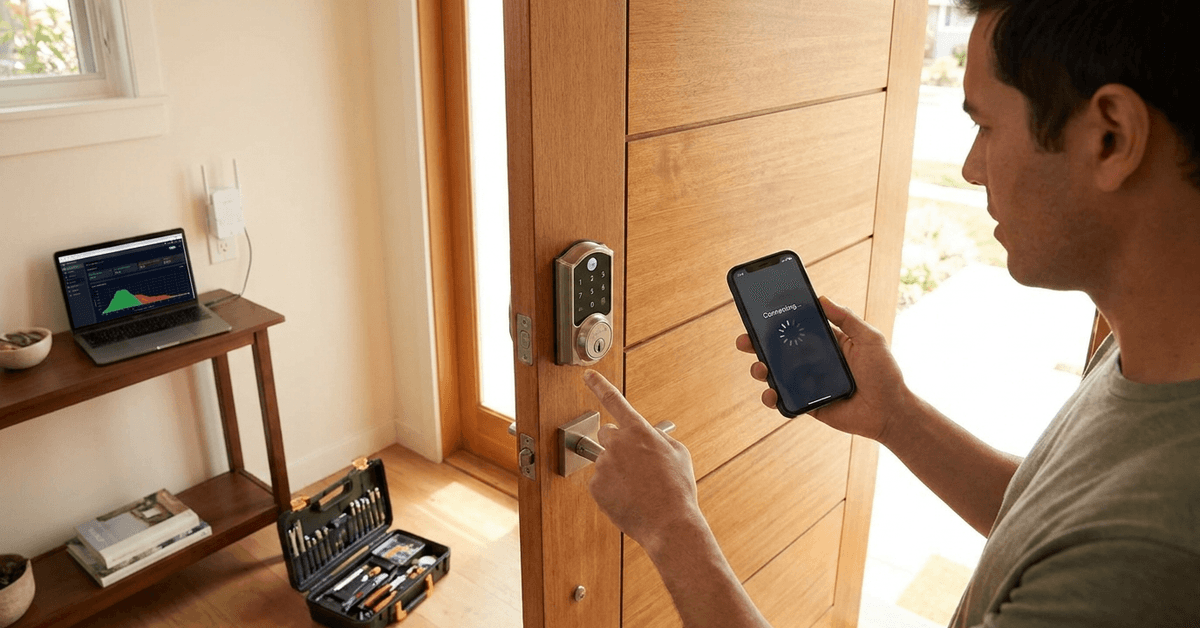
If your smart lock uses Wi-Fi, a weak router signal can delay commands. Bluetooth models may act even slower when your phone is too far from the lock or blocked by metal.
Overloaded Mobile Devices
Sometimes, app performance issues start with the phone or tablet itself. Too many background processes or low storage can slow any smart home app, including smart lock controls.
Outdated operating systems or heavy RAM usage might not directly cause lag, but they make any app respond sluggishly.
Outdated Firmware or App Version
Developers often release updates to improve speed and fix bugs. An outdated app or lock firmware may struggle with newer phones or operating systems, causing delays or glitches.
Some locks require manual firmware updates, especially older models or those not set to auto-update via the app.
Server-Dependent Apps
Cloud-based smart lock services (such as August, Yale, or Schlage apps) route commands through remote servers. If the server is slow, app performance drops—even with a fast local network.
Maintenance periods or outages sometimes explain sudden increases in app lag.
Conflicting Smart Home Integrations
Adding your lock to multiple platforms (Google Home, Alexa, Apple HomeKit) can create command delays or redundant requests. The more integrations, the more complex the data flow.
Occasionally, an automation conflict like two apps trying to control the lock at once will introduce extra lag.
Diagnosing Your Smart Lock App Lag
Signal Checks and Speed Tests
Running a quick Wi-Fi speed test near your door gives clues. Homeowners often try “WiFi Analyzer” (Android) or “NetSpot” (iOS/Mac/PC) to pinpoint weak spots.
If the lock is Bluetooth-only, the device should be within 10 meters, ideally with no large obstructions. Trying the app on the other side of a wall often highlights signal loss.
App and Firmware Audit
Visit the lock manufacturer’s official app page (like August Home or Yale Access) to check for the latest version. Some brands also let you check firmware status within their own app settings.
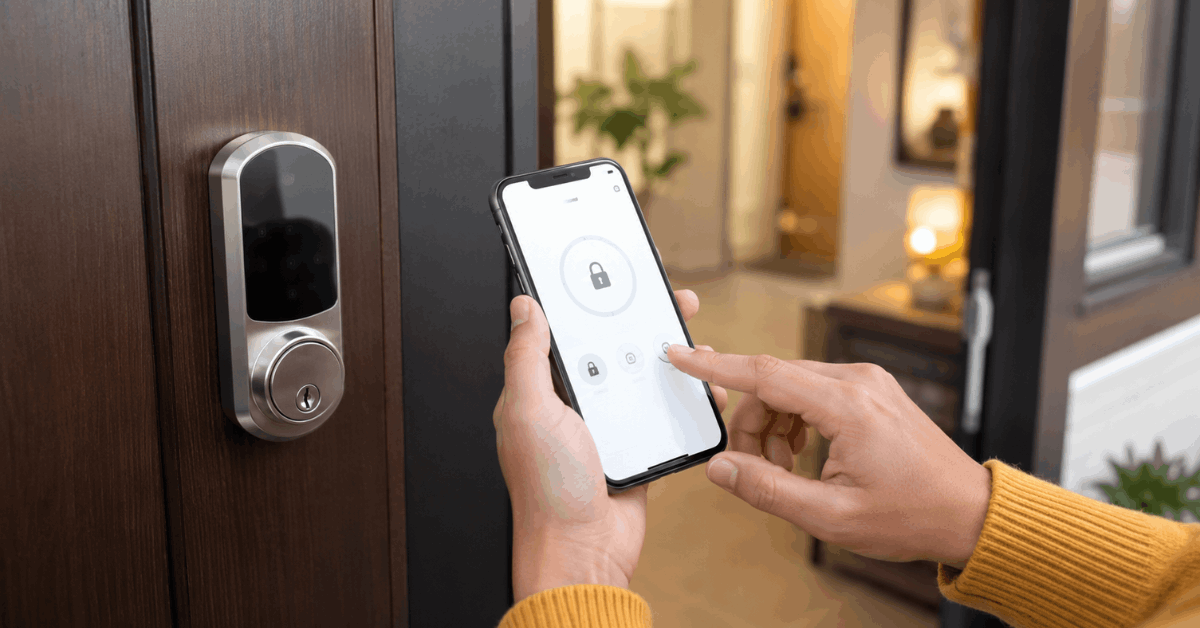
Comparing app version numbers with release notes helps identify if lag appeared after a major change. Most users find this review in settings under “About Device” or “Check for Updates.”
Device Resource Monitoring
Both Android and iOS include built-in battery and storage usage tools. Checking these before opening your smart lock app can uncover if background activity is affecting perfoemance.
On Android, “Developer Options” may show real-time RAM and CPU usage. iOS users might prefer the “Settings > Storage” view to see which apps are hogging resources.
Actionable Steps to Optimize Smart Lock App Performance
Improve Network Connection
- Consider moving your Wi-Fi router closer to your door for a stronger signal.
- A Wi-Fi extender or mesh system (like TP-Link Deco or Google Nest Wifi) often helps cover dead zones.
- For Bluetooth locks, regularly check for nearby wireless interference. Other gadgets like smart speakers or cordless phones sometimes interfere.
Update Firmware and App Regularly
- Set the lock app to auto-update, if supported, in your App Store or Google Play settings.
- Visit the manufacturer’s site for the latest firmware info. For example, the Schlage Encode offers upgrade instructions on its support page.
- After updating, reset both the app and the smart lock hardware if lag persists.
Reduce Background App Load
- Closing unused apps can release memory for your smart lock app, making it more responsive.
- If your device is almost full, remove unnecessary photos and apps to free up space.
Streamline Smart Home Integrations
- Keeping the number of integrations low reduces complexity and lowers the risk of conflicts.
- If automations are causing delays, disabling or pausing some routines is worth trying.
- SmartThings, Home Assistant, and Apple HomeKit each offer settings to review connected devices. Disconnect those you rarely control with your app for faster results.
Restart Devices and Reset Connections
- A simple reboot of your phone or tablet often speeds up app performance.
- Smart locks sometimes benefit from a brief power cycle. Removing and reinserting batteries (for battery-powered locks) acts as a soft reset.
- If nothing changes, users report that deleting and reinstalling the app resets any corrupted settings.
Best Smart Lock Apps and Tools for Reliable Performance
August Home App
August Home is widely trusted for responsive controls and frequent updates. Its app supports both Bluetooth and Wi-Fi, giving users flexibility and backup access in case of internet outages.
Recent updates focus on background performance and bug fixes, further minimizing lag compared to older releases.
Yale Access
Yale Access integrates well with Apple HomeKit and Google Assistant. The app design is simple, but its real draw is reliable background syncing with the lock
Some homeowners have noticed smoother performance after switching from third-party platforms back to the original Yale Access app for direct lock control.
Schlage Home
The Schlage Home app is often chosen for Z-Wave and Wi-Fi locks in the Encode and Sense series. Its connection status page highlights signal issues and troubleshooting suggestions for lag right inside the app.
Advanced Tips for Power Users
Network Prioritization
- Some mesh Wi-Fi systems let users set device priority, so the lock or controlling phone gets bandwidth preference.
- Guest networks or isolation modes can sometimes limit app connectivity. Testing the app both on and off guest network settings clarifies if this is a problem.
Integration-Specific Optimizations
- Users with Home Assistant or SmartThings might enable direct device polling. Increasing the polling rate (if supported) allows faster refresh, but can stress network bandwidth.
- Apple HomeKit focuses on local automation, meaning Siri commands will operate your lock instantly on the same Wi-Fi—reducing reliance on cloud servers, which may help with lag.
Physical Environmental Adjustments
- If the lock motor strains or lags physically, try lubricating the mechanism (per manufacturer guidelines) to reduce delay when actuating via app.
- Testing the lock with the door open reduces friction and helps isolate whether lag is digital or mechanical.
Conclusion: Secure, Fast, and Reliable Smart Lock Control Is Achievable
Smart lock app lag can often be solved with quick, targeted troubleshooting. Focusing on signal quality, keeping software current, and simplifying integrations gives users a smoother smart home experience.
While not every lag fix applies in every home, a methodical approach finds the true problem more often than guesswork. Improved performance means faster access, better reliability, and more confidence in your connected front door.
Staying proactive with updates, network placement, and app settings should help you keep your smart lock responsive for years to come. For advanced advice and reviews, check Fortressmate.com regularly for new guides and updates.